
What Is Screen Mirroring? A Complete Guide for Every Device
You pick up your phone, tap a button, and your screen appears on the TV across the room. The idea behind screen mirroring is that straightforward. Getting it to actually work, on your specific phone, with your specific TV, on your specific network, is where most people run into issues.
If you’ve bounced between settings menus, renamed connections, and restarted devices trying to figure out why your laptop or phone won’t connect to the display in front of you, this guide is for you.
Screen mirroring goes by different names depending on your device, AirPlay on Apple, Cast on Android, or Miracast or “Project” on Windows.
Each has its own setup path. We’ll walk through all of them here.
There’s also a side of screen mirroring that most how-to guides skip entirely: security. How safe is it to mirror your screen on a shared network? Can someone connect to your device without your knowledge? And if you work in a business, school, or healthcare facility, is basic screen mirroring actually the right tool for what your team needs? We’ll address those, too.
What Is Screen Mirroring?
Screen mirroring is the process of duplicating your device’s display (phone, laptop, etc.) onto a second screen in real time. Whatever appears on your phone, tablet, laptop, or desktop shows up simultaneously on a TV, monitor, or presentation display. Most modern setups do this wirelessly over Wi-Fi or a direct wireless signal between devices.
Screen Mirroring vs Casting
Screen mirroring is different from casting. When you cast content, you send a specific media file (a video, a photo, a song) to another device, and that device plays it on its own. When you mirror your screen, the receiving display shows everything on your screen, not just a selected file. That distinction matters when you need to show a live presentation, walk someone through an app, or share something that isn’t a standard media file.
How to Turn on Screen Mirroring
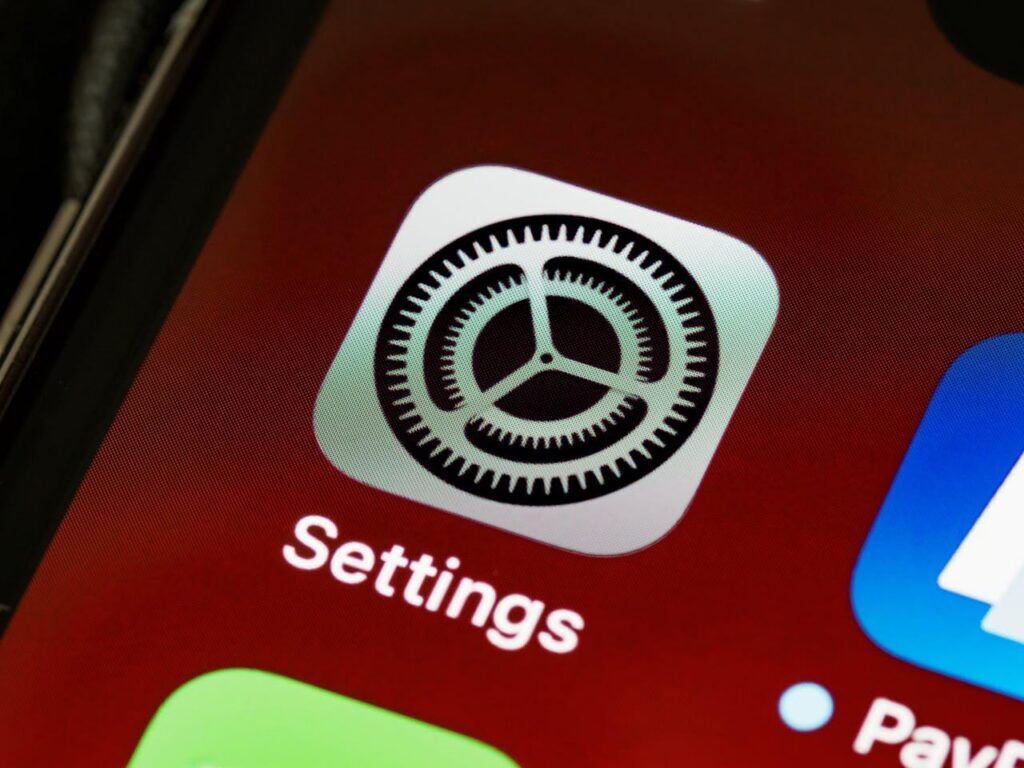
The location of the screen mirroring setting depends on your device. Here’s where to find it:
- iPhone and iPad: Swipe down from the top-right corner to open Control Center. Tap the Screen Mirroring button (it looks like two overlapping rectangles). Your device scans for nearby AirPlay-compatible displays.
- Android: Swipe down from the top of the screen to open Quick Settings. Look for “Cast,” “Smart View,” or “Screen Share,” depending on your device manufacturer.
- Windows 11: Press Windows + K or go to Settings > System > Display > Multiple Displays and select “Connect to a wireless display.”
- Mac: Click the Control Center icon in the top menu bar, select “Screen Mirroring,” and choose your AirPlay display.
Once screen mirroring is on, select the display you want to connect to, and the mirroring starts.
How to Screen Mirror to Your TV
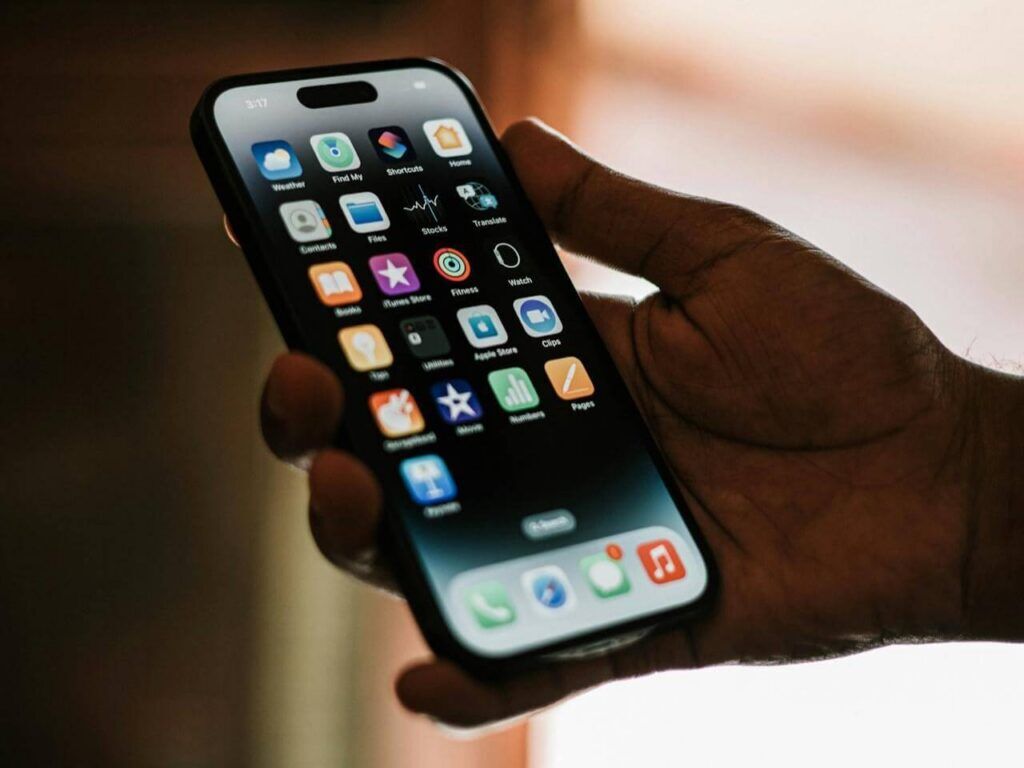
Your TV needs to support a wireless connection to receive a mirrored screen. Most smart TVs made in the past several years support AirPlay 2, Miracast, or both. If your TV doesn’t support either, a streaming device like a Google TV, Apple TV, Roku, or Amazon Fire Stick can add that capability.
How to Screen Mirror an iPhone to a TV
On iPhone, screen mirroring runs through AirPlay. Your phone and your TV need to be on the same Wi-Fi network.
- Open Control Center by swiping down from the top-right corner of your iPhone.
- Tap “Screen Mirroring.”
- Select your TV or Apple TV from the list of available displays.
- Enter the AirPlay code on screen if prompted.
Your iPhone screen mirrors to the TV in real time.
How to Screen Mirror an Android Phone to a TV
Android screen mirroring varies by manufacturer. Samsung calls it “Smart View”. Google Pixel devices call it “Cast”.
- Open Quick Settings by swiping down from the top of your screen.
- Tap “Cast,” “Smart View,” or “Screen Share.”
- Select your TV from the list of nearby displays.
If your TV doesn’t appear, confirm that both devices are on the same Wi-Fi network.
How to Screen Mirror a Windows PC
Windows uses Miracast for wireless display mirroring.
- Press Windows + K to open the cast panel.
- Select your wireless display from the list.
- Choose whether to duplicate or extend your display.
You can also go to Settings > System > Display and click “Connect to a wireless display.”
How to Screen Mirror a Mac
Mac mirrors wirelessly to Apple TV or AirPlay 2-enabled TVs.
- Click Control Center in the top menu bar.
- Select “Screen Mirroring.”
- Choose your AirPlay display from the list.
Can Someone Mirror Your Phone Without You Knowing?

This question surfaces constantly in search results around screen mirroring, and it deserves a clear answer: on a personal device with standard factory settings, screen mirroring requires your active participation. AirPlay and Cast both prompt you to accept the connection or enter a matching code. A stranger cannot silently connect to your phone from across the room and see your screen, not through these built-in tools.
That said, there are real scenarios where screen access happens without obvious consent:
- Mobile device management (MDM) software: If your employer manages your phone, the MDM policy may give IT administrators the ability to view or record device screens remotely. This is disclosed in corporate device agreements, but many people don’t read them closely.
- Spyware and monitoring apps: Malicious apps, once installed, can transmit screen data to a remote observer. Downloading apps from untrusted sources or clicking suspicious links increases this risk.
- Shared or unsecured networks: On an open Wi-Fi network, someone with network monitoring tools can intercept unencrypted wireless traffic. Depending on the mirroring protocol in use, that traffic may include display data.
Your screen is not automatically private because it’s on Wi-Fi. The security of a screen mirroring session depends on the network, the software, and what protections are actively in place.
The Security Risks of Screen Mirroring
Consumer screen mirroring tools were designed for ease of use. Security was not the primary design requirement. At home, that trade-off is manageable. In a business, school, or healthcare environment, the same trade-off creates exposure that IT teams have to account for.
Weak or missing encryption may open your devices up to transmit data without end-to-end encryption. On a corporate or shared network, that data is readable by anyone with the right network access.
Broadcast-based device discovery is when your device searches for nearby displays. It broadcasts its presence on the network. On a large enterprise network, this makes devices visible to other users who should not have access.
No authentication layer means there’s no way to verify who is connecting. There is no way to limit connections to approved devices or approved users.
Inconsistent updates means the firmware on smart TVs update on irregular schedules. Cyberattack frequency has risen between 2% and 102% across industries, making unpatched devices an active liability in environments that handle sensitive data.
Why Basic Screen Mirroring Isn’t Enough for the Modern Workplace
Screen mirroring puts one person’s screen on one display. For a solo streaming session, that’s the whole job.
For a team in a conference room, a classroom, or a clinical workspace, the demands are different.
Multiple people need to share content at the same time. A meeting where only one person can present content is a productivity bottleneck. Teams that work together need a display environment where several people can share simultaneously, not take turns waiting for the previous connection to drop.
IT needs visibility and control. Consumer mirroring apps provide no centralized management, no usage data, and no configuration tools. When something doesn’t work, IT has no window into what’s happening across a deployment.
Corporate networks are not home networks. Enterprise environments use VLANs, firewalls, and segmented Wi-Fi. Consumer screen mirroring tools frequently fail in these environments or require network exceptions that create security gaps.
Regulated industries have compliance requirements. In healthcare, the content on a screen may be protected health information governed by HIPAA. In education, student data falls under FERPA. A screen mirroring solution without encryption and access controls does not meet those standards.
Beyond Screen Mirroring: Wireless Content Sharing Built for the Workplace

This is where wireless content sharing designed specifically for enterprise, education, and healthcare environments enters the picture.
The Mersive Collaboration Suite supports wireless content sharing from any device without requiring users to download a separate app or navigate an unfamiliar setup process. It’s built to work with multiple people in the room, on a managed corporate network, with IT teams who need oversight and control.
The difference between basic screen mirroring and the Mersive Collaboration Suite comes down to what each was built to do. Consumer screen mirroring was built to be easy. The Mersive Collaboration Suite was built to be easy and enterprise-ready. That means multi-user simultaneous sharing, support for segmented corporate Wi-Fi configurations, multi-layered security architecture that covers hardware, operating system, infrastructure, and application levels, and centralized fleet management through Mersive Cloud.
For a team that meets in the same room every day, the quality of the display experience shapes the quality of the collaboration. Screen mirroring is a starting point. For most professional environments, it’s not the finish line.