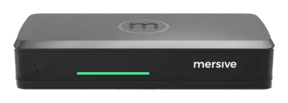
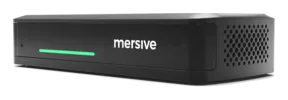
Mersive Solstice Gen 3
Solstice Pod Baseline Security Standards
Background
Before installing Solstice Pods on the enterprise network, certain security baselines should be configured to harden the security of your deployment. This document outlines the Baseline Security Standard (BSS) that Mersive recommends for environments that are security-sensitive. Pods that are not configured properly can be vulnerable to user and network security breaches, including unauthorized user access, screen capture and recording, unauthorized changes to configuration settings, and denial-of-service attacks.
The Pod is a network-attached device that provides straightforward and secure wireless access to existing display infrastructure by leveraging a host IT network. By configuring your Solstice Pods according to these guidelines, users will be able to quickly connect and share content to the displays in Pod-enabled rooms while still maintaining network security standards.
Audience
This policy applies to any organization that operates in a security-conscious environment. Small deployments, collaboration hotspots, and open-to-public use of the Solstice Pod are perfectly valid, and usually do not require strict adherence to the security baselines outlined in this document, but these steps should be considered for larger, centrally managed Pod deployments.
Given that the Pod is a network-attached device, IT administration and Network Security should be involved in designing an appropriate deployment. Each deployment can differ based on network configuration specifics and policies. However, the BSS provides an outline for secure deployment that can then be adjusted to meet specific needs.
Initial Setup
Initial configurations for each of your Solstice Pods should take place on a standalone network before they are deployed on your enterprise network. This ensures that your Pods are configured to match the security baseline recommendations before being attached to your network. The Solstice Dashboard management application needs to be installed on a secure Windows host computer or server and run on the same network as the Pods.
-
Set up a standalone network.
-
Power on the Solstice Pod.
-
Plug an Ethernet cable into both the standalone configuration network and the Pod. The Pod will receive a local IP address.
-
(Optional) You can also configure the Pod without a network using a keyboard and mouse connected directly to the Pod using a USB hub. However, Mersive recommends using Solstice Dashboard to configure your Pods, as described in the steps below.
-
Launch Solstice Dashboard on the standalone network.
- Download and install Solstice Dashboard from mersive.com/download-admin/ on your Windows host computer or server.
- Connect the Windows host to the standalone network.
- Launch Solstice Dashboard.
-
Once the Pods have been deployed on the local network, click the Discover button to import the Pods into Dashboard. If Pods do not appear, they are on a network that does not support UDP/Broadcast traffic. In this case, you can either use the CSV import option or enter them manually. For more import options and instructions, see Import Pods with Solstice Dashboard.
Password Protect Configurations
It is important to control access to configuration options to avoid unwarranted changes that could compromise security. This is done by only allowing authenticated users to make changes to configurations in Solstice Dashboard.
-
In Solstice Dashboard, select all Pods in the deployment.
-
Go to the Security tab.
-
Enable Enforce password validation rules. Passwords entered in the Dashboard will be subject to enterprise policy rules to ensure that they do not pose a security risk (that is, passwords must be at least 8 characters long, contain at least one uppercase and one lowercase letter, contain no dictionary words, and contain at least one number or symbol, with no three consecutive characters being the same).
-
Enter an administrator password. Modifying the Pods’ configuration options in the Dashboard will now require an administrator password.
-
Disable the Allow Local Configuration option to ensure users cannot access configuration settings by connecting a keyboard and mouse to the unit in the room.
-
Disable the Allow Browsers to Configure Pod option. At this point, only authenticated users of Solstice Dashboard will be able to modify Pod settings.
Set Access Controls
Solstice’s access control settings address runtime security issues related to how users are authenticated and are granted or denied access to share and control content on the Solstice display.
-
Select all Pods in the Dashboard and go to the Security tab.
-
Select Screen Key Enabled to ensure that only users who have line of sight to the display and are on a valid network can connect to the display.
-
Enable Encrypt Client/Server Communications on the same configuration tab. This ensures that all Solstice traffic on the network is encrypted. Additionally, once encryption is enabled, third-party devices using the Solstice OpenControl API will need to authenticate with Pods using the administrator password before they can interface or interact with your Solstice endpoints.
Configure Network Settings
The Solstice Pod supports secure access to two independent, onboard network interfaces. Each is configured independently and uses its own routing table, supporting secure simultaneous access to the Pod from two segmented networks (for example, from a corporate and a guest network). When this dual-network configuration is chosen, the Firewall feature should be enabled.
- In Solstice Dashboard, select all the Pods in your list of Solstice instances.
- Go to the Network tab.
- Configure the Ethernet settings (recommended) and/or wireless settings to establish connectivity to your enterprise network. Consult the Network Requirements for more detail on how to select and set up the configuration that supports your network topology.
- In the Display Discovery section, disable Broadcast display name on the network.
- If you implemented a dual-network configuration in step 3 (that is, configured both Ethernet and wireless network settings) and you want to isolate network traffic to the two independent network interfaces, select Block all traffic between wired and wireless networks under Firewall Settings.
Pod Installation Guidelines
Because the Solstice Pod does not store user credential information, unencrypted passwords, or users’ data that has been shared to the display, the physical Pods do not have to be located in secure locations. However, other considerations related to theft and environmental conditions should be taken into account.
- Select an appropriate physical mounting solution for the Pod that cannot be detached. Consider the use of mounting locks and/or hidden VESA mounting systems behind the display. Specific mounting orientation is not an important factor, as the Pod is operational in any orientation.
- Ensure that appropriate environmental controls have been taken into account. The device should operate within an ambient temperature range of 0° C (32° F) to 35° C (95° F). This may require ventilation or active airflow.
- Solstice Pods should never be stacked on top of each other, and the Pod should not be mounted in direct contact with a surface that exceeds 30° C (86° F).
Ongoing Baseline Security Practices
Once your Pods have been deployed, it is important to monitor your deployment for continued security.
Get Product Update Alerts
Security and administration personnel may want to register for Mersive’s product notifications to receive email alerts when software updates are available. Visit our What’s New page and scroll to the bottom to sign up for new product notifications. You can also follow the Release Notes link to view full technical details on Solstice updates.
Software Updates for Your Deployment
Periodic and scheduled monitoring of the available updates is recommended. Go to the Licensing tab and select Check for Updates. Read the update release notes to make sure that an update isn’t related to a security vulnerability. These issues are marked with a boldface Security marker in the release notes. If a security update is found, apply the update using the Solstice update mechanism. For more information on the different Solstice update mechanisms, see Schedule Solstice Pod Updates.
Monitor Your Deployment
If you have Enterprise Edition Pods with a current Solstice Subscription on version 3.4 or later, you can monitor the health of your deployment using Solstice Cloud. To begin using Solstice Cloud, simply create a Solstice Cloud account and onboard your Pods using Solstice Dashboard. For more information on getting started with Solstice Cloud, see Deploy Solstice with Solstice Cloud.
Standard monitoring of the Security Configuration Baseline is recommended. This can be accomplished through the OpenControl API protocol. We recommend that security audits are performed periodically via the OpenControl protocol, enabling the auditor to connect to a Pod, capture its settings, and compare them to the Configuration Baseline.