Cloud Management
There are several day-to-day tasks that can help keep your displays running smoothly. Even if you operate only a handful of displays, you’ll want to stay on top of your plans, keep your devices up to date with the latest software from Mersive, and customize your displays to match your organization’s look and feel.
The Polaris Cloud gives you the ability to control these key components of your displays. To access the admin portal, go to app.mersive.com/admin. You will need a Mersive account to log in. Click here for instructions on signing up for a Mersive account.
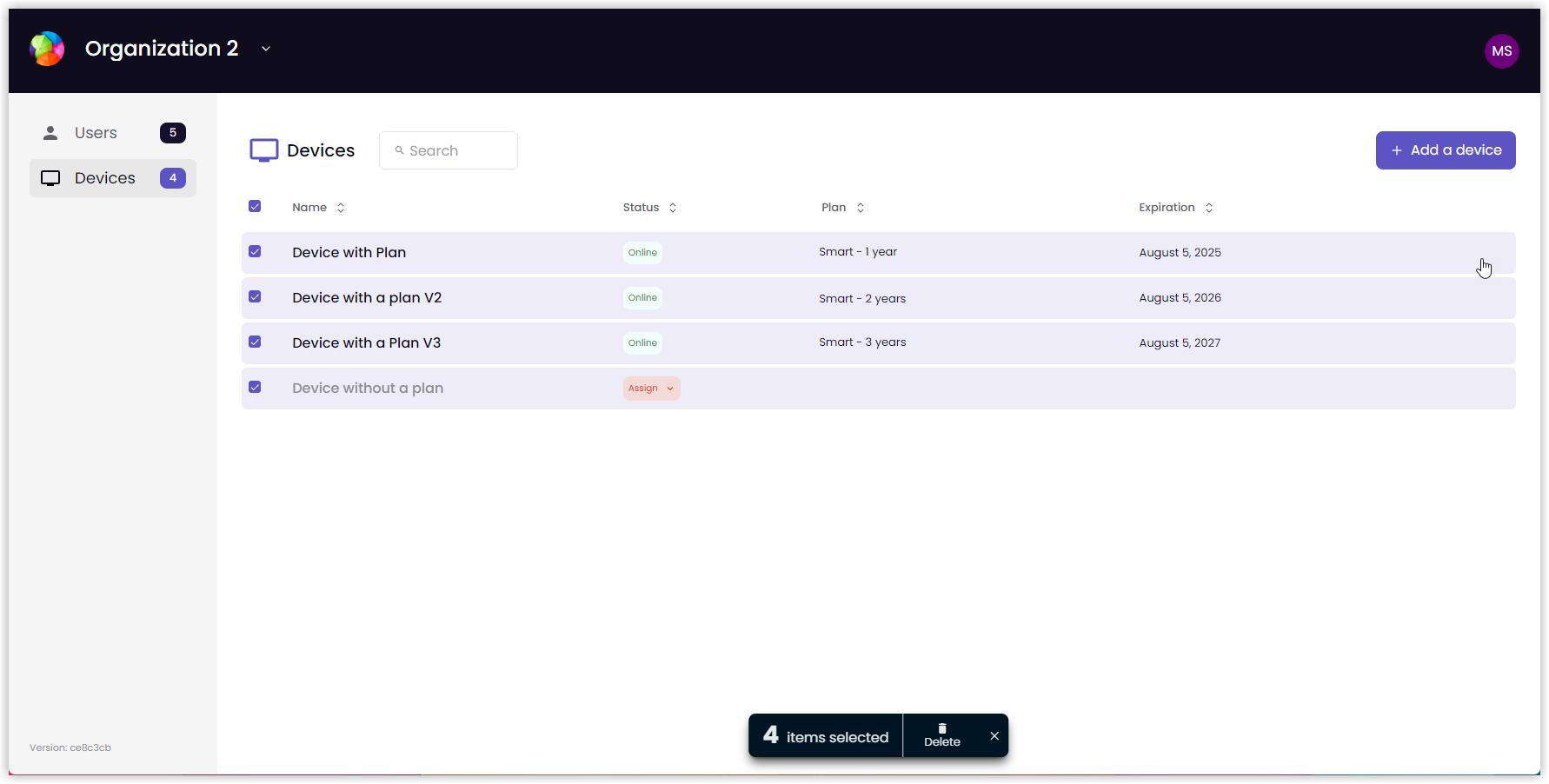
There are three main sections to the Polaris Cloud: The Organizations menu, the Devices list, and the Users list.
The Organizations menu contains a list of your organizations and options to customize organization settings or add new organizations. You select an organization to view when you log in to the Polaris Cloud. When you need to view another organization, this menu lets you switch between organizations quickly and easily.
The Devices list contains devices associated with the selected organization and shows details, such as operational status and plan status. When you open the Polaris Cloud, this list is open by default. You can customize your devices, check for offline devices, and assign plan from here.
The Users list contains the list of users with privileges for the selected organization. From here you can review the list of users granted privileges, send invitations to new admin users, suspend a user’s privileges, restore privileges, and delete users from the list.
The Polaris Cloud also contains information about the Plans associated with your account and attached to the various devices within your account.
In this section
- Digital Signage & Display CustomizationDigital signage lets you turn your Mersive display into a 24/7 billboard that advertises your brand and provides information and eye-catching visuals. You can incorporate…
- Managing DevicesThe Devices list lets you view the devices attached to an organization, add or delete devices, check device status, and customize the look and feel of your devices. The Devices…
- Home Page and AnalyticsThe following pages explain the analytics and monitoring provided for Mersive devices.
- OrganizationsUsers can be in multiple organizations, but a device can be in one organization only. If you have multiple organizations, you will need to switch between them to see all the…
- Mersive PlansA Mersive-enabled display requires a plan to operate. While plans are purchased outside of the Polaris Cloud, it does provide some plan information and gives you the ability to…
- Microsoft Teams Identity JoinTo enable a Mersive Pod to join Microsoft Teams meetings as an authenticated, named participant, your organization must complete a one-time setup in your Microsoft 365 and…
- Editing UsersThe Polaris Cloud allows you to add users to your organizations. In the current release, users attain admin privileges. In a future release, a user’s access privileges will…
- Set Up Google CalendarTo set up Google Calendar, navigate to Integrations. In the Google Calendar box, toggle the Enable button, then click Configure.