Background Customization
The Idle Screen background can be adjusted in two ways. You can select a color as the background, or you can upload one or more images to display in the background.
Background color can be specified as a hexadecimal (HEX), RGB, or HSL value, selected from a color palette, or copied from a sample.
Background images display on a rotating basis in the order you select. We supply four royalty-free images that you are welcome to use, or you can upload your own images. Adding custom images and even branded images that represent your organization will help your displays reflect a consistent corporate image.
Here are a few guidelines for background images:
File formats | JPG, PNG |
Image ratio (preferred) | 16:9 |
Resolution (preferred) | 1920x1080 pixels |
File size | No larger than 10MB each |
Number of image files | 10 maximum |
Note: Darker images are recommended for better contrast with on-screen text.
How to Set a Background Color
-
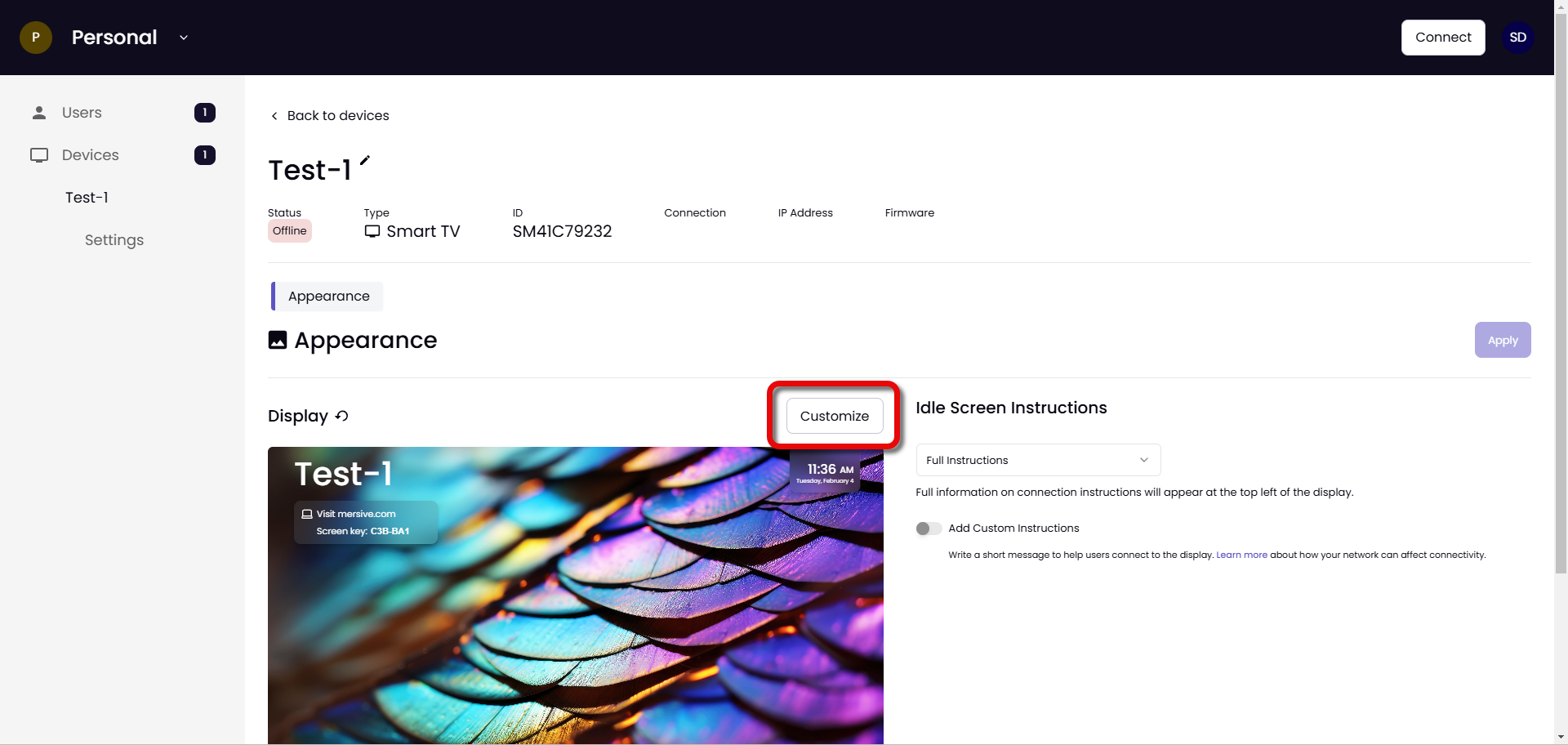
Go to the Polaris Cloud and select a device from the Devices list. The Device Settings screen appears.
-
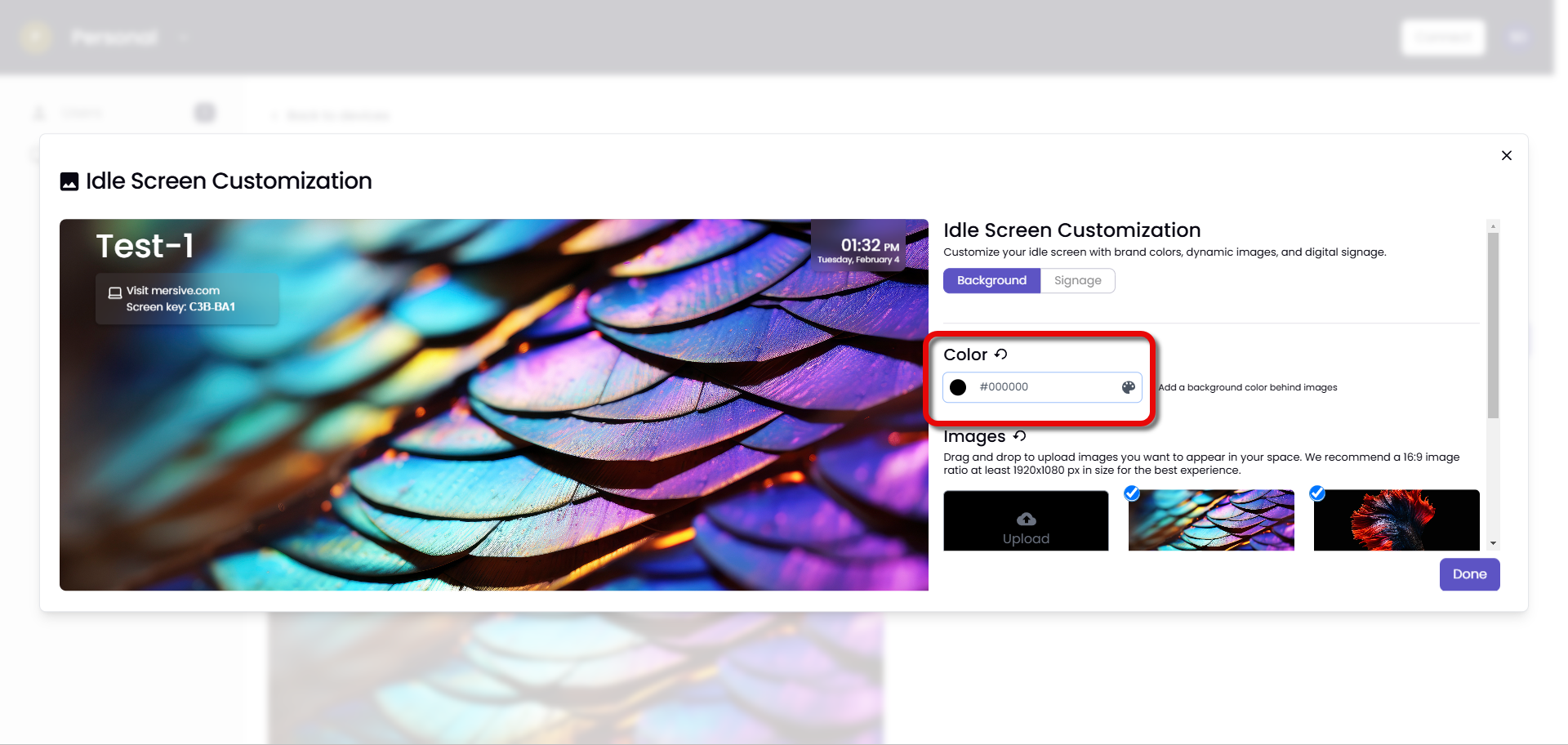
Select Customize. The Idle Screen Customization popup appears.
-
If you know the hexadecimal code for the color, enter it in the Color field. If not, click the Palette to select a color.
-
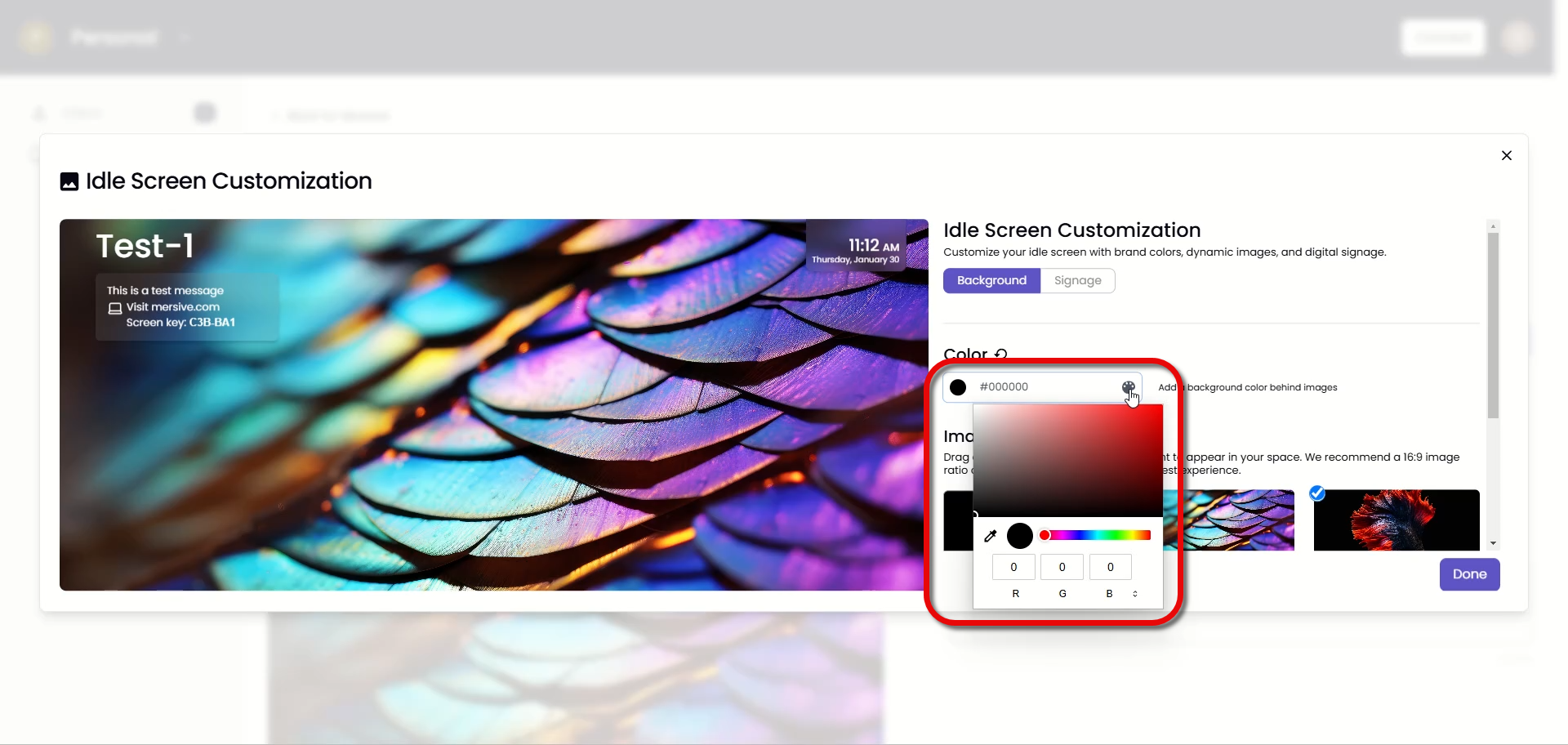
Either select a color from the Palette, use the Eyedropper to copy a color, or enter the color code in RGB or HSL format.
-
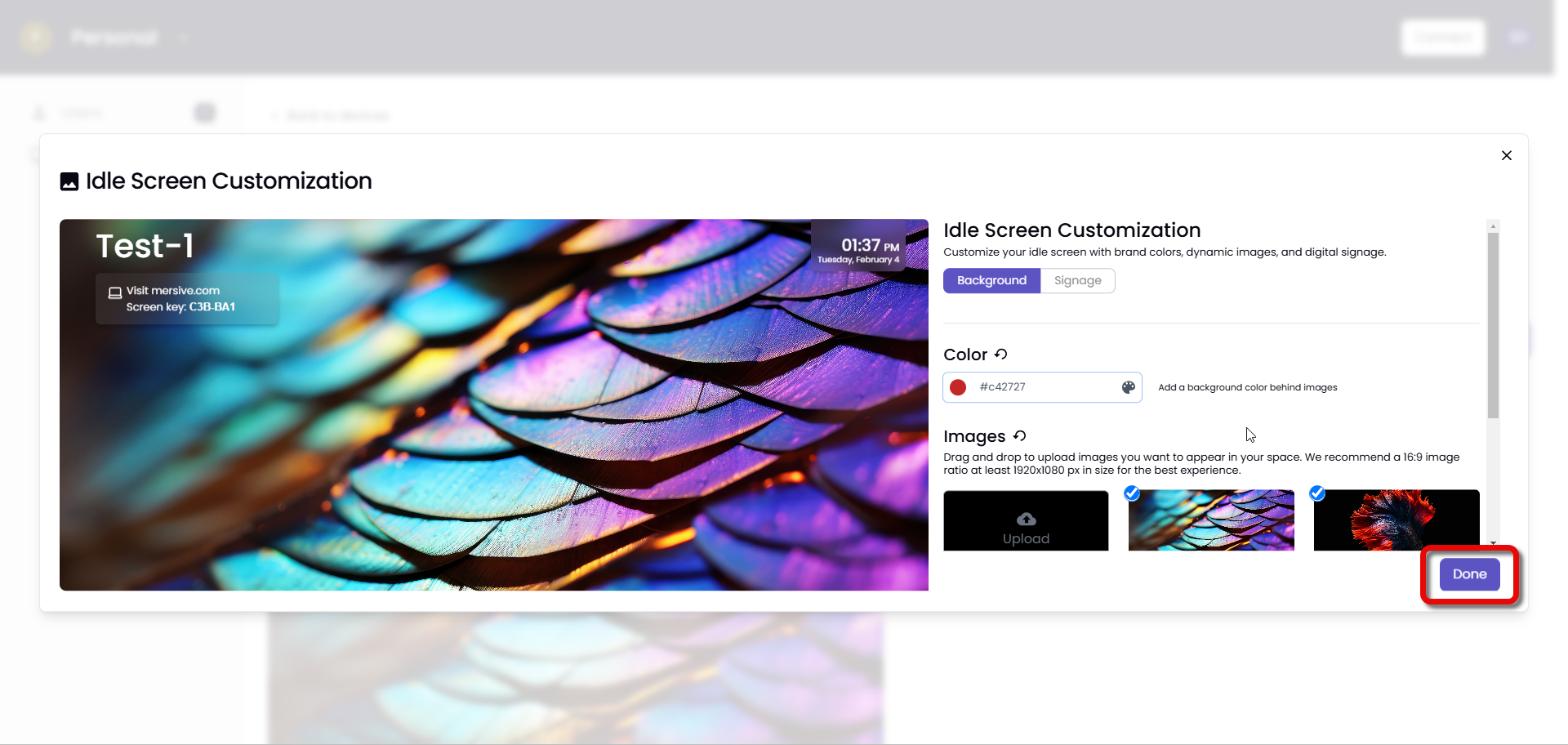
Select Done. The Idle Screen Customization popup disappears.
-
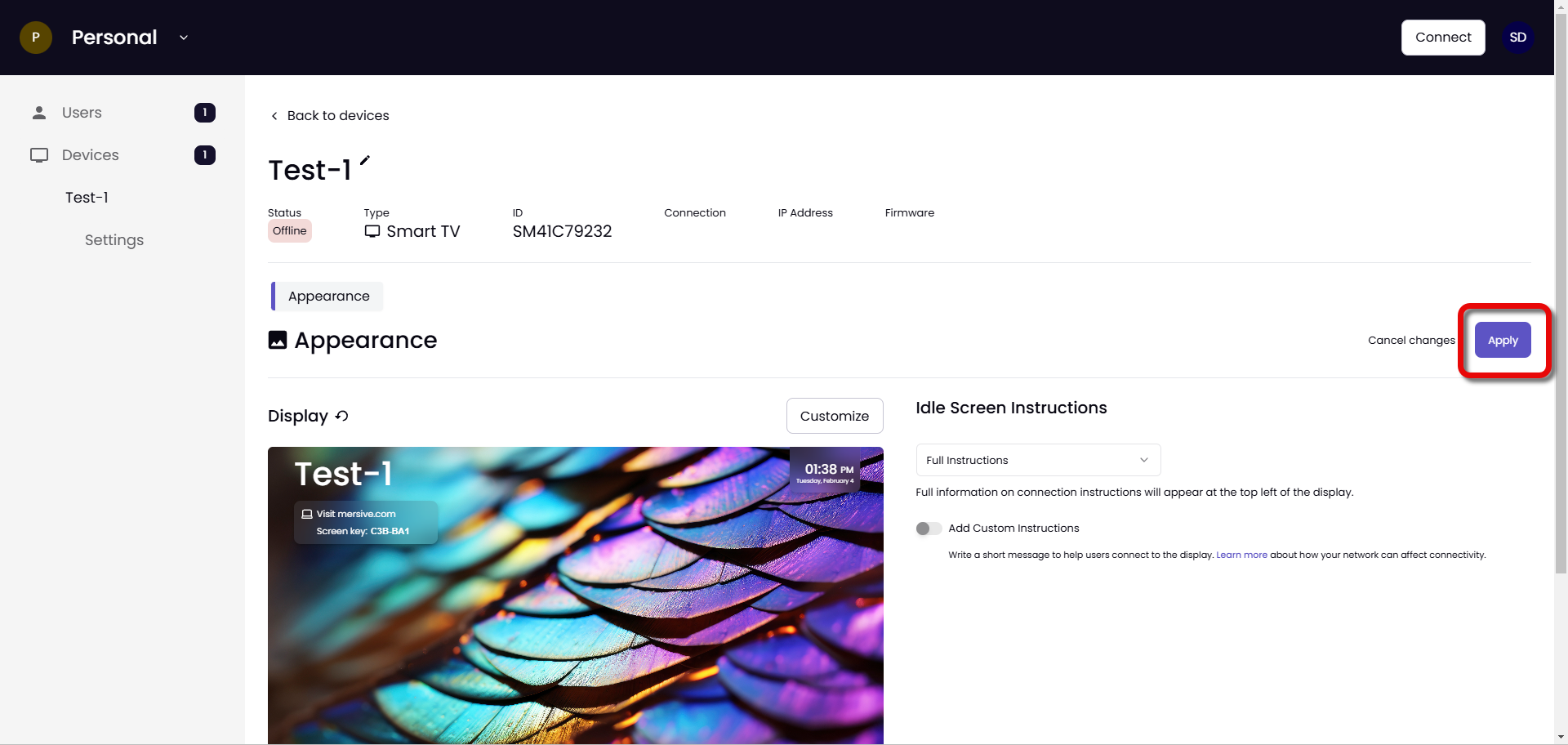
Select Apply.
How to Set Background Images
-
Go to the Polaris Cloud and select a device from the Devices list. The Device Settings screen appears.
-
Select Customize. The Idle Screen Customization popup appears.
-
Add images by drag-and-dropping them onto the Upload zone. If you want to add more than 6 images, you will need to delete the preloaded images first.
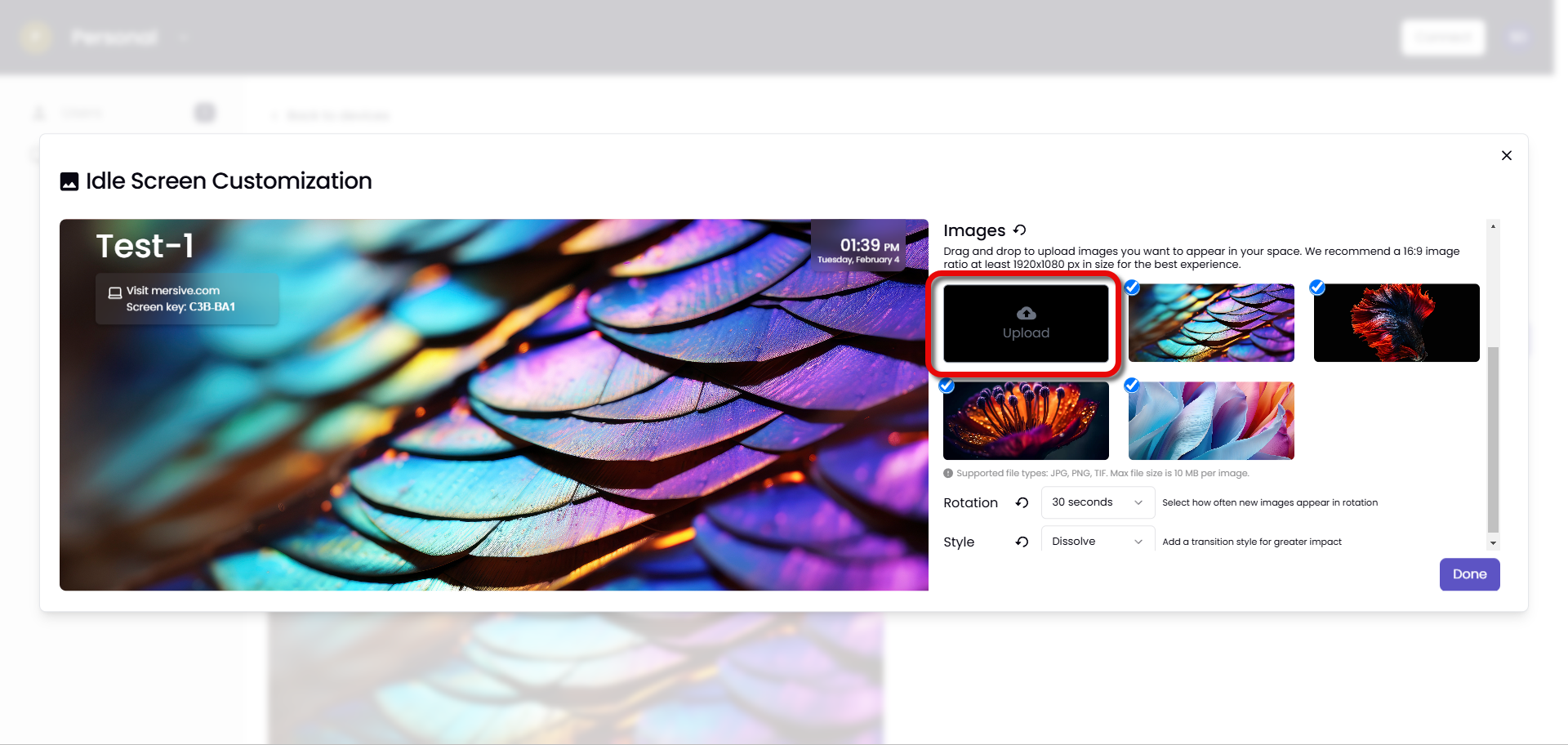
-
Delete images by clicking the Trash Can symbol in the upper right corner of the image.
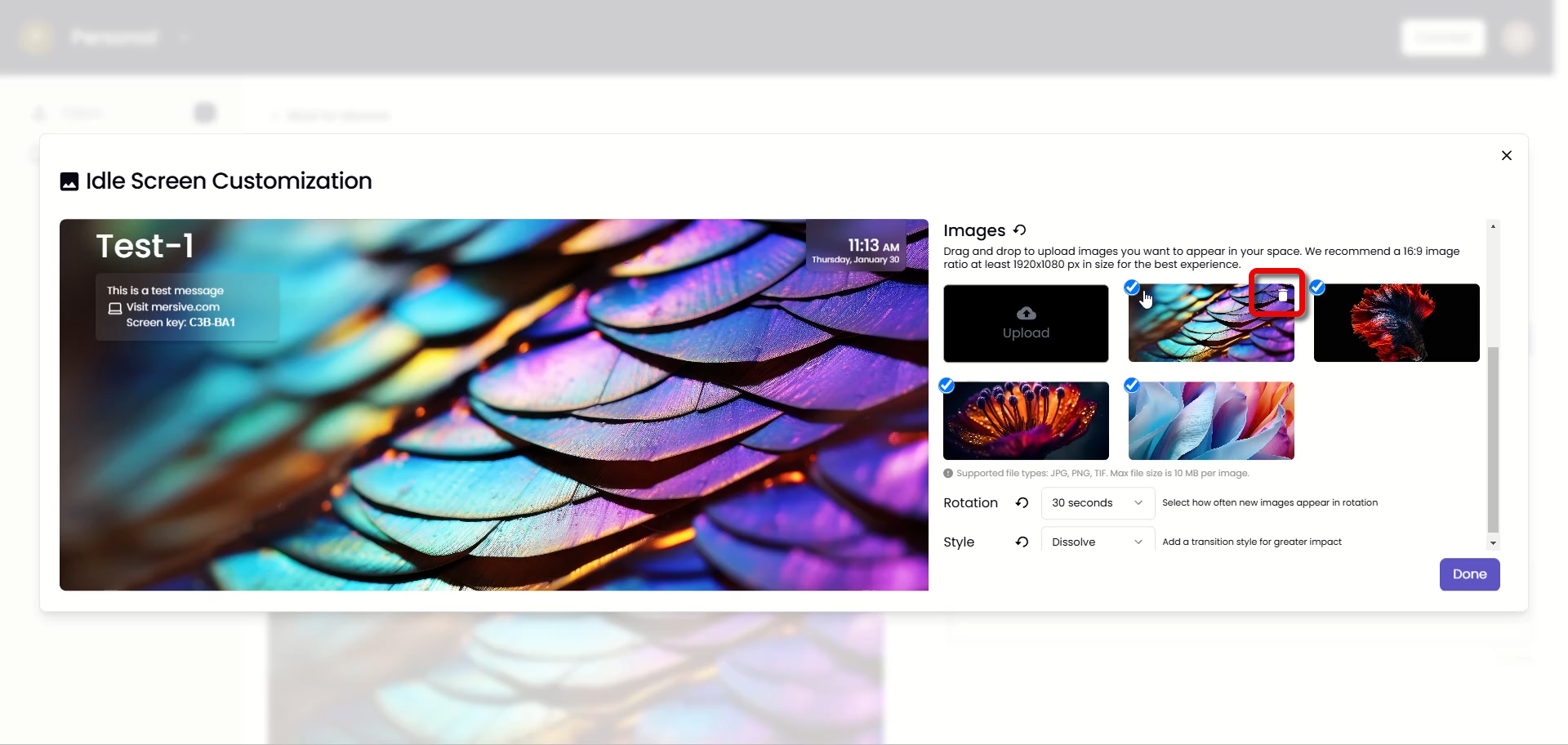
-
Select images for display by clicking the Checkmark in the upper left corner of the image. Images without a checkmark will not appear on the Idle Screen.
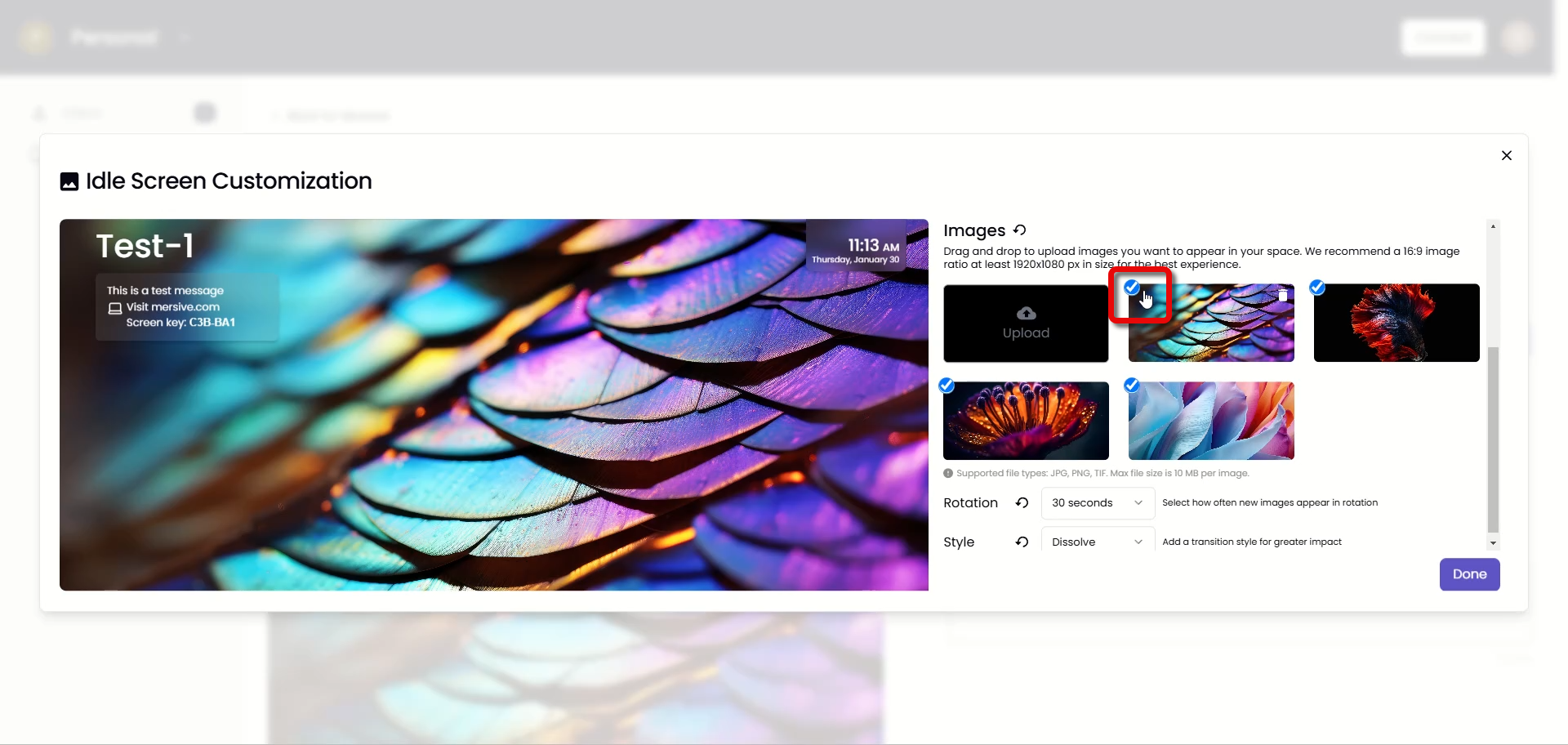
-
Set the display order by drag-and-dropping the images. The image to the left of the Upload zone will be the first to display.
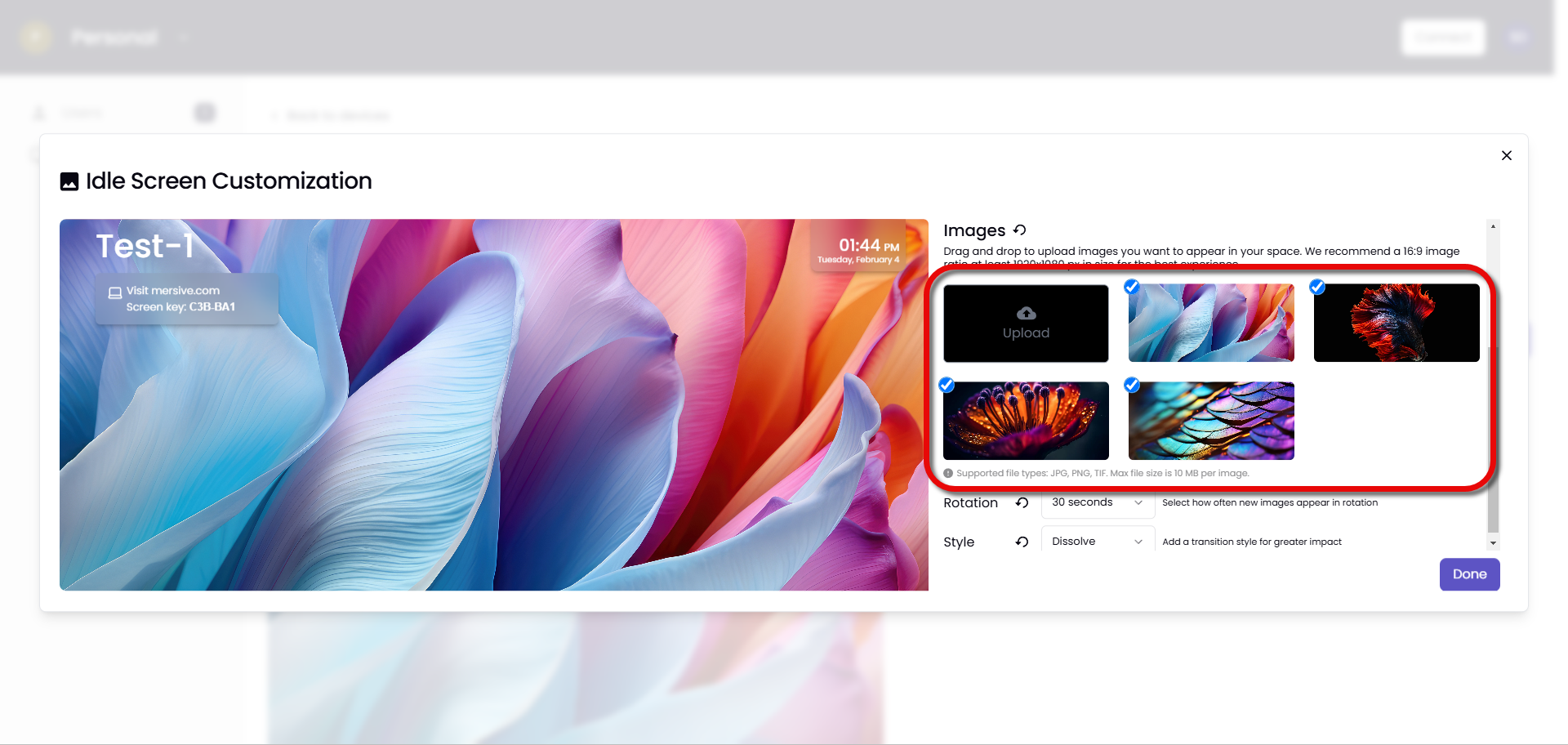
-
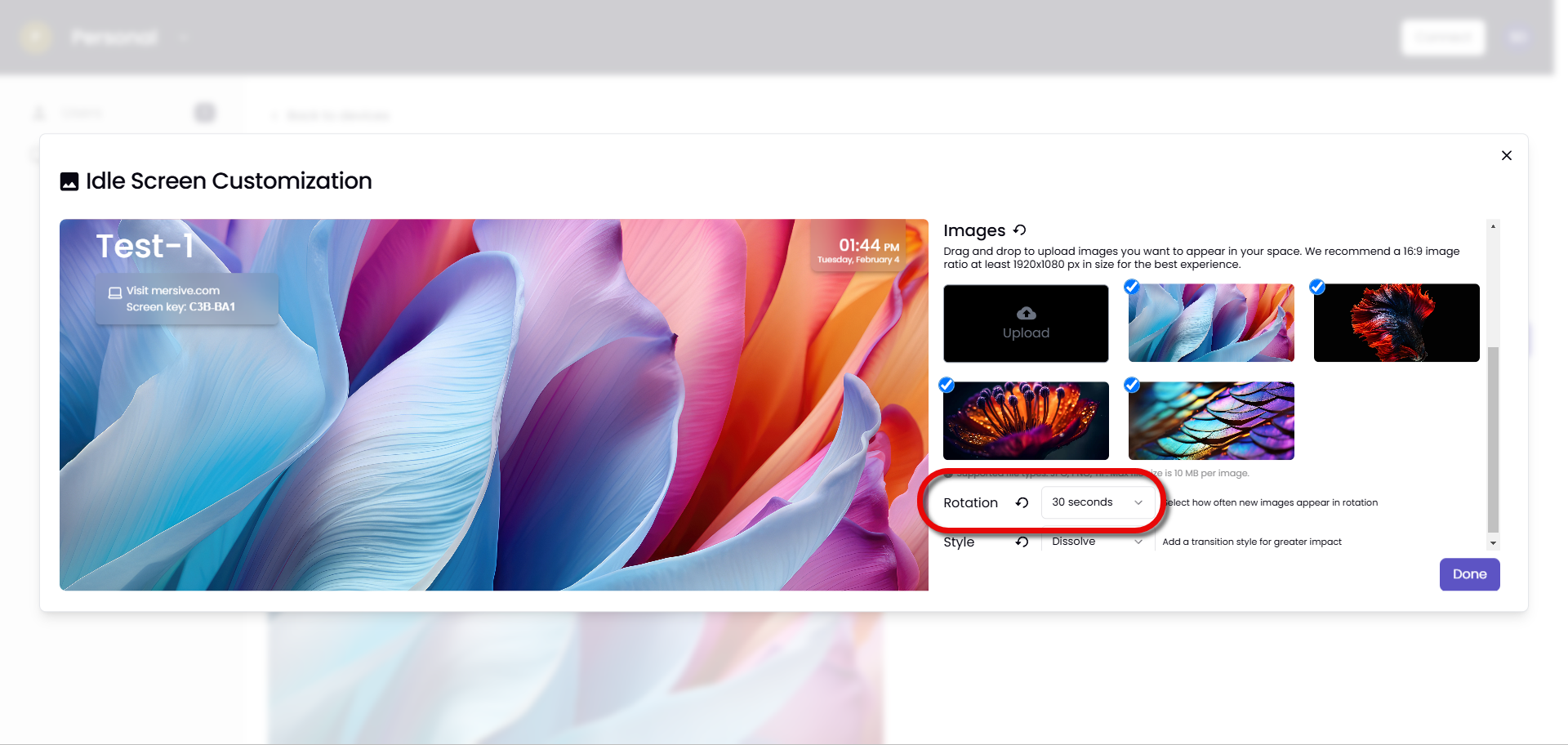
Set the time interval images will display (30, 60, or 90 seconds) by adjusting the Rotation. If only one image is selected, this will not have any effect.
-
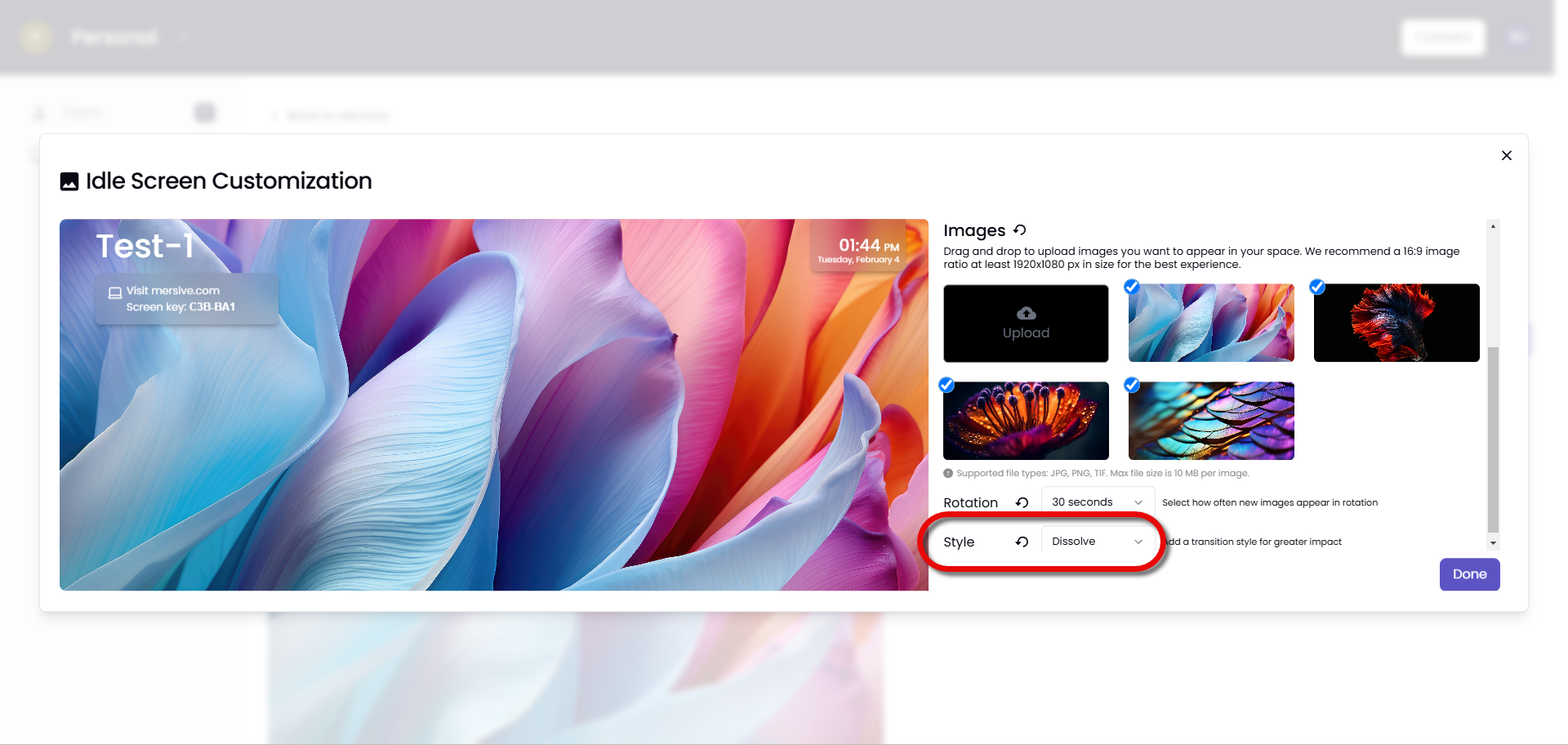
Set the transition style (none, push, or dissolve) by adjusting the Style. If only one image is selected, this will not have any effect.
-
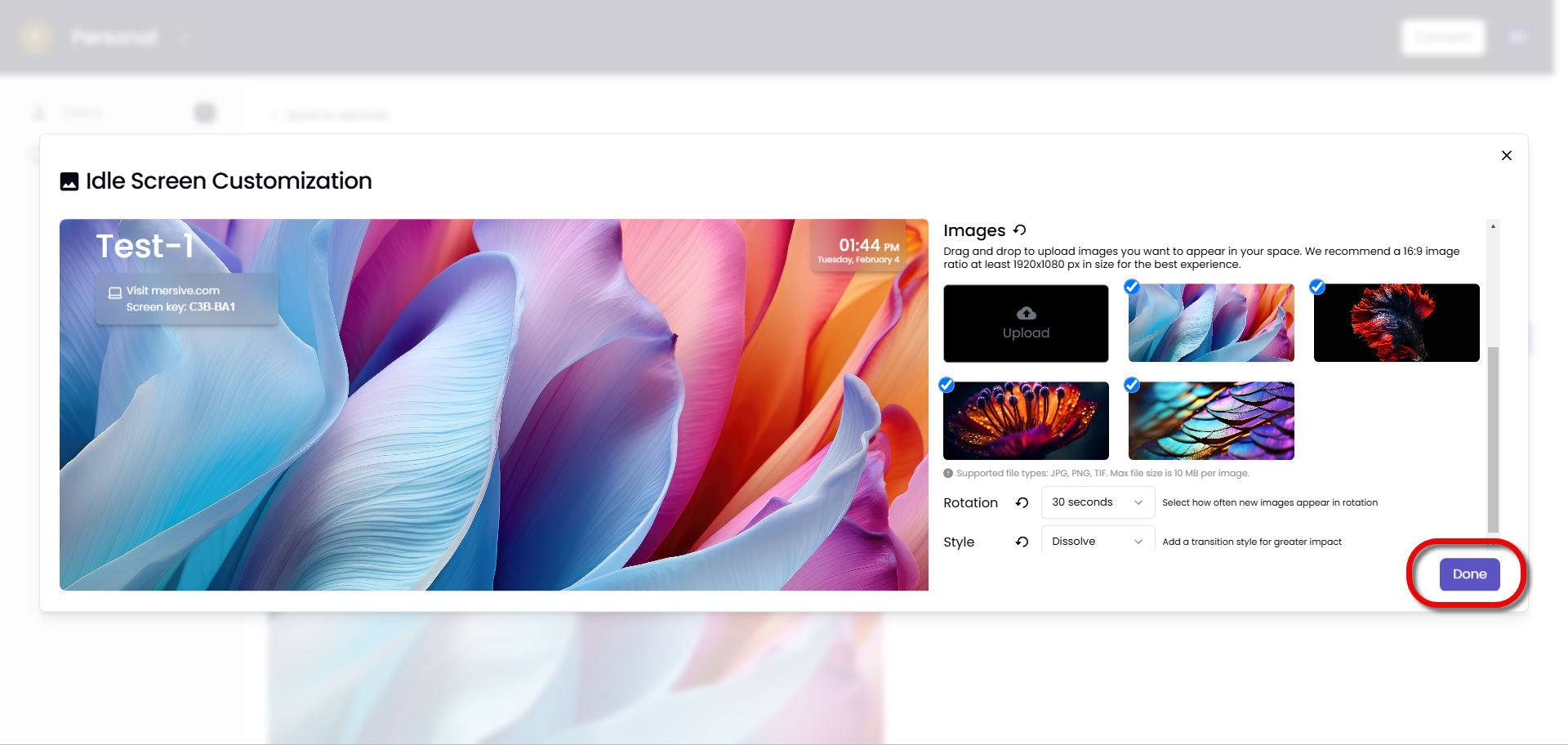
Select Done. The Idle Screen Customization popup disappears.
-
Select Apply.
<figure class="img" style="--w:50%"><img src="/docs/images/new-background-13-e8f9ccb8.png" alt="NEW Background 13"></figure>