Device Activation
How to Activate Your Device
To activate your device, take the following steps:
-
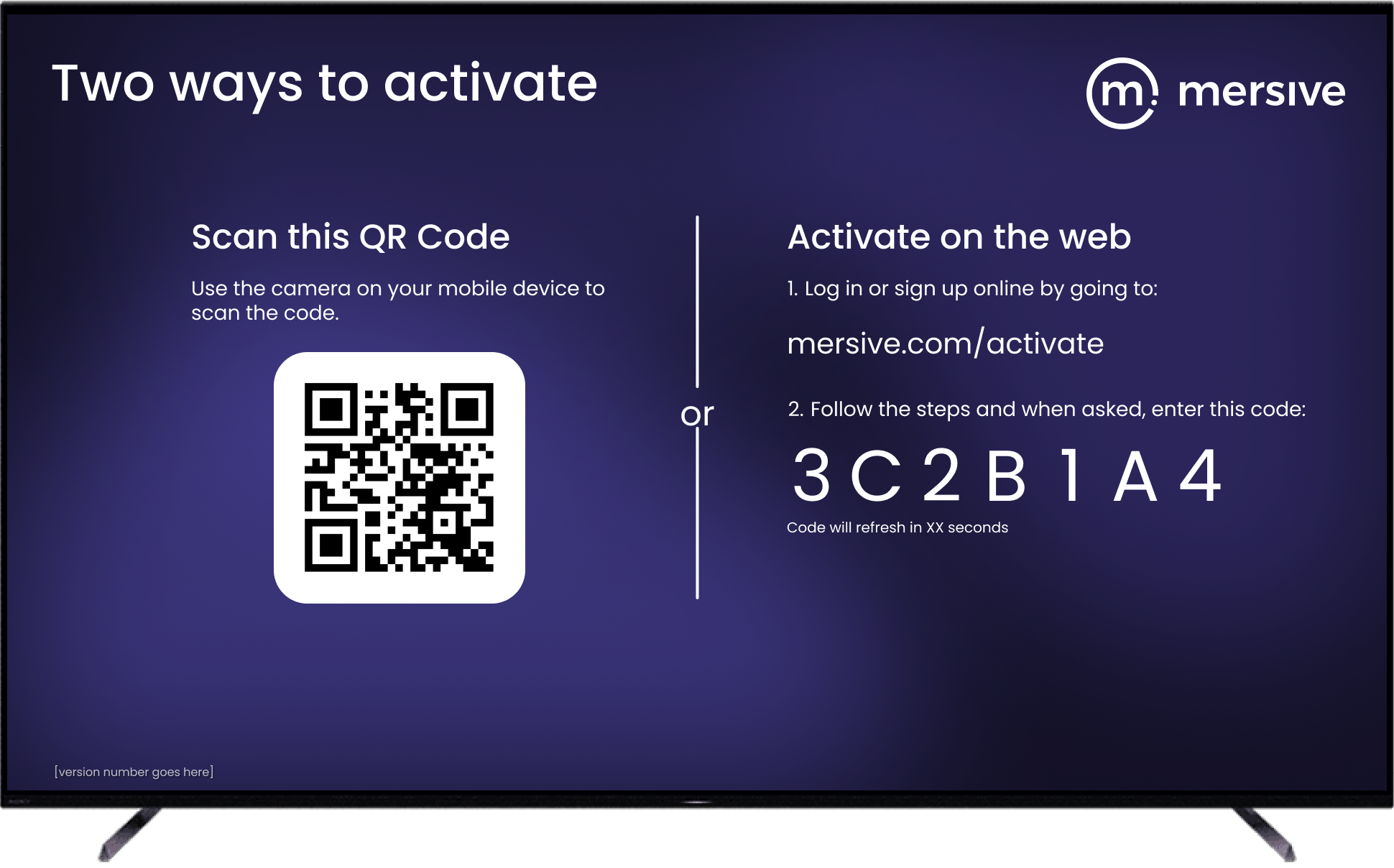
Start up the display. The activation screen should appear.
-
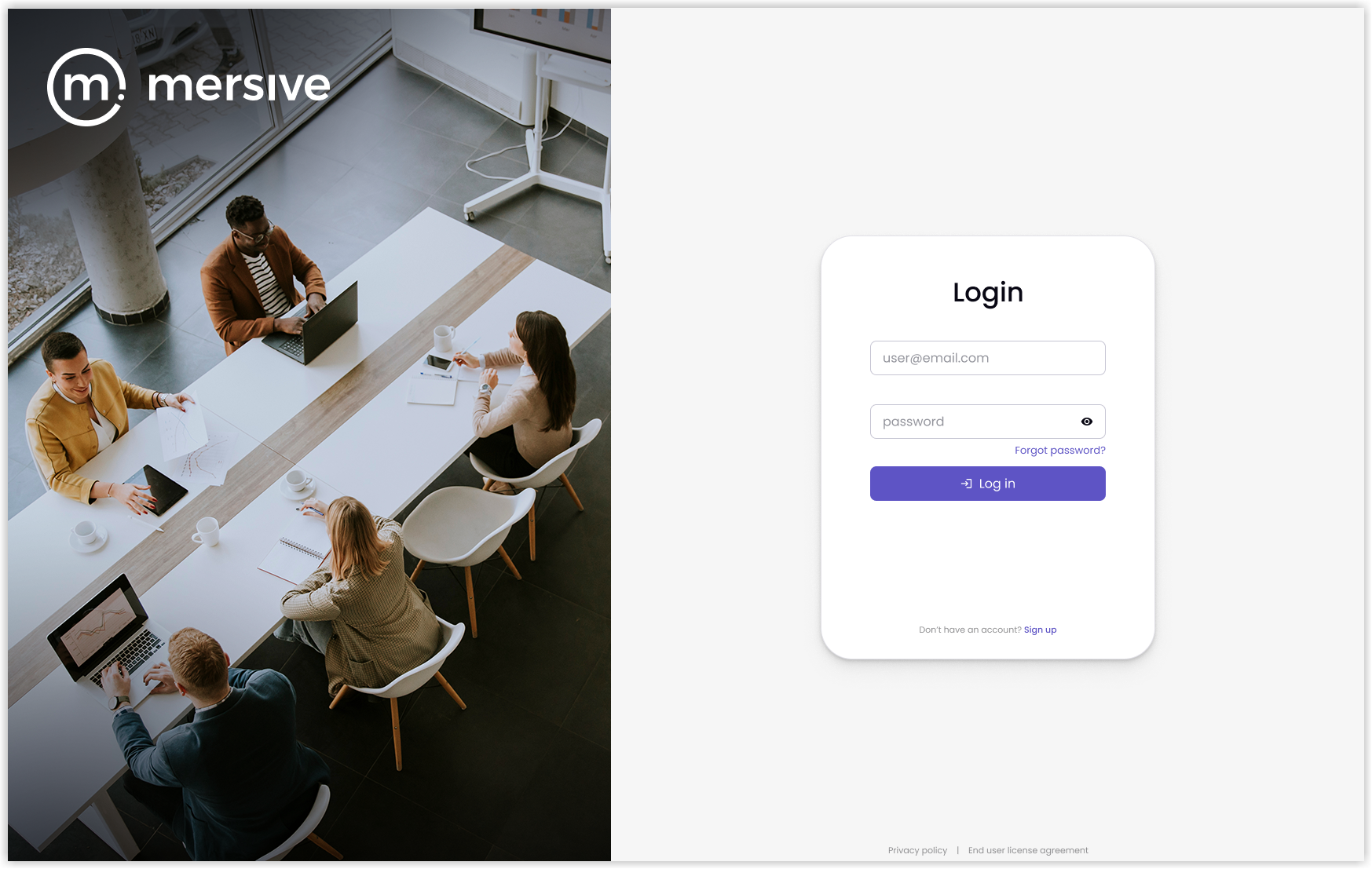
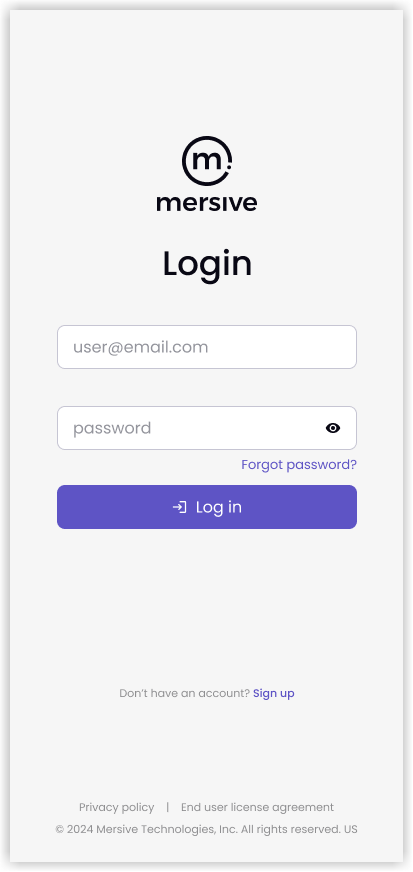
Either scan the QR code with your mobile device or open a web browser on your laptop or mobile device and go to app.mersive.com/activate. Your laptop or mobile device will display a Login screen.
-
Log in with your Mersive account information. The Organization screen appears. To create a new Mersive account, select Sign up. For additional support creating an account, see How to Sign Up for a Mersive Account.
-
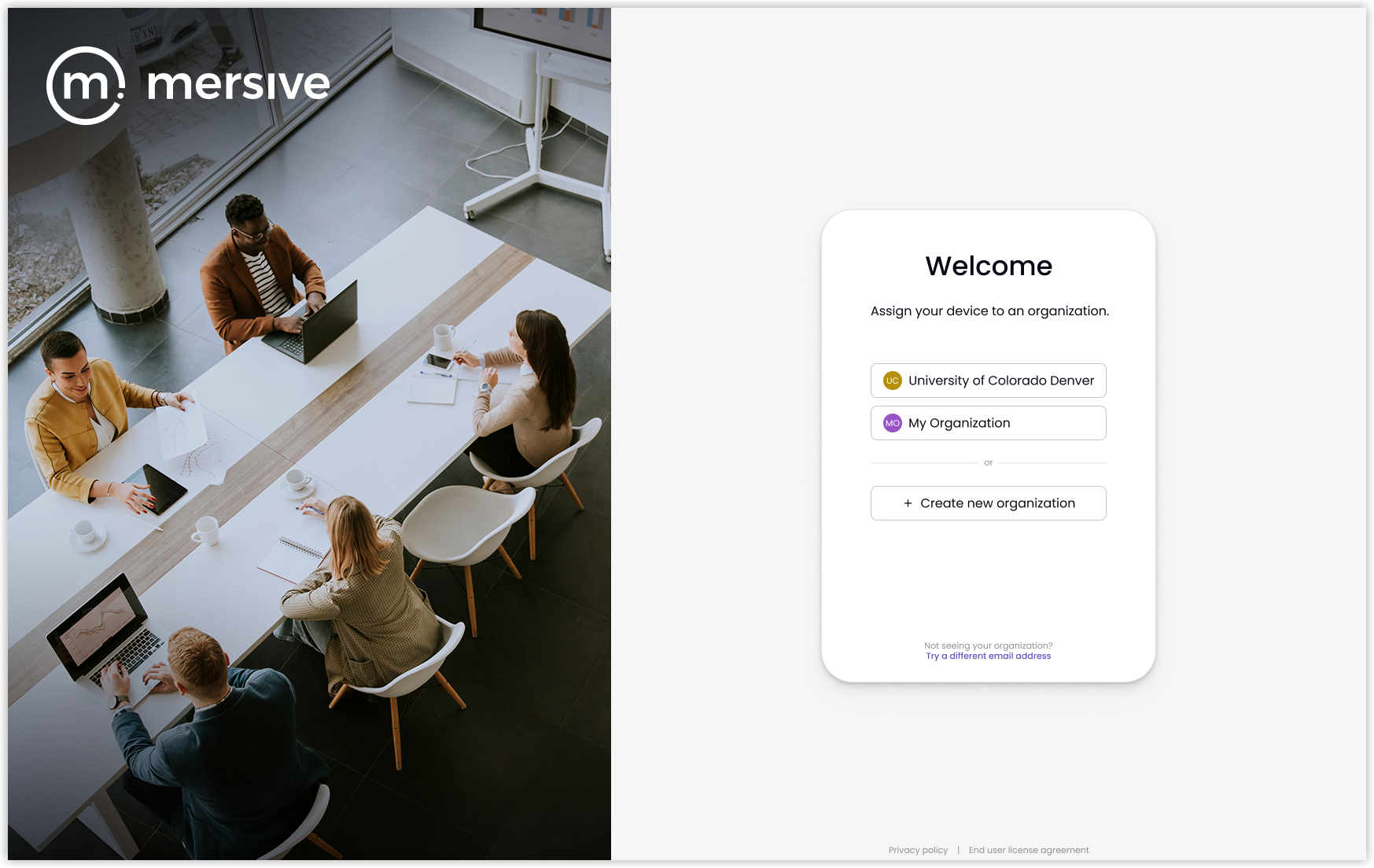
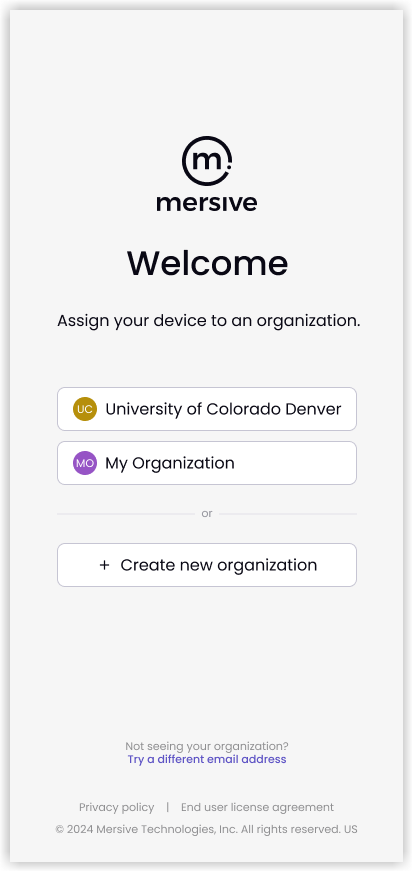
Choose an Organization. The Personal organization is created by default, and you can rename it. If you want to create an organization, select Create new organization.
-
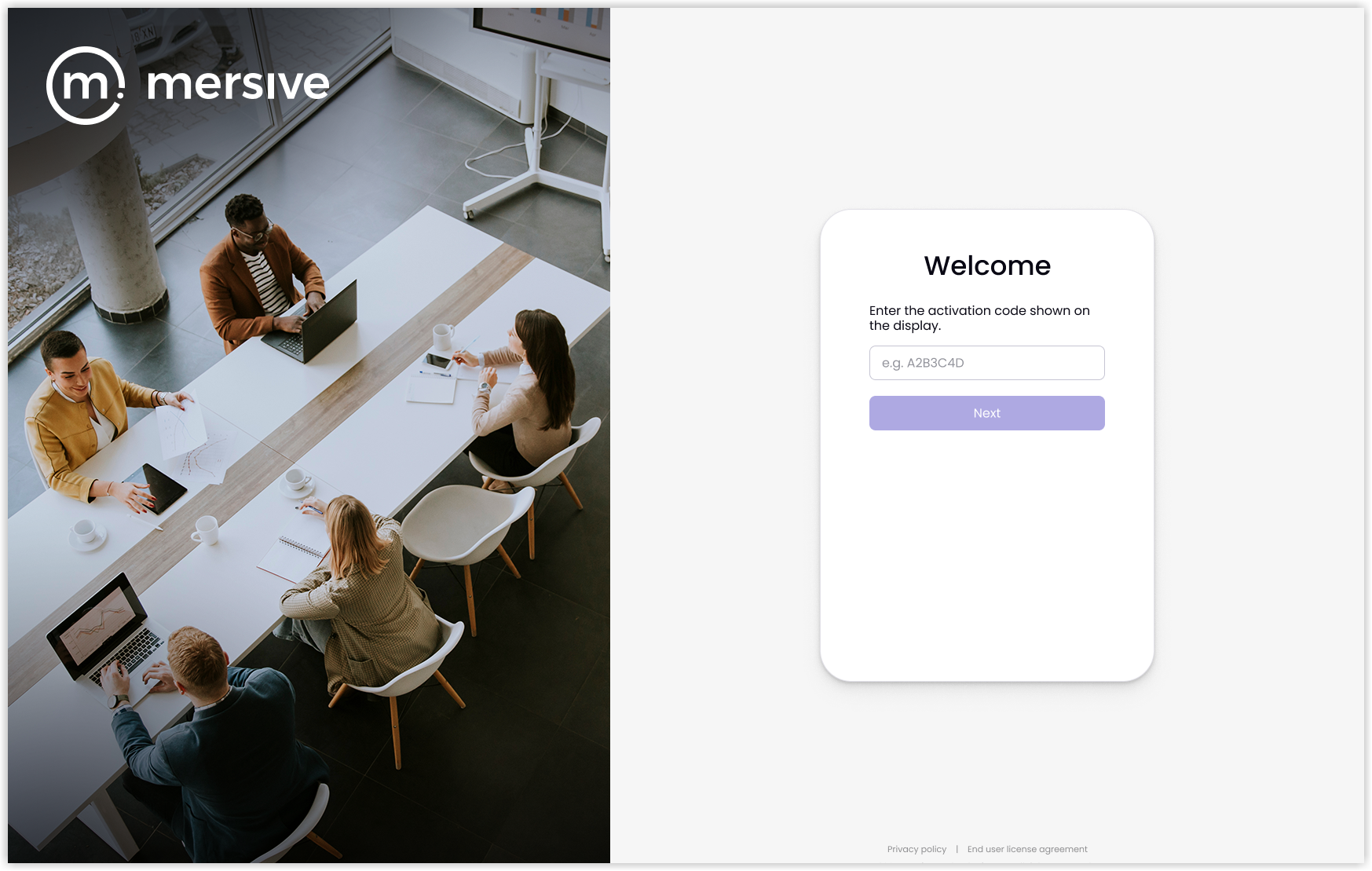
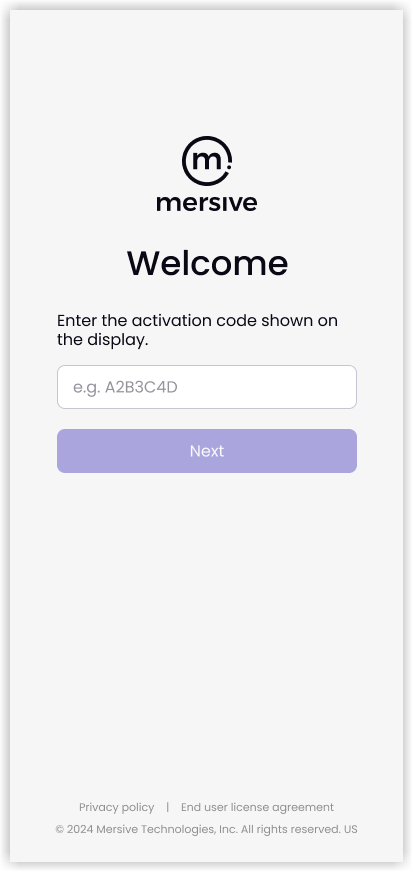
Enter the Activation Code shown on the Mersive-connected TV display.
-
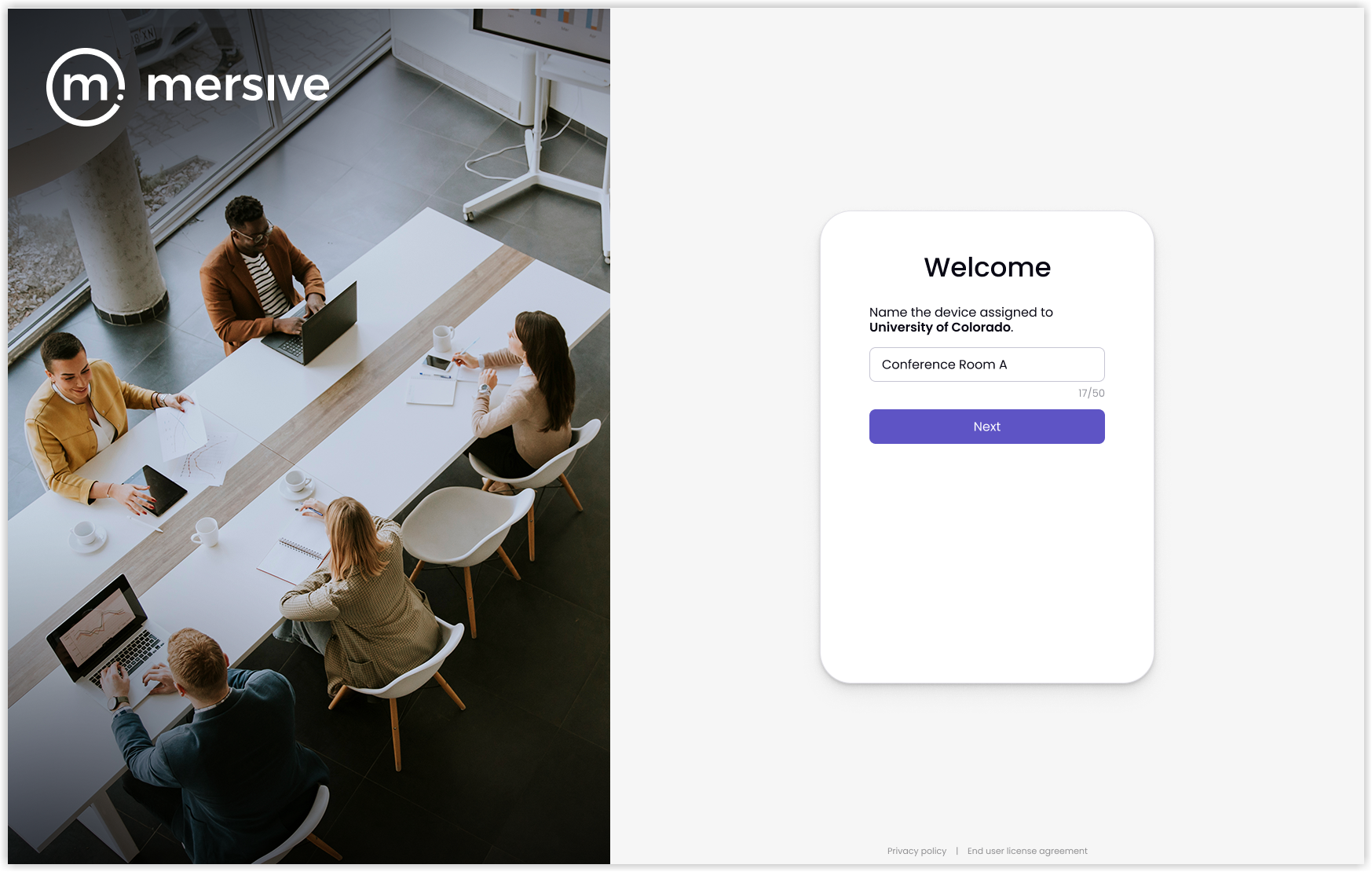
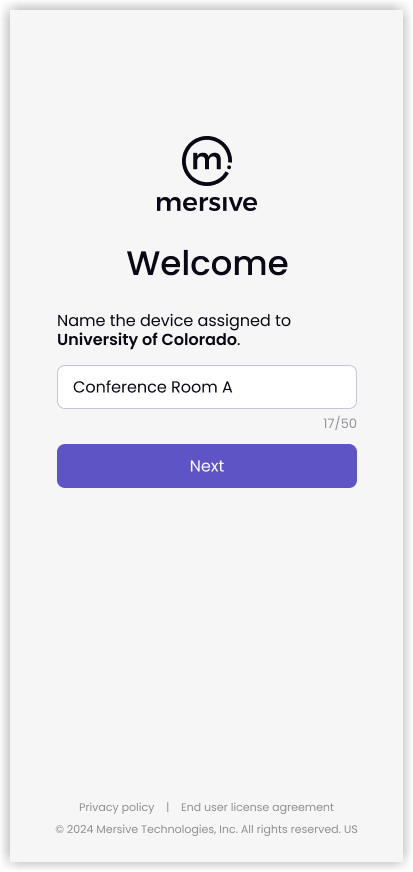
Name the device and click Next.
-
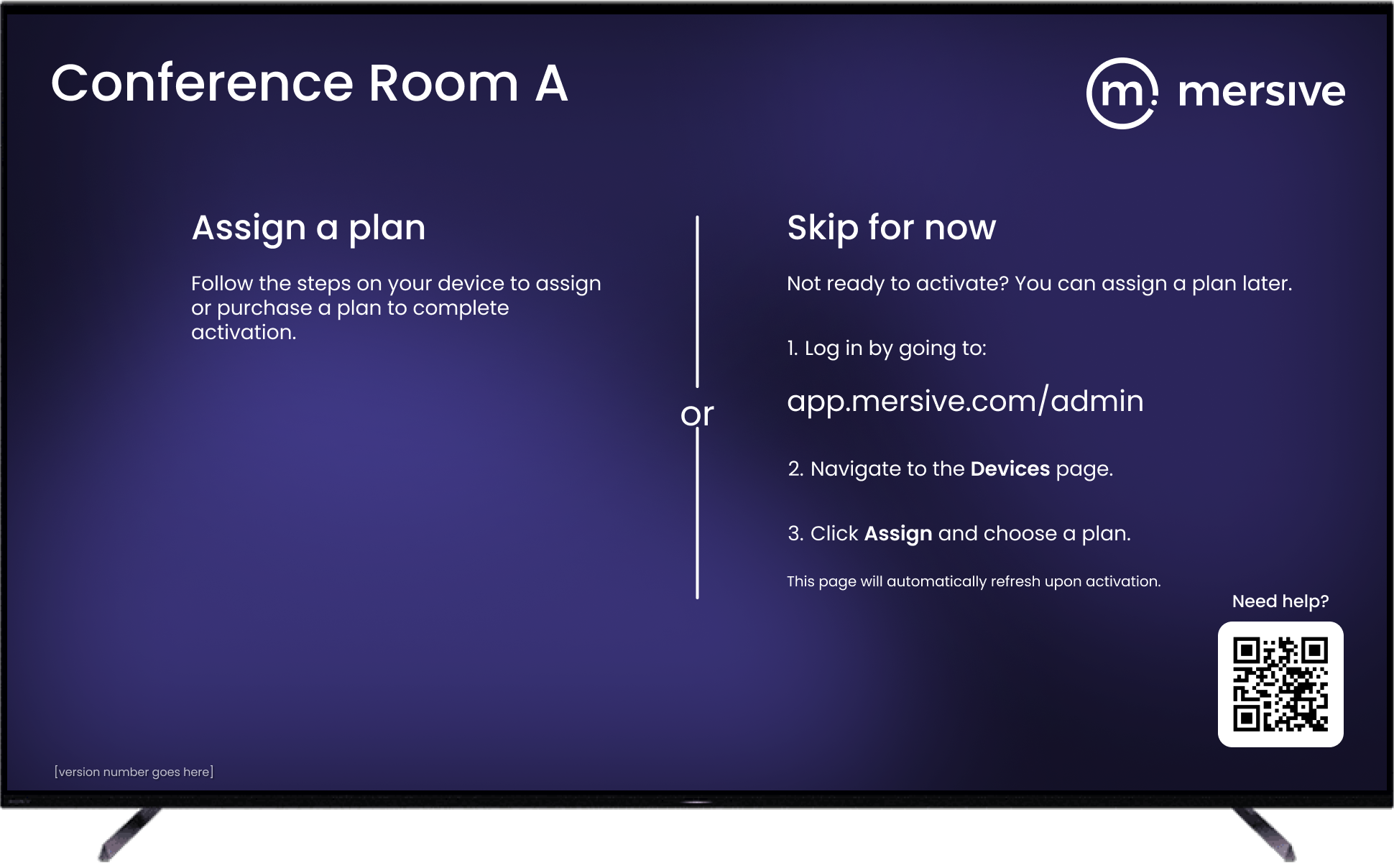
The Device Name now appears at the top of the Mersive-connected display, and it shows instructions for your next step: Either assign a plan or skip this step for now. The device has now been added to your organization and will appear in the admin portal, but you cannot share to the display yet.
-
At this point, you have several options depending on your plan status:
-
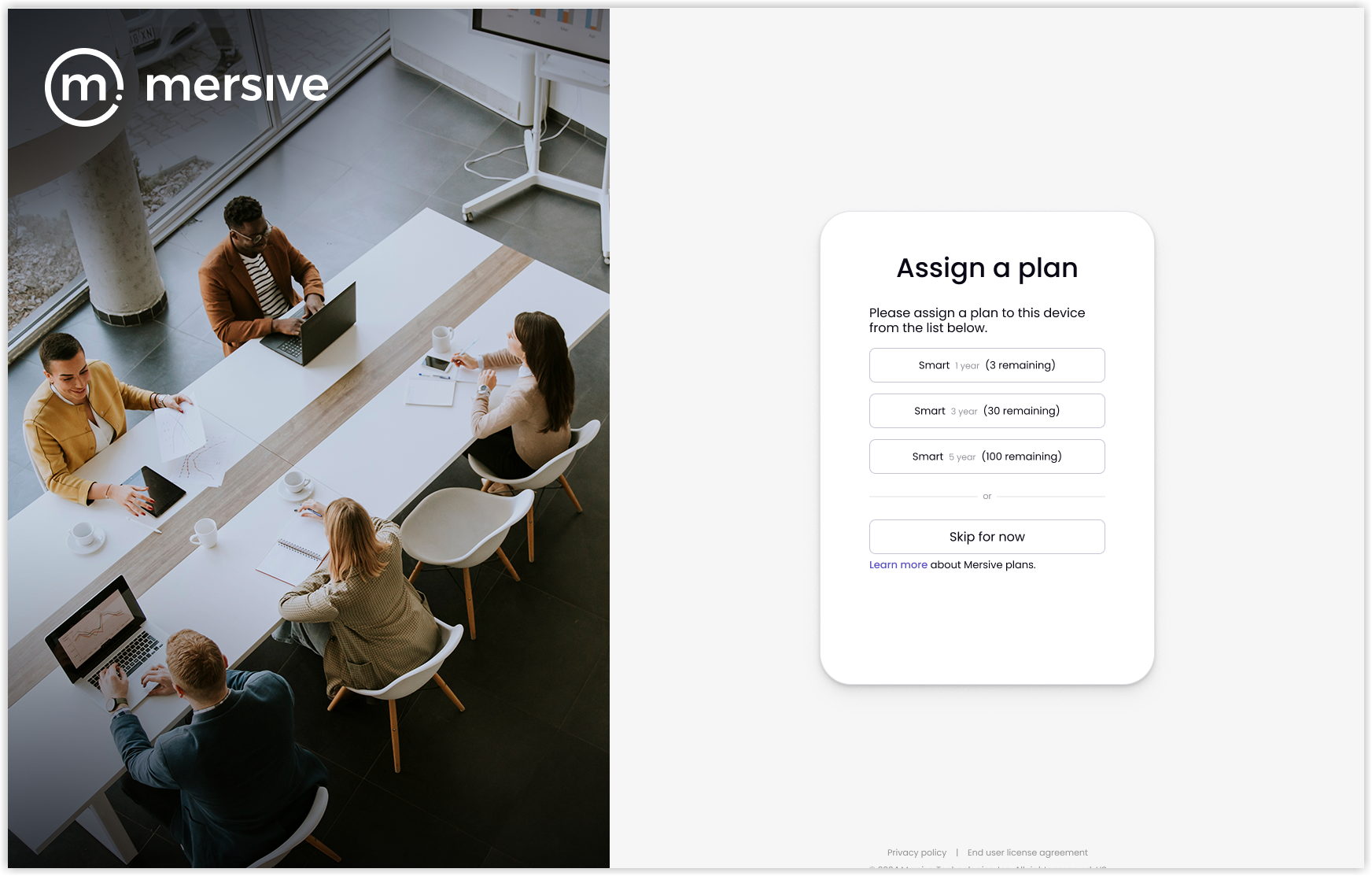
If you have plans in the organization, you can assign a plan to the device and activate it during onboarding, or you can skip this step and assign a plan to the device via the admin portal.
-
If you do not have a plan, you can purchase one, assign it to the device, and activate it during onboarding. Alternatively, you can skip this step and purchase a plan later, but you won’t be able to share the device.
To purchase a plan, visit the e-commerce site at mersive.com. To learn more about plans, click here.
-
-
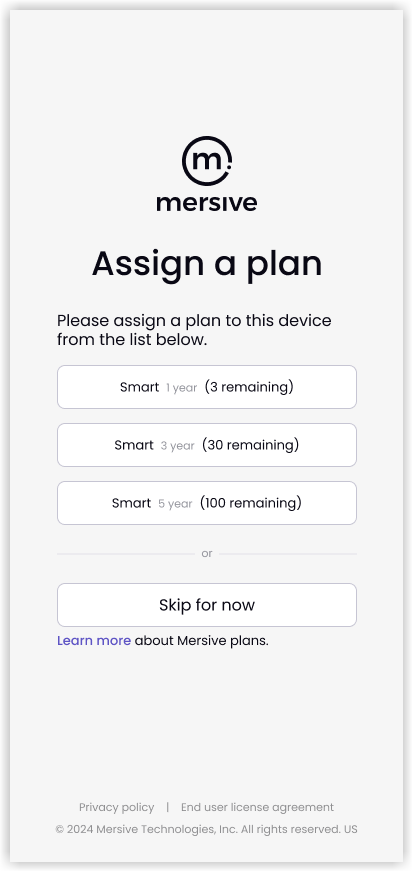
To assign a plan during onboarding, select a plan from the list on your laptop or mobile device.
-
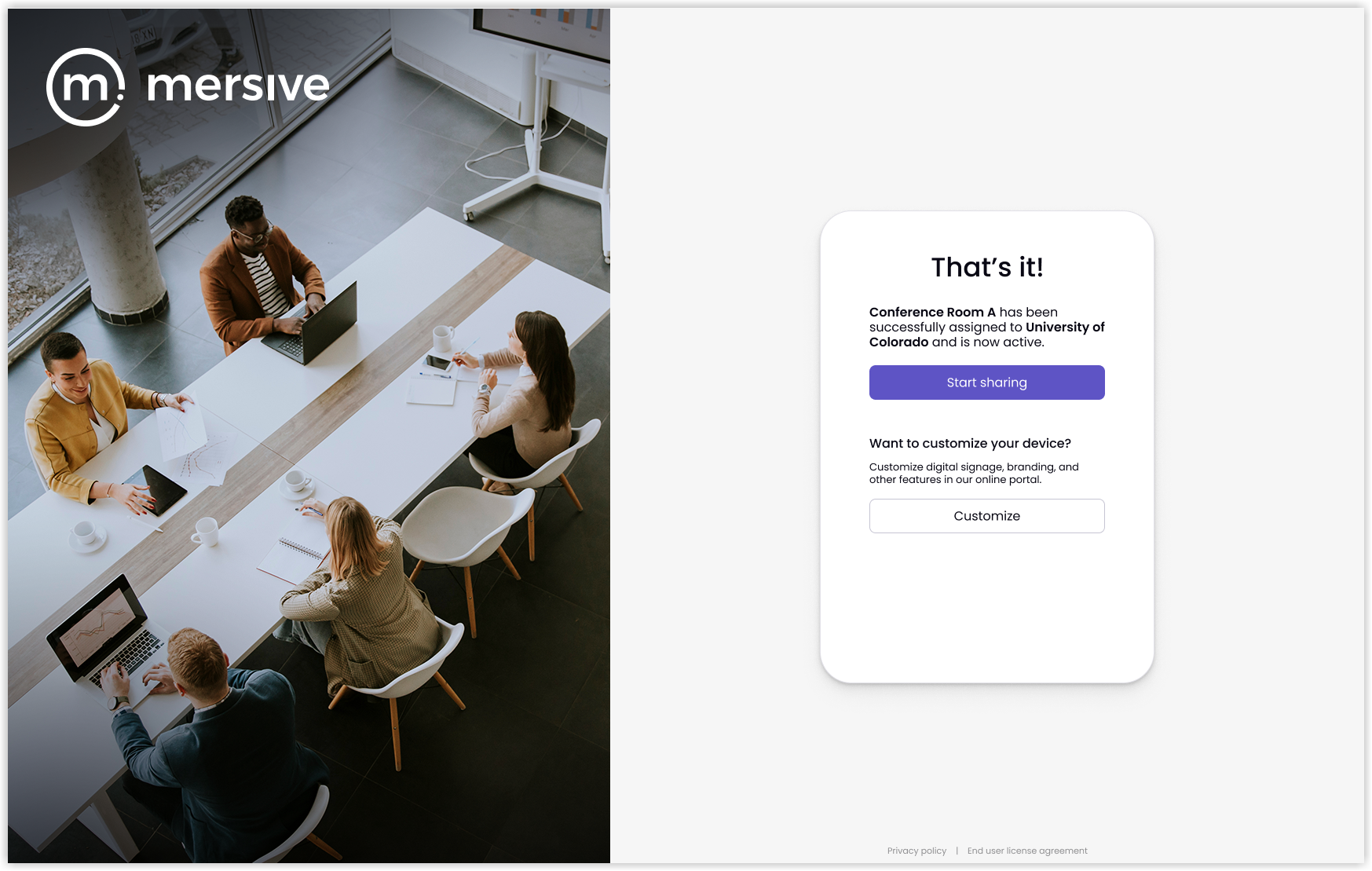
Once you assign the plan, the display will show a success message. The device will automatically prepare for sharing.
<div class="flex"><div>
</div>
<div>
<figure class="img" style="--w:40%"><img src="/docs/images/activation-11a-cba76918.png" alt="Activation 11a"></figure>
</div>
</div>11. A success message will also appear on your laptop or mobile device. From your laptop, you can select Start Sharing to connect and share to the display or select Customize to customize device settings. Sharing and device customization are not supported on mobile devices.
<div class="flex">
<div>

</div>
<div>
<figure class="img" style="--w:40%"><img src="/docs/images/activation-11a-cba76918.png" alt="Activation 11a"></figure>
</div>
</div>