How to Connect and Share to a Display
To connect your laptop to a display and share content using the Mersive web client, take the following steps:
-
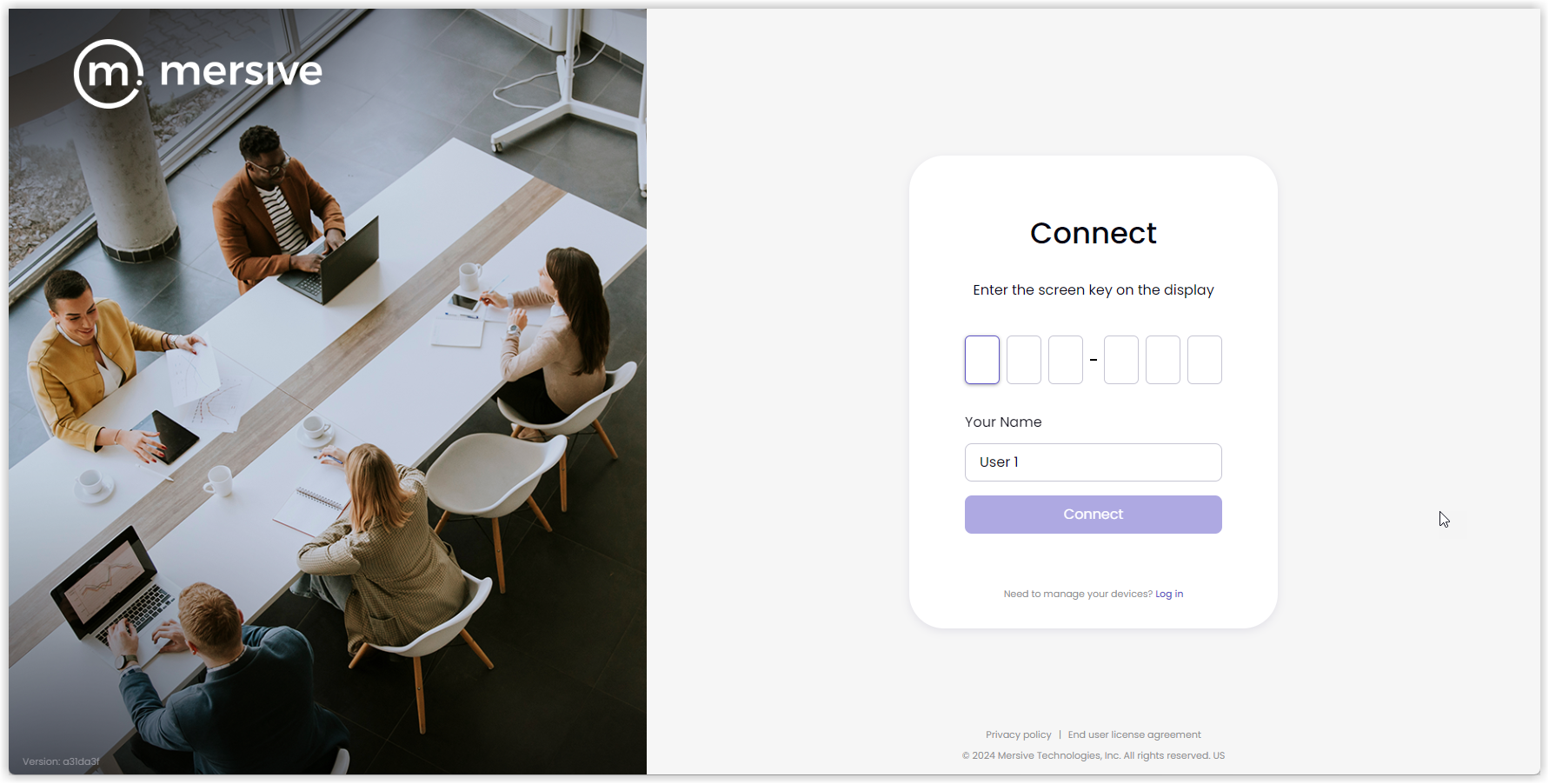
Open a web browser and go to app.mersive.com. The Connect screen appears.
-
Enter the Screen key from the display and Your Name and then click Connect. The sharing client verifies the connection.
-
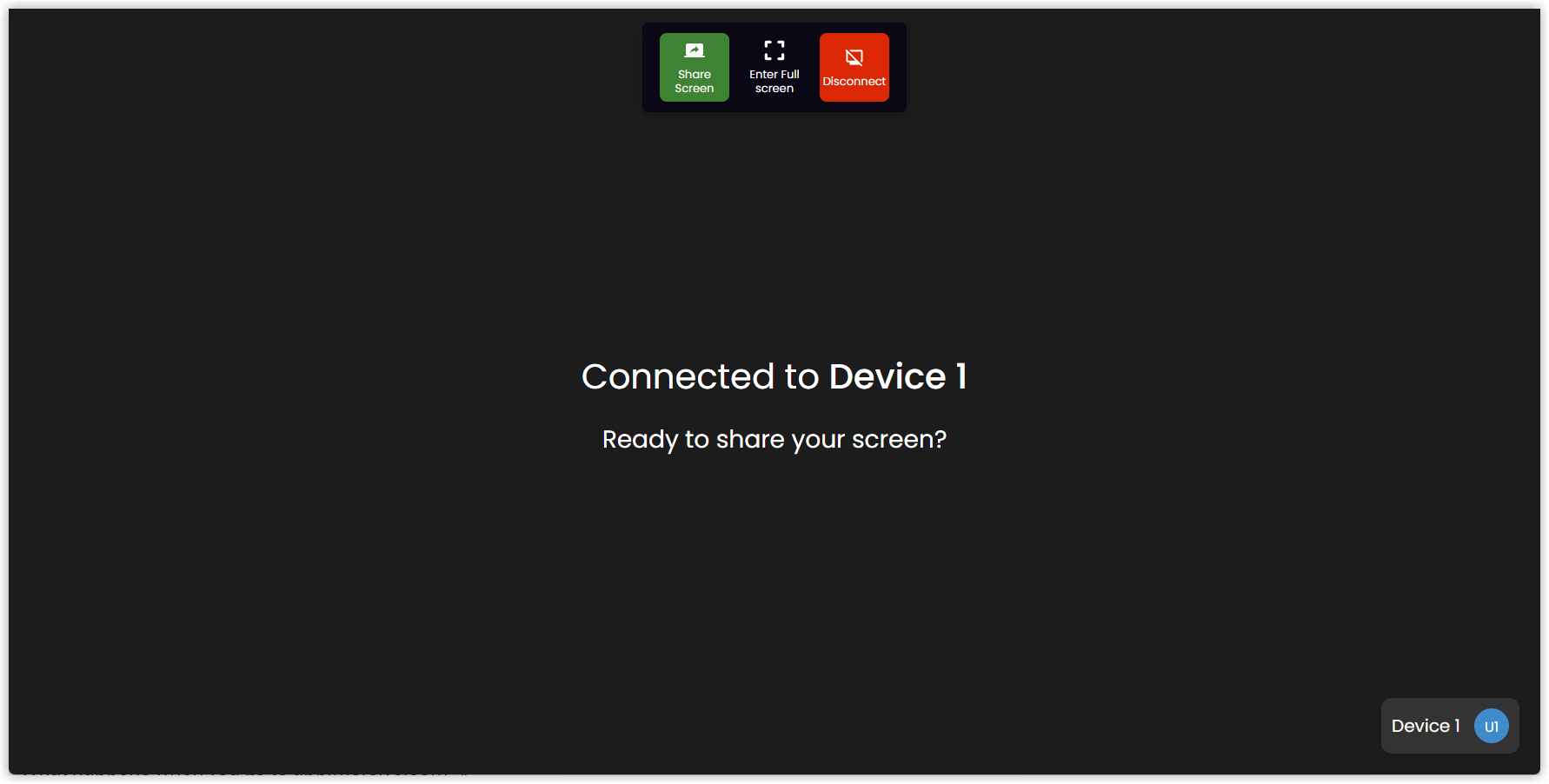
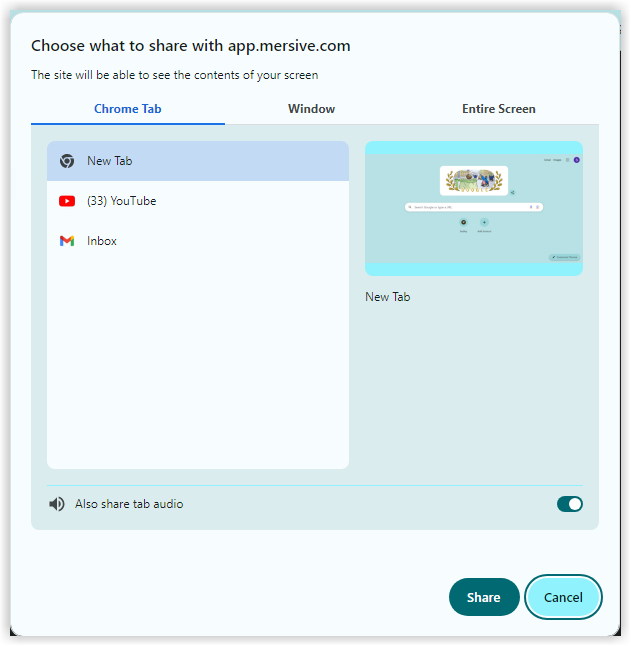
Click Share Screen and select content to share from the Browser Tab, Window, or Entire Screen lists, then click Share. Note: To share audio, select the Also share audio option. For more information about sharing audio, see below.
-
The content appears on the display. Note: The view on the sharing client may look different than the display.
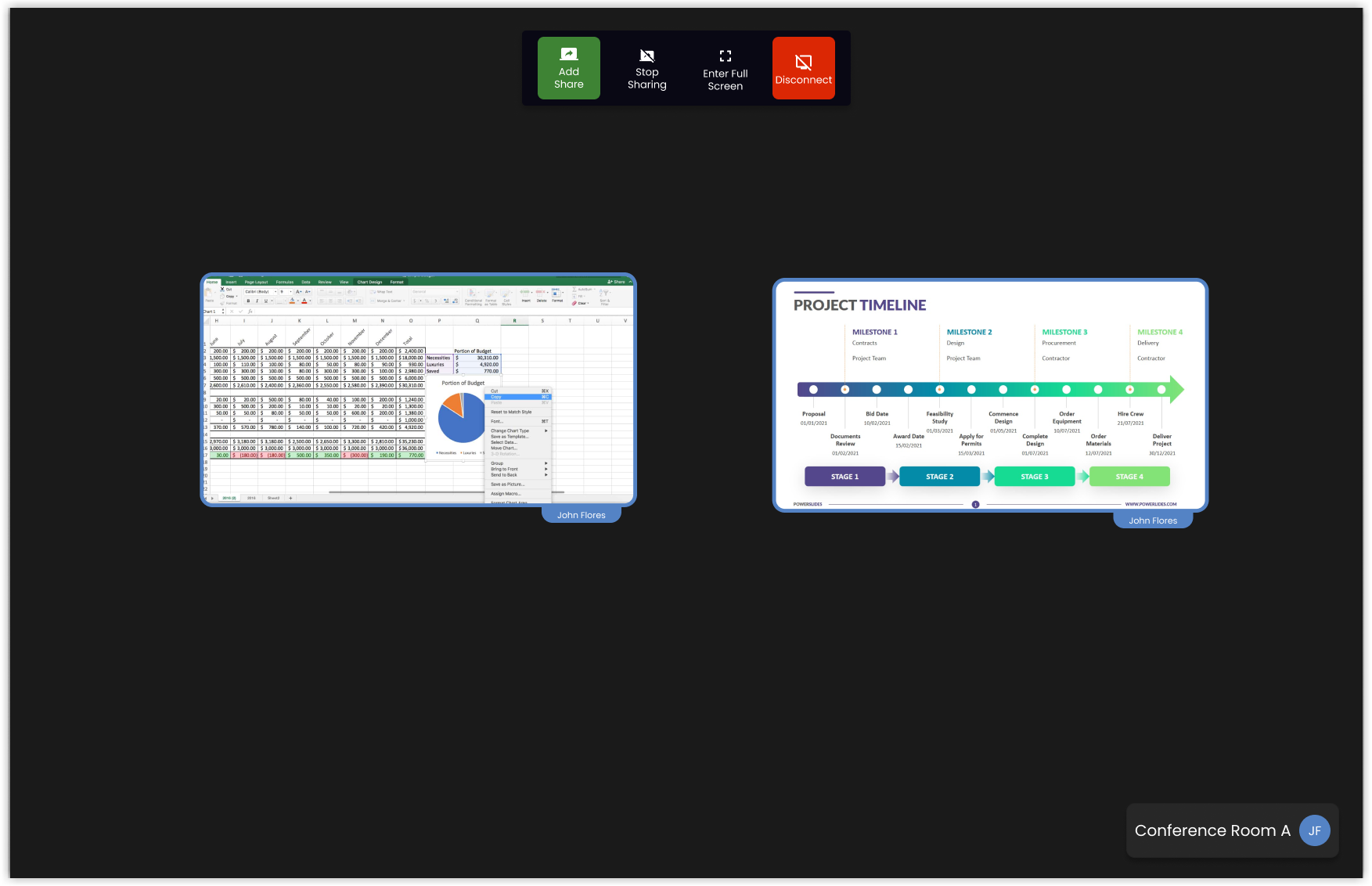
Laptop view
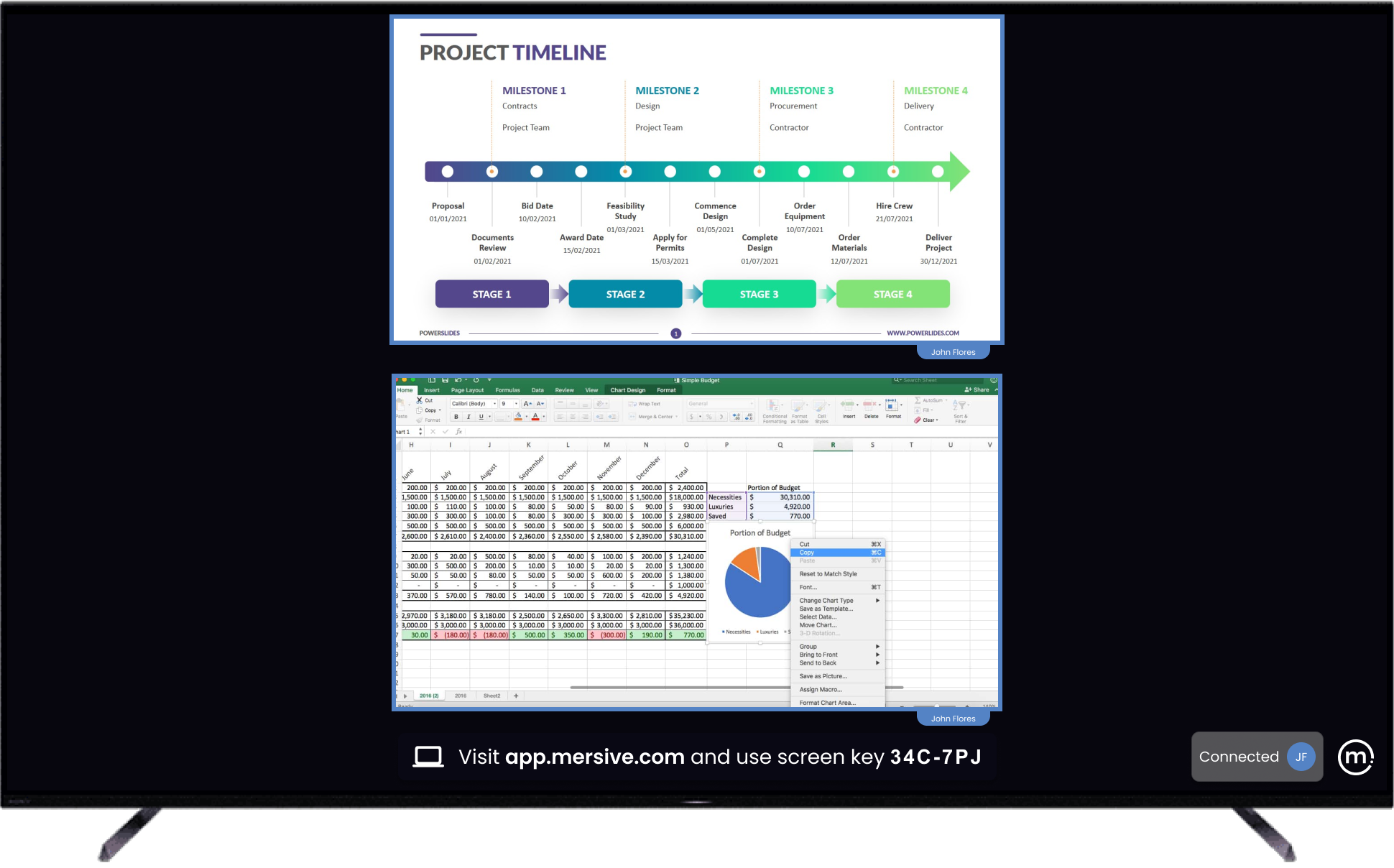
Display view
-
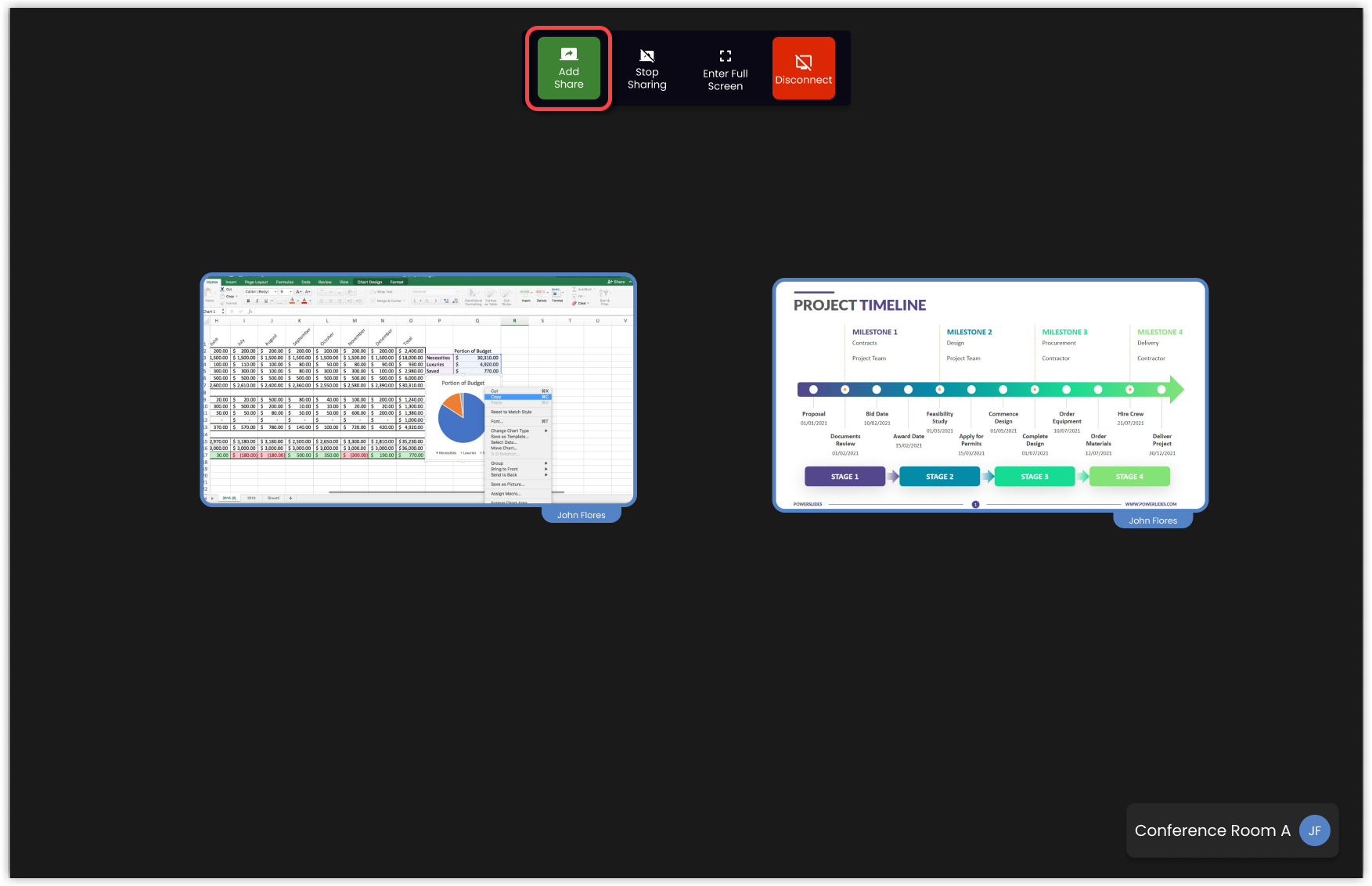
To add shares, click Add Share and select content, then click Share.
-
To switch the display to full screen, click Enter Full Screen. Click Exit Full Screen to return to normal view.
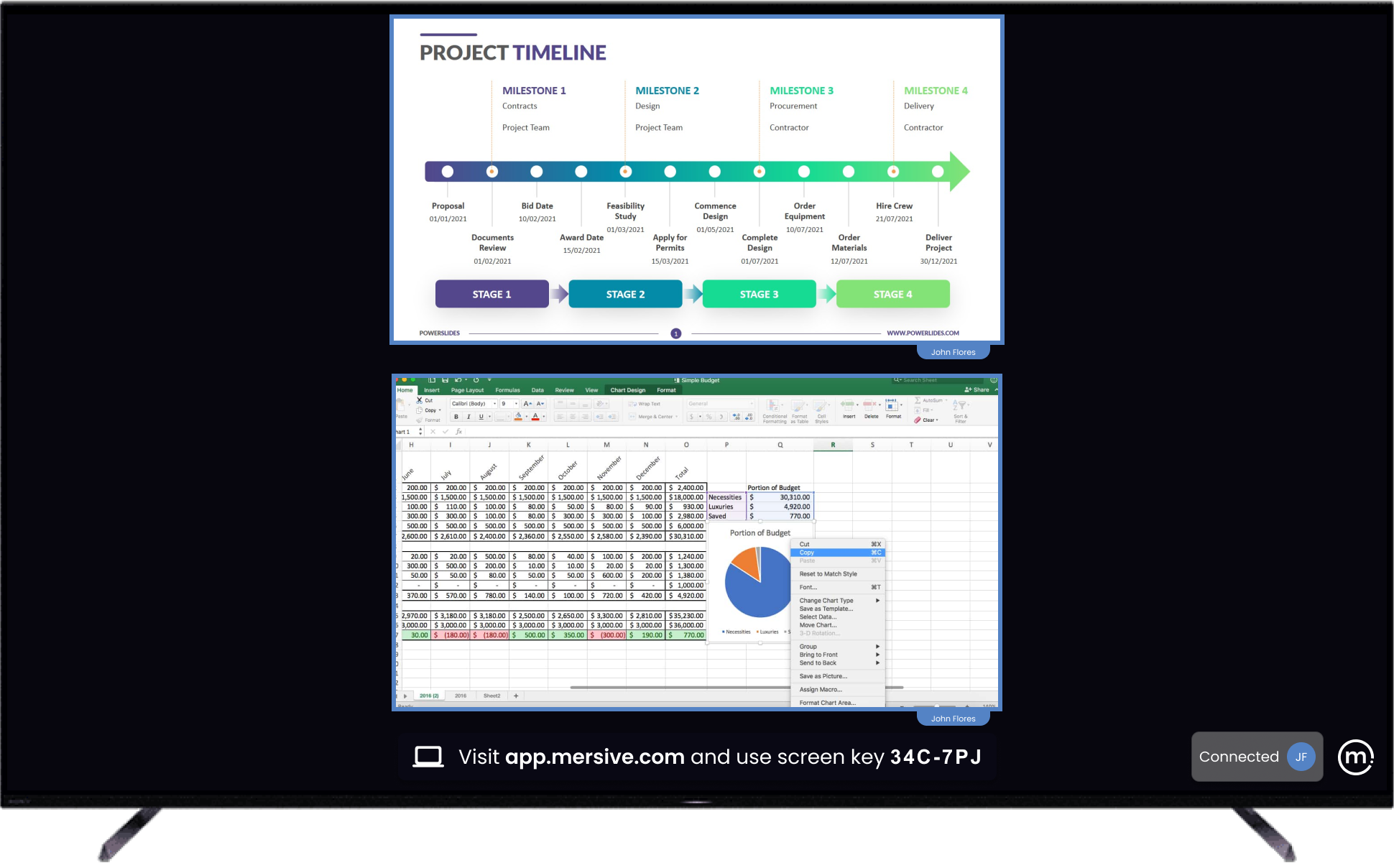
Normal view
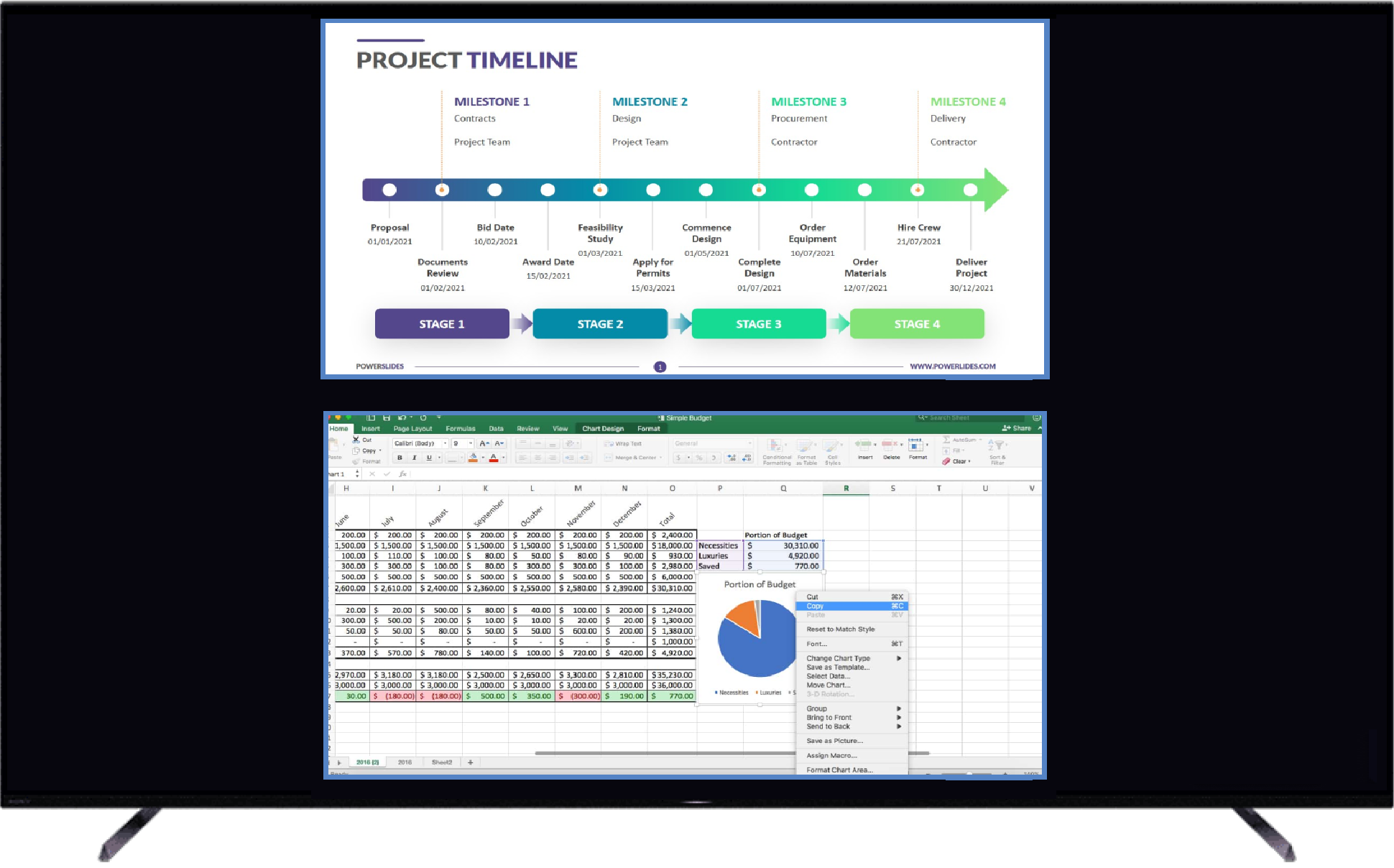
Full Screen view
-
To stop sharing, click Stop Sharing. Note: The connection remains, so you can resume sharing at any time.
-
To disconnect from the display, click Disconnect. Note: You will need to use the screen key and reconnect to resume sharing.