Device Software and Hardware Customization
The Device tab has several software and hardware customization options:
Firmware Update
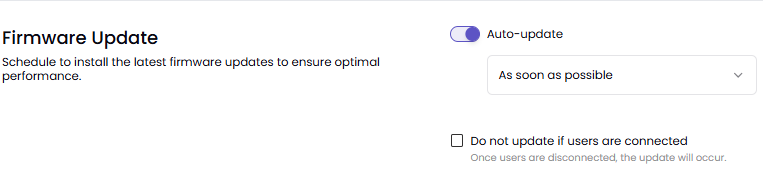
In the Firmware Update section, you can schedule updates to ensure optimal performance.
-
Auto-Update:
-
On - Highly recommended
-
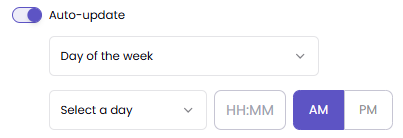
If auto-update is on, you have two options:
-
As soon as possible
-
Day of the week
-
-
-
Off - Not recommended
-
Do not update if users are connected - Ensures that updates only occur when the device is not being used
-
Reboot Schedule
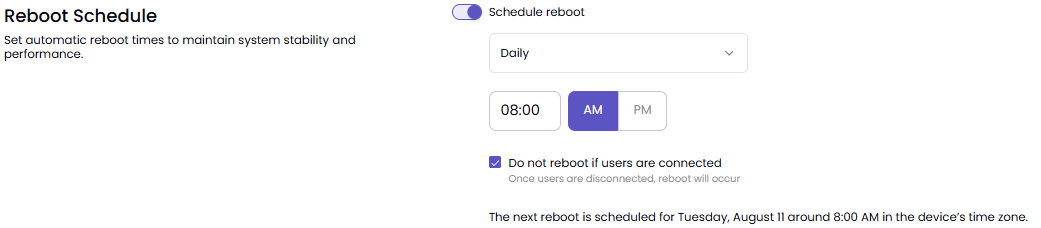
In the Reboot Schedule section, you can schedule reboots to maintain system stability and performance.
-
Schedule Reboot:
-
On - Highly recommended
-
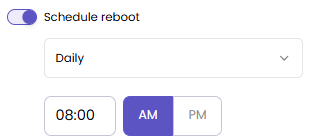
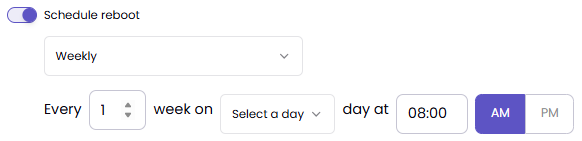
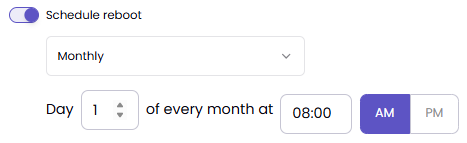
If scheduled reboot is on, you have three options:
-
Daily
-
Weekly
-
Monthly
-
-
-
Off - Not recommended
-
Do not reboot if users are connected - Ensures that reboots only occur when the device is not being used
-
Power Management
Power Management lets you customize a schedule for when the device suspends the HDMI signal and enters sleep mode. You can also choose how the connected display behaves.

If you enable the Sleep section, you can edit several settings.
HDMI In Behavior
You can adjust how the device responds to HDMI input connections: Standard or Persistent
HDMI Out Behavior
You can control output settings for connected HDMI displays:
-
Mirrored - Idle screen, signage, and shared content will be mirrored on both displays.
-
Extended - Idle screen and signage will be extended, and shared content will not be split between the displays.
-
Seamless Extended - Idle screen, signage, and shared content will be extended and split between the displays. This is recommended when using displays that do not have a border
Audio Out Prioritization
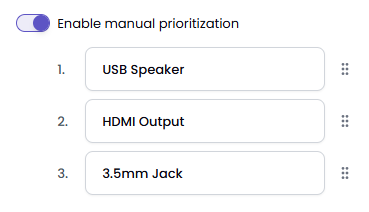
By default, audio out is routed through one device only. The default priority is 1) HDMI out, 2) USB, and 3) 3.5mm.
Enable manual prioritization to change the order of priorities.
Time Zone
You can select or change the time zone for your device.