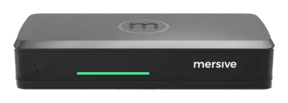
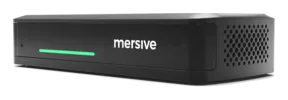
Pod LED Light Bar States
This guide describes the LED light bar colors and patterns displayed by the pod and explains what each state indicates.
Patterns
Table 3. Patterns
| Pattern | Meaning |
|---|---|
| Solid | Steady light |
| Blink | On/off flashing |
| Breathe | Slow fade in and out |
| Init | Startup animation |
Colors
Table 4. Colors
| Color | Hex Value |
|---|---|
| White | #FFFFFF |
| Blue | #008CFF |
| Green | #00FF00 |
| Purple | #A020F0 |
| Red | #FF1A1A |
Startup and Network States
Table 5. Startup and Network States
| LED State | Description |
|---|---|
| White, Init | The device is booting during the first few seconds after the pod service starts. |
| White, Blink | The device is waiting for a network connection or is in Wi-Fi setup mode. |
| Blue, Blink | The device is connecting to a Wi-Fi network. |
| White, Blink | The device is connected to Wi-Fi but lacks internet connectivity or time synchronization. |
| White, Blink | The attempt to connect to Wi-Fi failed. |
| White, Blink | An internet connection was lost while the device was running. |
Display App States
Display app LED states are evaluated in priority order. The first matching condition determines the LED state.
Table 6. Display App States
| LED State | Description |
|---|---|
| Red, Blink | The device is rebooting. This state overrides all other LED indications. |
| White, Solid | The pairing or authorization screen is displayed, and the device has not yet been configured. |
| Purple, Solid | Shared content is currently being displayed. |
| Red, Breathe | The assignment screen is displayed, and no active plan is assigned. |
| Green, Breathe | The assignment screen is displayed, and an active plan is assigned. |
Home Screen States
Table 7. Home Screen States
| LED State | Description |
|---|---|
| Red, Solid | A newer firmware version is available. |
| Green, Solid | HDMI-in persistent mode is enabled, and someone is sharing content. |
| Purple, Solid | HDMI-in persistent mode is enabled, and no one is sharing content. |
| Green, Solid | Digital signage is enabled, the signage URL is reachable, and someone is sharing content. |
| Purple, Solid | Digital signage is enabled, the signage URL is reachable, and no one is sharing content. |
| Red, Blink | Digital signage is enabled, but the signage URL cannot be reached, and no one is sharing content. |
| Green, Solid | Someone is sharing content. |
| Green, Breathe | The device is idle and ready to share. This is the default state. |
Notes
-
Red, Blink may indicate either that the device is rebooting or that the configured digital signage URL cannot be reached.
-
White, Blink is used for all network connectivity issues, including unavailable networks, failed Wi-Fi connections, and loss of internet connectivity.
-
After the pod service restarts, the display application re-applies its previous LED state approximately 10 seconds later.
-
Display app LED states apply only to Linux pods running the web version of the display application.