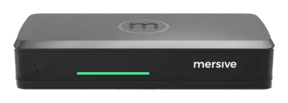
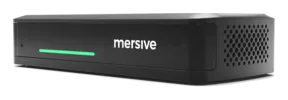
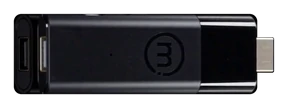
Step 7: Set Up Display Discovery
Display discovery refers to the ability for a user to “discover” what Solstice Pod displays are available to connect to. A user may always discover a Pod display by typing the Pod’s IP address into the Solstice app. However, Solstice discovery can streamline the connection process by listing all Pods available for connection, enabling users to simply click a Pod’s name to connect.
There are three discovery methods that enable this click-to-connect functionality in your Solstice deployment:
-
Broadcast Discovery - By default, Solstice uses UDP broadcast packets to enable Pod display discovery. Broadcast discovery is only recommended for single network configurations that do not use a switch and that allow UDP broadcast traffic. Mersive strongly recommends utilizing Solstice Discovery Service if broadcast discovery is disabled.
-
Solstice Discovery Service (recommended) - Solstice Discovery Service (SDS) is a lightweight network application for display discovery on networks with switches and/or multiple subnets or those that do not allow UDP broadcast traffic. SDS provides users the easiest method for display discovery and requires only a simple, one-time setup. Instead of users having to type an IP address to connect to a Pod display, SDS will populate their Solstice app with a list of Pods available on the network, allowing them to simply click to connect. For more information on how to implement and configure SDS, see Solstice Discovery Service (SDS).
-
Solstice Discovery Service + DNS Resolution - Discovery with SDS alone requires the SDS IP address to be entered into users’ Solstice app. By adding DNS resolution, users can instead type a Pod display’s domain name into a browser (for example, http://hostname.domain) to easily download the Solstice app. Network administrators must first configure DNS resolution on their networks. This method first requires SDS to be configured, then the additional SDS + DNS Resolution step to be performed.
1- Download and Install SDS
-
Under Newest Version (recommended), click the link for the latest version of SDS. The installer will be downloaded.
-
Run the SolsticeDiscoveryServiceSetup_.exe installer on the Windows host machine or Windows server and step through the InstallShield wizard until SDS is installed.
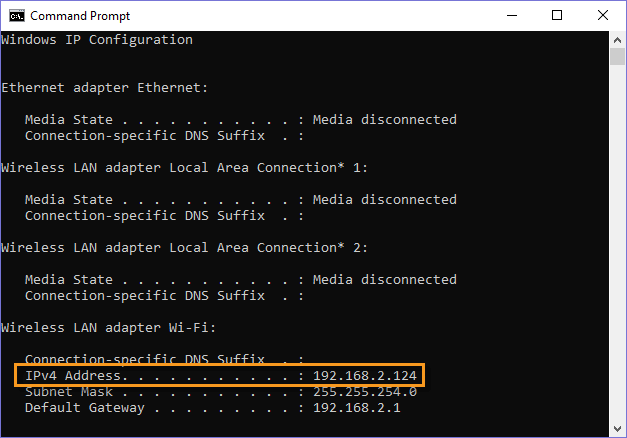
2 - Find the IP Address of the SDS Host
If you already know the static IP address of the Windows machine with SDS installed, move on to step 3 below.
To find your IP address, open a Command Prompt window, type ipconfig, and hit Enter. The IP address is listed in the results that appear.
3- Set SDS Information to List Solstice Pod Displays on SDS
-
On the Windows machine used for Solstice Pod display management, open Solstice Dashboard.
-
Go to the SDS tab and click Configure Primary SDS Host.
-
In the box that appears, enter the IP address of the SDS host machine, then click Set. The SDS tab’s icon turns green to show a connection is made to this host.
-
In the list of your Solstice instances, select the Solstice displays you want to add to the SDS directory. You can use CTRL+click or SHIFT+click to select multiple displays.
-
Go to the Network tab.
-
In the Display Discovery section, uncheck Broadcast display name on network to disable broadcast discovery and select List display to Solstice Directory Service.
-
In the SDS Host 1 field, enter the SDS host machine’s IP address.
-
Click Apply.
4 - Set SDS Host in Solstice User Apps
For users to see Solstice displays listed in the SDS directory, each user will need to do a one-time configuration to enter the SDS host IP address in their Solstice app’s Settings. After entering the SDS host, the user can see Solstice displays available for connection every time they open the app.
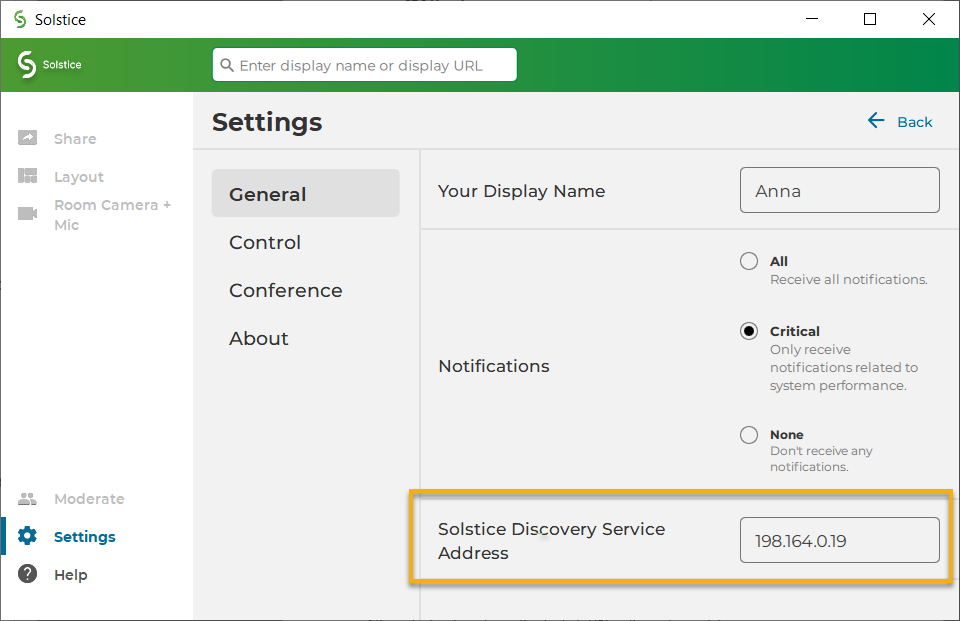
If centrally deploying the app to end-users using MSI or SCCM, SDS information can be pre-configured during the installation process. Learn more about MSI and SCCM installations.
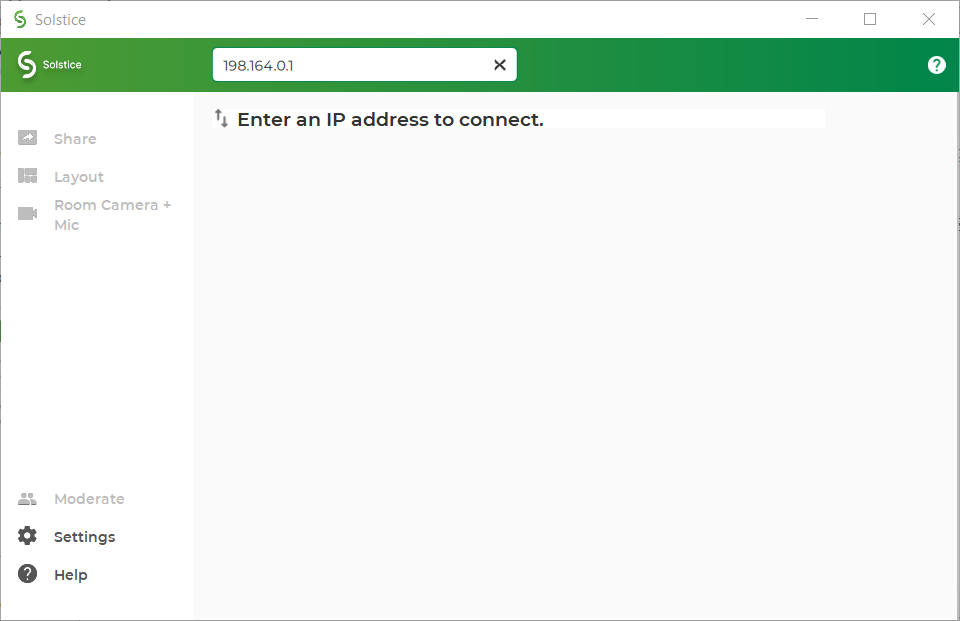
Alternatively, if you have already applied SDS information to your Solstice Pods and displays, as described in step 3 above, SDS will be automatically configured in a user’s app when they connect to one of these displays by entering the display’s URL in the app’s search bar.
SDS Requirements
- Solstice Discovery Service must be installed on a Windows machine with a static IP address running Windows 8 or 10, or a Windows Server running 2012 R2 or later, and a quad core processor with a minimum of 12GB RAM. A Windows 2016 Server may be used if desktop experience is enabled.