Centrally Deploy App with MSI
Windows MSI installers for the Mersive Solstice app and Solstice Conference drivers allow for a GUI-based installation on a local machine or GPO deployment in Active Directory. This allows IT administrators to centrally deploy the Mersive Solstice app and Solstice video conferencing for Windows users. Starting in Solstice 6, users are also directed to the .msi file for individual installations. Solstice MSI installers must be run with administrator privileges.
There are separate MSI installers for the Mersive Solstice app (e.g., SolsticeClient-6.0.msi) and the Mersive Solstice Conference drivers (e.g., SolsticeConferenceDrivers-1.3.msi) starting in Solstice 5.5. Run the Mersive Solstice app installer first, then install the Mersive Solstice Conference drivers. Mersive recommends using MSI installers in a remote deployment using either an administrator or the SYSTEM account to install them properly.
These MSI installers can be run either interactively, specifying options through the GUI, or silently, specifying installation parameters directly on the command line to make automated deployment easier.
Mersive Solstice App Installer Values
The current values that can be set during installation of version 6 of the Mersive Solstice app (e.g., SolsticeClient-6.0.msi) are as follows:
INSTALLDIR=path controls where the Mersive Solstice app is installed. The default is: C:\Program Files\Mersive Technologies, Inc\Solstice\Client
STARTONLOGIN={0|1} controls whether the app auto launches when a user logs in. A value of 1 means the app starts automatically; 0 means it does not. Note: This feature was deprecated in Solstice 6.2.
STARTDOCKED={0|1} determines whether or not the app starts docked in the system tray. A value of 1 sets the app to start in docked mode; 0 opens the app’s UI window on start. Note: This feature was deprecated in Solstice 6.2.
ADDSHORTCUT={0|1} determines whether an icon for the Mersive Solstice app is added to the user’s desktop. A value of 1 adds the icon to the desktop.
SDSADDRESS=address where ‘address’ can be a domain name (e.g., sdshost.yourcompany.com) or an IP address (e.g., 123.4.5.67). This sets the initial value of the Solstice Discovery Service Address in the app (Settings > General). If this parameter is not given, the app’s SDS Address is not modified.
NAME=”user name with spaces” sets a user’s Display Name value in the app (Settings > General). If this value is not set, the user is asked to enter a name when they first run the app. If a name value contains spaces, it needs to be surrounded by quotes.
DEFAULTNAME={0|1} controls whether to set the user’s Display Name in the app (Settings > General) to be the name of the computer the app is being installed on. A value of 1 set the user’s name to the computer name. If both DEFAULTNAME=1 and a NAME value are specified, the Display Name is set to the machine name (DEFAULTNAME setting takes precedence).
NOTIFICATIONLEVEL={0-2} sets how many Notifications (Settings > General) the user sees. A value of 0 disables all notifications; 1 displays only critical notifications; 2 results in the user seeing all notifications.
AUTOSHAREDESKTOP={0|1} sets whether Solstice automatically shares the user’s desktop when they connect to a Solstice display and/or (starting in Solstice 5.5.2) connect to room devices for Solstice-enabled video conferencing. A value of 1 sets Quick Share Desktop (Settings > Control) to on; 0 disables it.
AUTOSHAREAUDIO={0|1} sets whether audio is automatically shared when the user shares their desktop or an application window. A value of 1 sets Auto Share Audio (Settings > Control) to on; 0 disables it.
HIDEUIWHENSHARING={0|1} controls whether the app’s User Interface (UI) is hidden when the desktop is being shared. This is a convenient shortcut so it doesn’t get in the way of content being shared. A value of 1 sets Hide on Desktop Share (Settings > Control) to on; 0 disables automatic desktop sharing.
POWERPOINTEXTENDDISPLAY={0|1} controls the Extended Presentation Mode setting (Settings > Control). A value of 1 turns on Extended Presentation Mode; 0 turns it off. If no value is specified, defaults to off. This functionality requires Solstice Conference drivers to be installed.
SHAREPODDISPLAY={0|1} determines whether Share Pod Display (Settings > Conference) is enabled or disabled for video conferences with Solstice. A value of 1 turns on the Share Pod Display toggle; 0 turns it off for better performance on some devices. If this parameter is not given, the Share Pod Display setting defaults to off.
CONFERENCEPERFORMANCEOPT=[0|1] enables or disables the Performance Optimization setting that appears on laptops detected to be “lower-end” for Solstice-enabled video conferences (in Solstice 5.5.2 and later). A value of 1 turns on Performance Optimization; 0 turns it off. If no value is specified, it defaults to off.
HIDECONFERENCE={0|1} hides the Room Conference + Mic functionality for connecting to video conferences from end-users. A value of 1 hides Solstice video conference–specific functions.
HIDESETTINGS={0|1} hides the settings options and configurations from end-users. A value of 1 hides the settings; 0 allows users to view and configure settings. Starting in Solstice 6, a value of 1 also prevents the Mersive Solstice app from checking if a newer version is available. This is useful if an administrator doesn’t want users to be reminded about newer versions when starting the app.
Examples
Install the Mersive Solstice App with 'msiexec' from the Command Line
Here is an example of how to use msiexec to install the Mersive Solstice app with the following options:
-
Set the SDS address to
sdshost.yourcompany.com -
Install the app in the directory
C:\Program Files\Mersive\SolsticeClient -
Not start the app on login
-
Hide the user interface when sharing the desktop
-
Install the app silently
-
Write an installation log file named
C:\SolsticeClient.logmsiexec /i SolsticeClient-6.0.msi SDSADDRESS=sdshost.yourcompany.com INSTALLDIR="C:\Program Files\Mersive\SolsticeClient" STARTONLOGIN=0 HIDEUIWHENSHARING=1 /quiet /log c:\SolsticeClient.log
Install Mersive Solstice Conference Drivers with 'msiexec' from the Command Line
In some circumstances the Mersive Solstice Conference driver installer does not finish successfully because a previous version of the drivers cannot be fully uninstalled. In this case, run the installer again after Windows is restarted. Use the /norestart option with msiexec, as shown in the example below, to keep Windows from restarting automatically during a silent install.
Here is an example of how to use msiexec to install the Mersive Solstice Conference drivers with Mersive Solstice 5.5 and later with the following command line options:
-
Wait until the installation is finished to return an error code (3010 = install succeeded but needs a reboot to complete, 1603 = reboot and retry install).
-
Suppress a Windows restart if one is required to finish the installation.
-
Install the Mersive Solstice Conference drivers silently.
-
Write an installation log file named
C:\SolsticeConference.log.start /wait msiexec /i SolsticeConferenceDrivers-1.3.msi /norestart /quiet /log c:\SolsticeConference.log
There are currently no configuration values to be set during the Mersive Solstice Conference drivers installation.
Uninstall Mersive Solstice and Solstice Conference Drivers with 'msiexec'
The command below shows an example of how to use msiexec to uninstall the Mersive Solstice app:
msiexec /x SolsticeClient-6.0.msi /quiet /log c:\SolsticeClient.logThis command shows an example of how to use msiexec to uninstall the Mersive Solstice Conference drivers separately from versions 5.5 and later of the Mersive Solstice app:
msiexec /x SolsticeConferenceDrivers-1.3.msi /norestart /quiet /log c:\SolsticeConference.logPre-Install Mersive Trust Certificate for Mersive Solstice App Versions 5.4 and Earlier
When installing the Solstice Conference drivers in the combined installer with versions 5.4 and earlier of the Mersive Solstice app, a confirmation screen appears that requires the user to explicitly trust software from Mersive. To eliminate this confirmation step in silent installs, pre-install the Mersive trust certificate on computers on which the app is to be installed. Below are steps to accomplish this locally on a single machine.
This confirmation is no longer required to install Solstice Conference drivers version 1.3 (compatible with version 5.5 of the Mersive Solstice app) and later.
-
From a computer that does not have Solstice Conference drivers installed with the Mersive Solstice app, run the version 5.4 or earlier MSI installation file (e.g., SolsticeClient-5.4.msi).
- If you are working with a computer that already has Solstice Conference drivers installed, skip to step 5.
-
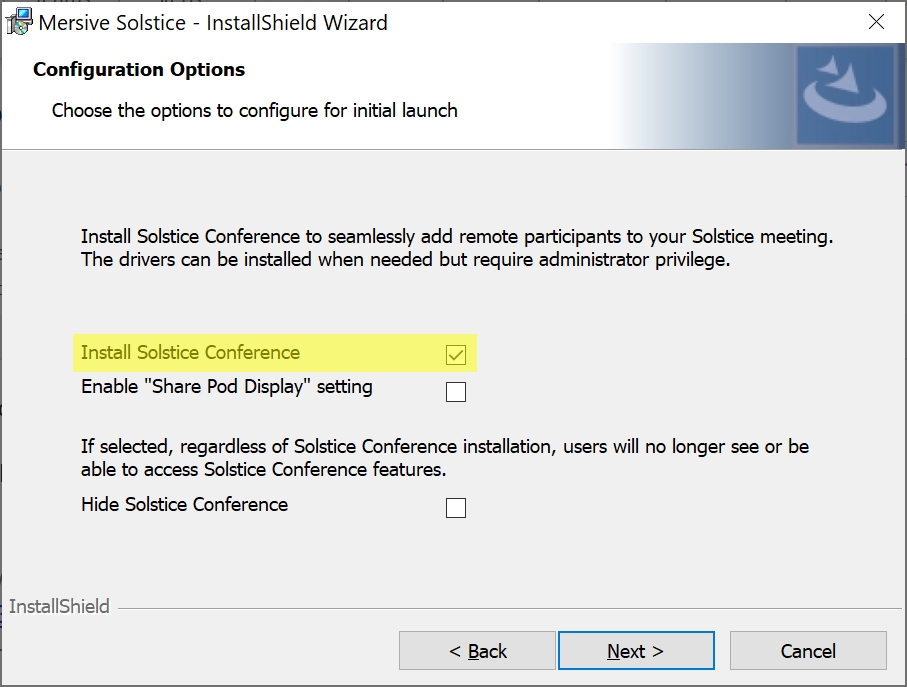
Work through the installation wizard, and select the Install Solstice Conference option.
-
Continue the installation wizard.
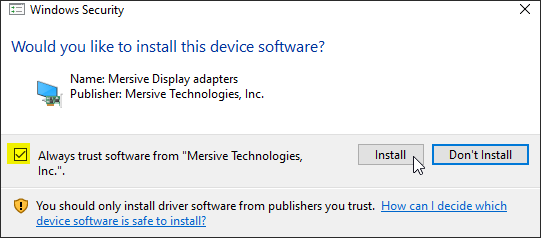
When the installation starts, you are prompted to trust Mersive software.
-
Check Always trust software from “Mersive Technologies, Inc. and click Install. The Mersive trust certificate is installed on the computer.
-
On the Windows start menu, enter certmgr.msc
-
From the
certmgrdialog, navigate to Trusted Publishers > Certificates. -
Right-click the Mersive certificate and select All Tasks > Export.
-
Click Next, and then click Next again.
-
Enter the file name for the Mersive certificate (e.g.,
mersive_cert.cer). You can also use the Browse dialog to specify both the name and the location of the file. -
Click Next, and then click Finish.
-
Place the SolsticeClient-5.4.msi file and the trust certificate you just exported, into the same folder or on the same share where they can used for installation.
-
On the Windows computer where you want to perform the silent install, open a command prompt with Administrator permissions.
-
Install the certificate by entering
certutil -addstore "TrustedPublisher" <certificate name>. -
Using
msiexecrun SolsticeClient-5.4.msi with thequiet(silent) option.
For example, to run both certutil and msiexec from the same command, enter:
certutil -addstore "TrustedPublisher" mersive_cert.cer && msiexec /i SolsticeClient-5.4.msi SDSADDRESS=192.168.2.129 INSTALLDIR="C:\Program Files\Mersive\SolsticeClient" STARTONLOGIN=0 HIDEUIWHENSHARING=1 ADDCONFERENCE=1 /quiet /log c:\SolsticeClient.log