Pod Settings and Templates
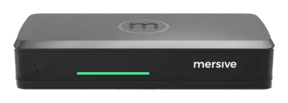
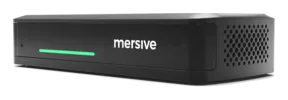
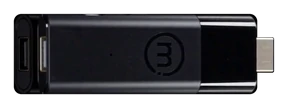
Solstice Cloud administrators can manage Solstice Pods in their organization remotely from anywhere. Related configuration options are grouped together into sets that can be changed for individual Pods or saved into templates to be easily assigned to multiple Pods in a Solstice deployment. There are configuration sets for Ethernet and Wi-Fi network settings, security settings, appearance settings, and more. Solstice Cloud templates can be applied to Pods managed by Solstice version 4.5 or later.
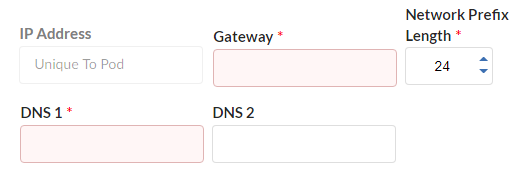
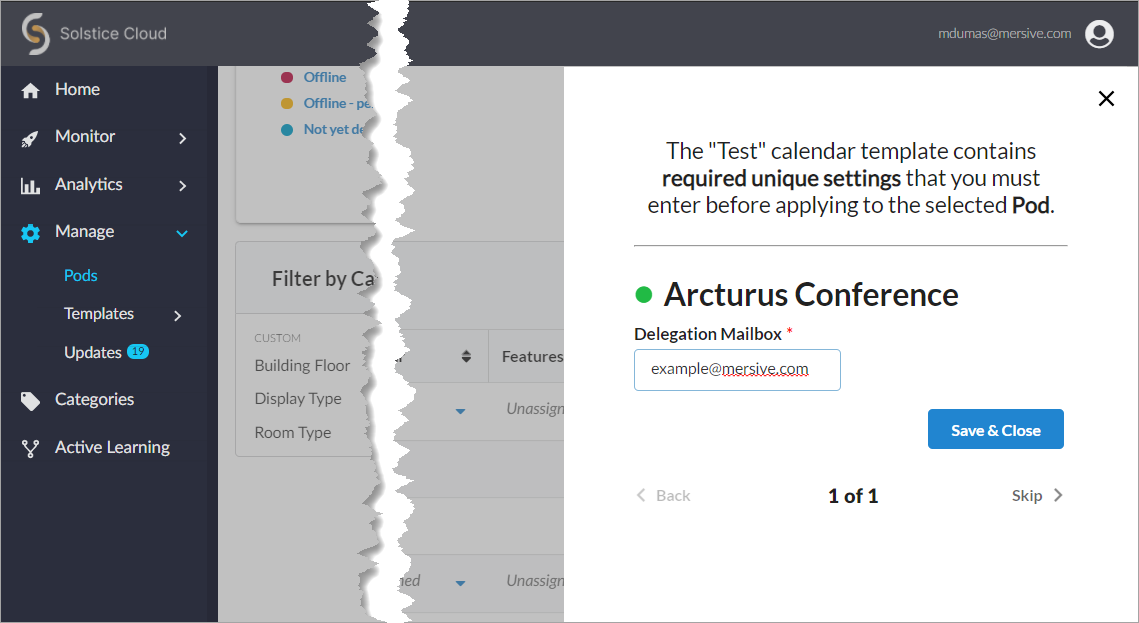
While most settings can be configured by applying templates, there are certain settings or values that are unique to each Pod. Unique-to-Pod settings, such as static IP addresses or DNS hostnames, must be set for each Pod individually. When creating templates, settings that need to be configured individually are labeled as shown in the example below.
See Example of a Unique-to-Pod Setting
Solstice Cloud Template Updates
There are multiple ways to change settings for an individual Solstice Pod managed in Solstice Cloud:
-
Create a template for that settings category containing the desired settings and assign the template to the Pod. To do this, see the Create a New Template directions.
-
Use the Pod Configuration page to view and modify unassigned settings categories for the Pod. To do this, see the Change Unassigned Settings for a Pod directions.
-
Edit non-template configuration settings for the individual Pod. To do this, see the Configure Individual Pod Settings directions.
How To
Define Default Templates
Each required Solstice Cloud configuration category contains one Default template. Mersive recommends configuring this template with the most common set of configuration options for the Solstice Pods in your organization’s deployment. Then use the Duplicate a Template option to create variations of the template for groups of Pods that use different configuration options.
- For example, use the default Time/Locale template to configure the time zone for Pods in the main office, then duplicate the template and modify the duplicates for Pods located in other time zones.
Default templates are also used for pre-configuring Pod settings before the Pods are shipped. For customers in Mersive’s Pre-Provisioning Program, Solstice Pods automatically import into their Solstice Cloud account, significantly reducing the time needed for Pod deployment upon arrival. Reach out to your sales representative for inquiries into the Pod Pre-Provisioning Program.
-
In the left sidebar menu of Solstice Cloud, click Manage > Templates.
-
From the list of configuration categories that appears below Templates, select the category to configure.
-
Click the first template in the list, named Default, to see the available configuration options.
-
Configure the default settings as appropriate for the majority of Solstice Pods in your deployment.
-
Click Save. A green box confirming that the template was updated will briefly appear.
Create a New Template
-
In the left sidebar menu of Solstice Cloud, click Manage > Templates. A list of available configuration templates appears in the sidebar.
-
From the list of configuration categories that appears below Templates, select the category to configure.
-
Click Create New Template.
-
Enter a descriptive Template Name. For example, you could name the template by location (London Office) or appearance (Mountain Theme), as appropriate for its purpose.
-
Configure the settings to be applied to the Solstice Pods using this template.
-
Click Save.
Duplicate a Template
-
In the left sidebar menu of Solstice Cloud, click Manage > Templates.
-
From the list of configuration categories that appears below Templates, select the category to configure.
-
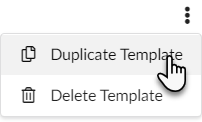
For the template to duplicate, click the vertical ellipsis
 icon, then select Duplicate Template.
-
Give the duplicated template a descriptive Template Name, ideally related to its purpose, and change the configuration settings as needed.
-
Click Save.
Apply a Template to Pods
-
In the left sidebar menu of Solstice Cloud, click Manage > Pods.
The Pod Template Assignments table displays. This table is used to apply templates across your deployment. You can apply a template to multiple Pods at once.
-
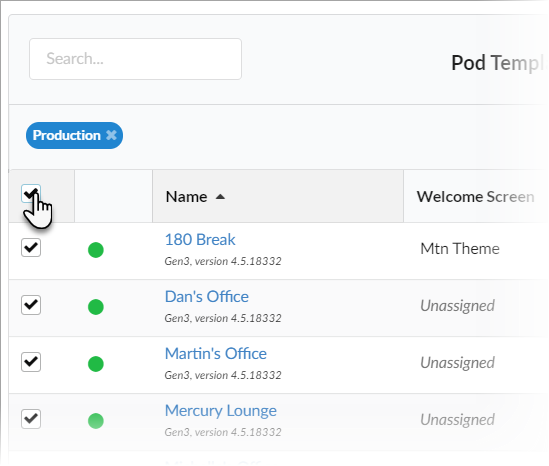
Select the Pods you want to apply the template to. You can select each Pod’s checkbox individually, or select the checkbox in the header row of the table to select all Pods showing in the table.
-
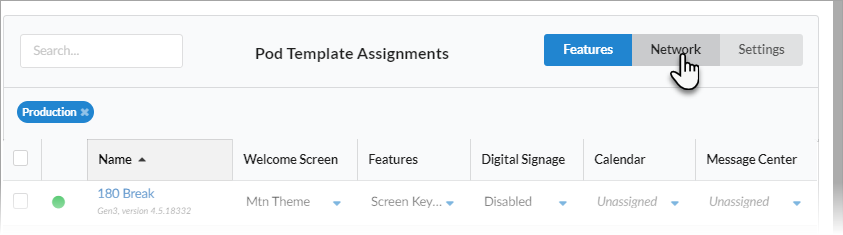
For each template you want to apply, go to the corresponding template type column (e.g., Welcome Screen). You can view different groups of templates by selecting a template category in the upper right corner of the table.
-
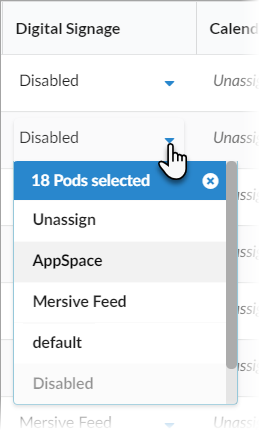
Select the template with the desired configuration from the list in the appropriate column for one of the selected Pods. This applies the template to all the selected Pods in the table.
-
Click Confirm when to confirm applying the selected template to all selected Pods.
-
As changes are being applied, the pending changes
 icon appears next to the template(s) being applied. After the changes are applied, the Pod’s normal status resumes.
-
If a Pod is offline, any changes made are applied when the Pod comes back online.
-
If a settings change in a Cloud template causes Solstice Cloud to be unable to connect to the Pod, the Pod’s settings for that template is rolled back to their previous configuration. A failure icon
 shows that the template could not be applied.
-
-
If a template you applied has any unique-to-Pod settings that need to be applied each Pod individually, a pop-up pane appears prompting you to enter the needed information for each affected Pod. After you complete all of the settings screens, click Save & Close.
Edit a Template
-
In the left sidebar menu of Solstice Cloud, click Manage > Templates. A list of available configuration templates appears in the sidebar.
-
From the list of configuration categories that appears below Templates, select the category to configure.
-
Click on the template to edit.
-
Edit or update any of the template’s settings.
-
Click Save. If the template is applied to any Pods, clicking Save applies any changes to those Pods.
Delete a Template
-
In the left sidebar menu of Solstice Cloud, click Manage > Templates. A list of available configuration templates appears in the sidebar.
-
From the list of configuration categories that appears below Templates, select the category to configure.
-
For the template to delete, click the vertical ellipsis
icon, then select Delete Template.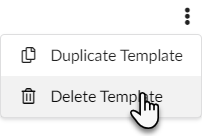
-
In the confirmation pop-up that appears, click Delete.
Change Unassigned Settings for a Pod
To apply settings to an individual Pod without assigning a template:
-
In the left sidebar menu of Solstice Cloud, click Manage > Pods.
-
In the Pod Template Assignments table, click the name of the Pod you want to configure.
-
Scroll down to the Template Configuration section and click the
 icon to expand the options available for a particular settings category.
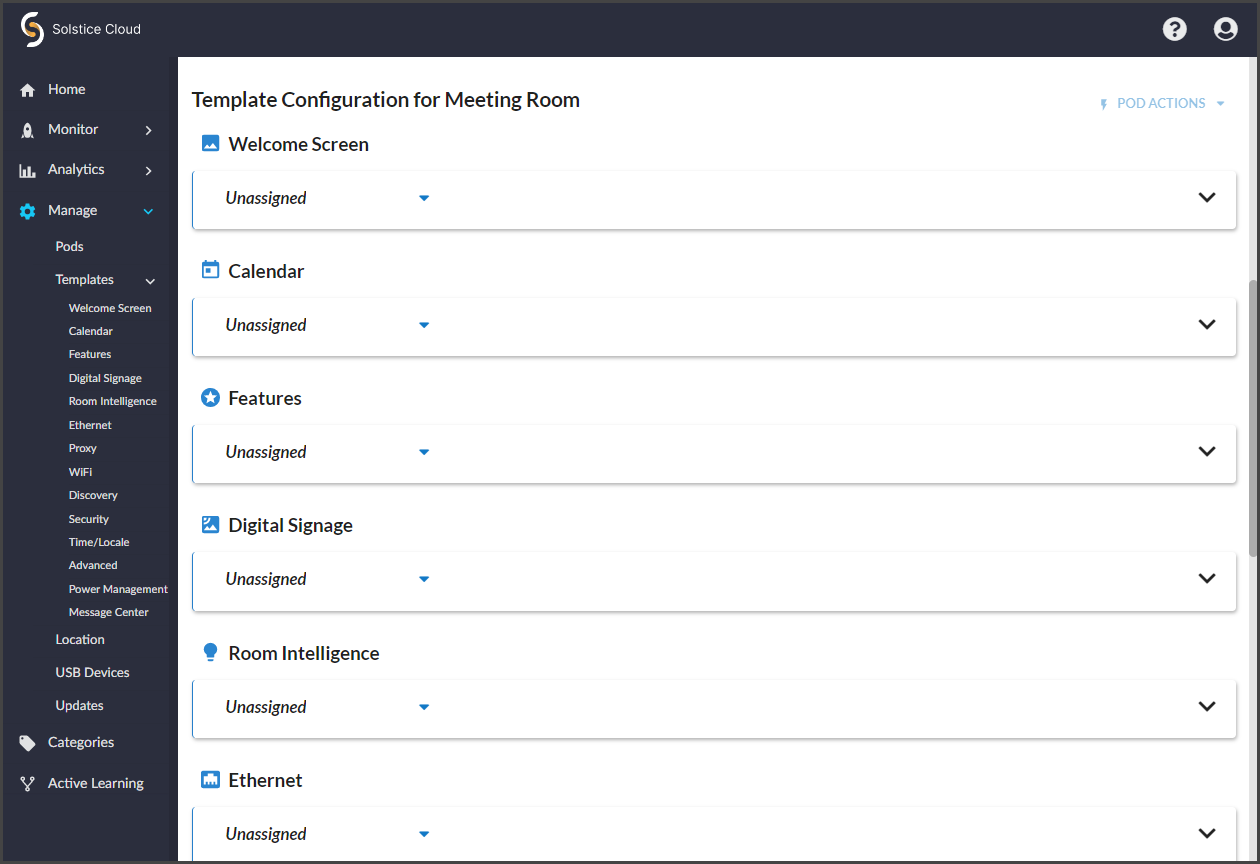
-
Configure the settings as desired and then click Save as Unassigned.

-
A message appears confirming the Pod configuration is updated. Until the configuration is successfully applied to the Pod, an option is available to Cancel Pending Changes.

Configure Individual Pod Settings
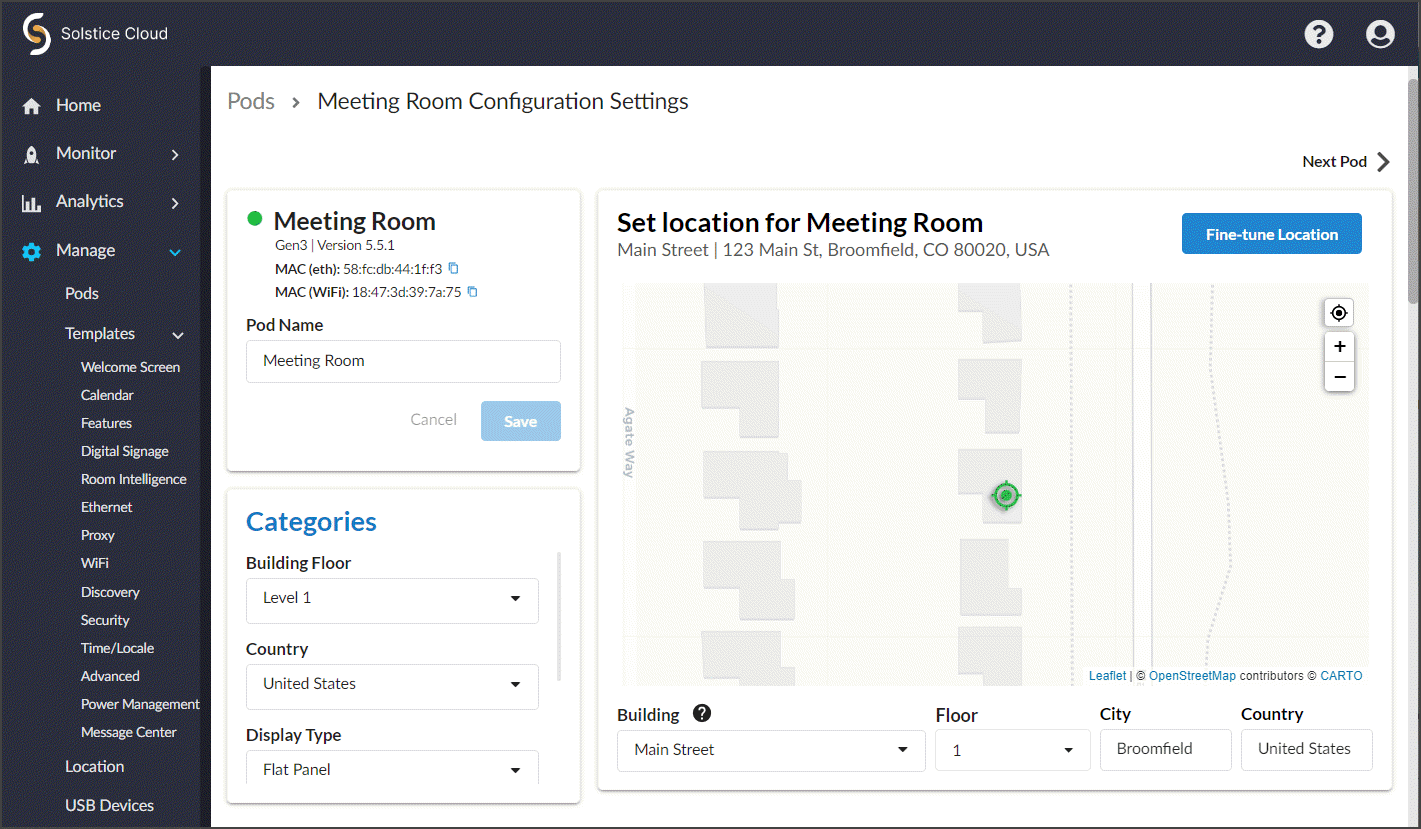
For each Solstice Pod, some settings are maintained outside of the configuration template sets, including the Pod’s name, location, and categories the Pod is assigned to. The directions below describe how to edit these settings for an individual Pod.
Location and category assignments can also be managed for multiple Pods. See the Create Categories and Assign Pods and Set Pod Locations topics for more information.
-
In the left sidebar menu of Solstice Cloud, click Manage > Pods.
-
In the Pod Template Assignments table, click the name of the Pod you want to configure.
-
To update the Solstice display name that appears on the Pod’s welcome screen and in the list of available Solstice displays in the Mersive Solstice app:
- In the configuration section containing the Pod’s name, enter the desired Pod Name.
-
In the location section, set and update location information for the selected Pod:
-
Use the Building list to select a previously defined location or create a new building profile.
-
You can also select an existing or create a new Floor.
-
Click Fine-Tune Location, then zoom into and drag the map to more accurately locate the target icon for the selected Pod in the correct building outline.
-
-
View and manage category options for the selected Pod in the Categories section. Categories in Solstice Cloud management are highly customizable. See Create Categories and Assign Pods for more details.
-
After clicking Save, the status icon next to the Pod’s name changes to the working indicator. When Solstice Cloud confirms that the changes are successfully applied to the Pod, the indicator returns to green (online).
Perform Other Pod Actions
A number of other actions can be applied to one or more Solstice Pods from the Pod Actions menu available from Pod Template Assignments in Solstice Cloud.
-
In the left sidebar menu of Solstice Cloud, click Manage > Pods.
-
In the Pod Template Assignments table, check the box in the left column to select one or more Solstice Pods.
-
From the Pod Actions menu that appears above the right side of the table, you can perform the following actions on the selected Pod(s):
-
Reboot Pod(s) — Pod(s) perform a hardware reboot.
-
Disconnect all users — All users are disconnected from selected Pod(s).
-
Clear Screen — All content shared to Solstice is cleared for the selected Pod(s). Users are not disconnected.
-
Power Management: Wake — Wake suspended Pod(s). This re-enables the HDMI signal to display monitors.
-
Power Management: Suspend — Disconnects all users from selected Pod(s) and suspends the HDMI signal to display monitors.
-
Delete Pod(s) — Remove selected Pod(s) from Solstice Cloud management for the logged-in organization.
-
Next Topic
In this section
- Welcome Screen TemplateThe Welcome Screen template gives you many options to customize the appearance of your Solstice display welcome screen to match your organization's branding by changing or…
- Calendar TemplateThe Calendar template allows you to show the schedule and calendar information for the room when there is no other content being shared. Participants can see if the space is…
- Features TemplateThe Features template allows you to configure options for how attendees view and interact with the Solstice display. It includes options that determine how attendees can…
- Digital Signage TemplateSolstice digital signage allows you to show HTML-based signage on Solstice displays when they are not being used for wireless collaboration or conferencing. It can add digital…
- Room Intelligence TemplateThe Room Intelligence template page controls system preferences that enable an intuitive experience with any video conferencing app and allows Solstice Pods to sense a…
- Ethernet TemplateSolstice leverages existing Ethernet networks to support collaboration in meeting rooms and learning spaces. These advanced network settings allow you to configure Solstice to…
- Proxy TemplateThe Proxy template provides a method to configure Solstice displays deployed behind a secure web proxy to reach the licensing and over-the-air (OTA) update servers. Options to…
- WiFi Settings TemplateSolstice is designed to leverage existing WiFi networks to support wireless collaboration in meeting rooms and learning spaces. The Solstice Pod supports secure access to two…
- Discovery TemplateDisplay discovery refers to the ability for a user to "discover" what Solstice displays are available to connect to. A user can always connect to a Pod by typing the Pod’s IP…
- Security TemplateA Solstice Pod is a network-attached device that provides straightforward and secure wireless access to existing display infrastructure by leveraging a host IT network. By…
- Time/Locale TemplateThe Time/Locale Template page allows you to set various system preferences for your Solstice display, including timezone and language settings.
- Advanced TemplateThe Advanced Template offers an advanced suite of settings for Solstice Pods in your deployment. Features include implementing quality of service to help prioritize Solstice…
- Power Management TemplatePower management templates allow you to schedule when a Pod's display monitor turns off after being idle for the specified amount of time. Solstice can do this using one of two…
- Message Center TemplateThis feature allows you to add an RSS feed to a Solstice Pod's Welcome screen that scrolls across the top. You can also create and publish an emergency message that is…