

Solstice Active Learning
Solstice Active Learning is a software-enabled active routing solution for multi-team learning environments that allows educators to control and share content to engage with students. The application provides a simple learning space design tool, drag-and-drop video sharing between screens, as well as an instant messaging system that can broadcast information to each display on demand.
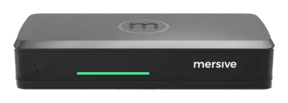
Solstice Active Learning can be enabled on Solstice Gen3 Pods running software version 4.5 or later with a current Active Learning subscription. Additionally, each designer and facilitator must have a Solstice Cloud account to virtually design rooms and route video in real time using the free Solstice Active Learning app.
Steps to Get Started with Solstice Active Learning
-
Physical setup of the Active Learning room. Learn more.
-
Log in to your Solstice Cloud account and invite Active Learning Designers and Facilitators to create their accounts. If your organization does not already have a Solstice Cloud account, see Get Started with Solstice Cloud for more information on how to set up your account.
-
Designers and Facilitators accept the email invitation to create their accounts.
-
Designers and Facilitators download the Solstice Active Learning app.
-
Designer virtually designs and sets up the active learning room within the Solstice Active Learning app.
-
Facilitators use the Solstice Active Learning app to conduct active learning sessions, route video and content, and broadcast messages within the active learning room.
Active Learning API
The Solstice Active Routing API enables developers, engineers, and consultants to mirror a Solstice display to an arbitrary number of other Solstice displays. It is used by the Solstice Active Learning application.
Active Routing is infrastructure that supports products in a variety of areas such as Active Learning, Multiroom Sharing, and other potential markets that require the duplication of content or collaboration across multiple screens or conference rooms that reside in a single local-area network (LAN).
Learn more about the Solstice Active Routing API and view code samples.
How To
Invite Active Learning Designers and Facilitators to Create Their Accounts
Solstice administrators must invite Active Learning users and assign an Active Learning user role in the Solstice Cloud portal.
-
Log in to Solstice Cloud as an administrator.
-
Click the User
 icon in the top-right corner, then click Account. Super Admin level users may also navigate to Manage > Organization > Users in the left navbar.
-
Follow the Invite Users to Solstice Cloud directions to invite users as appropriate for your organization.
-
When choosing a role, select one of the following options:
-
Active Learning Designer: Can use the Solstice Active Learning app to virtually design and set up video routing spaces. Designers can also facilitate routing sessions.
-
Active Learning Facilitator: Can use the Active Learning app to conduct video routing sessions.
-
-
Click Invite User or Add User to finish adding or inviting the user to Solstice Cloud.
Enable Screen Key Verification
For enhanced in-room security, a Solstice administrator can require a screen key to be entered by the facilitator before connecting to the room.
-
Log in to the Solstice Cloud portal as an administrator.
-
In the left sidebar menu, go to the Active Learning tab.
-
Next to the Screen Key Verification option (located above the Filter by Category section), hover your mouse over OFF, and in the pop-up, click Turn On.
Download the Solstice Active Learning App
The Solstice Active Learning app can be installed on a laptop or tablet device. Windows and macOS laptops with a minimum resolution of 1024x768 and Android or iOS tablets with 10” screens or larger are supported. Active Learning Designers and Facilitators must download the app to use the Solstice Active Learning capabilities.
-
Users with laptop computers can visit mersive.com/download-active-learning/ to download the Solstice Active Learning app.
-
Users with tablet devices can download the Solstice Active Learning app from their respective app store.
Deploy the Active Learning App with MSI on Windows
The MSI installer package of the Solstice Active Learning app allows for a GUI-based installation on a local machine or GPO deployment in Active Directory. This allows your IT administrator to centrally deploy the Active Learning app on Windows machines and can be set to install silently. The installer does need privileges to install system-wide, but the installer does not explicitly check for these privileges. This makes it easier to use the MSI in a remote deployment where either an administrator or the SYSTEM account can install this properly.
The MSI allows you to set the following installation parameter:
-
INSTALLDIR= controls where the client is installed. The default is: “C:\Program Files (x86)\Mersive Technologies, Inc\Active Learning\”
The client-specific data that was stored in each user’s home directory is now stored in a central shared location. This allows for centralized management of these settings and the ability to update them for all users at installation time.
Example:
msiexec /i ActiveLearning.msi INSTALLDIR=”C:\Program Files (x86)\Mersive Technologies, Inc\Active Learning” /quiet /log c:\ActiveLearningClient.logThe above example:
-
Silently installs the client in the directory C:\Program Files (x86)\ActiveLearning
-
Writes an installation log file named C:\ActiveLearningClient.log
If stepping through the InstallShield wizard, the installation directory can also be set on the installer’s Destination Folder dialog page.
Deploy the Active Learning App with Jamf on iPadOS
The Solstice Active Learning app can be centrally deployed on iPadOS devices and settings can be centrally managed using mobile device management (MDM) using an MDM provider such as Jamf. Starting in Solstice Active Learning 1.3, administrators can use MDM to configure application-specific settings throughout their Active Learning deployment.
In Jamf this can be done by configuring the Active Learning application under Mobile Device Apps in your Jamf server. Change the settings for the application under the App Configuration tab. Values changed by an administrator are pushed from the MDM provider to the applications nearly instantaneously.
The following application configuration keys are currently defined for Solstice Active Learning:
Key | Type | Description |
|---|---|---|
| boolean | If |
| boolean | If If |
Administrators may choose whether or not to include each configuration key in their configuration files. Which of these two basic cases an admin chooses affects users’ settings in the following ways:
-
If a specific key is omitted from the configuration file, control of that setting is relinquished fully to the user.
-
If a key is included and configured to a value, the setting is then enforced to only be changed by the administrator. Users can not make any changes to that setting locally.
FAQ
Next Topic
Solstice Active Learning Setup
Related Resource
In this section
- Solstice Active Learning SetupThe Solstice Active Learning solution leverages existing TCP/IP-based networking, a flexible software control platform, and a Solstice Pod device and connected display monitor…
- Design an Active Learning SpaceAfter the Pods are connected to their team table displays and deployed on the network, Active Learning Designers can virtually design and enable a new active learning space…
- Active Learning App Settings and SessionsThe Solstice Active Learning app's drag-and-drop interface allows facilitators to easily conduct active learning sessions and route visual content within the active learning…
- Solstice Active Routing APIREST API reference for Solstice Active Learning: route content between Pods in an Active Learning space, with code samples.