Home/Documentation/Solstice/Deploy Solstice/Solstice Discovery Service (SDS)/Configure SDS to Auto-Restart (Recommended)
Configure SDS to Auto-Restart (Recommended)
It is recommended that customers who deploy SDS configure the Windows host machine to automatically restart the service if it ever stops running. Enabling the auto-restart of SDS on the Windows host machine reduces the risk of SDS becoming unreachable by the Solstice Pods, Apps, Dashboard, and/or Windows Display Software instances.
How To
Configure SDS to Auto-restart if the Service Goes Down
-
Navigate to the Windows Start menu and search for “Services”.
-
Open the Services desktop app.
-
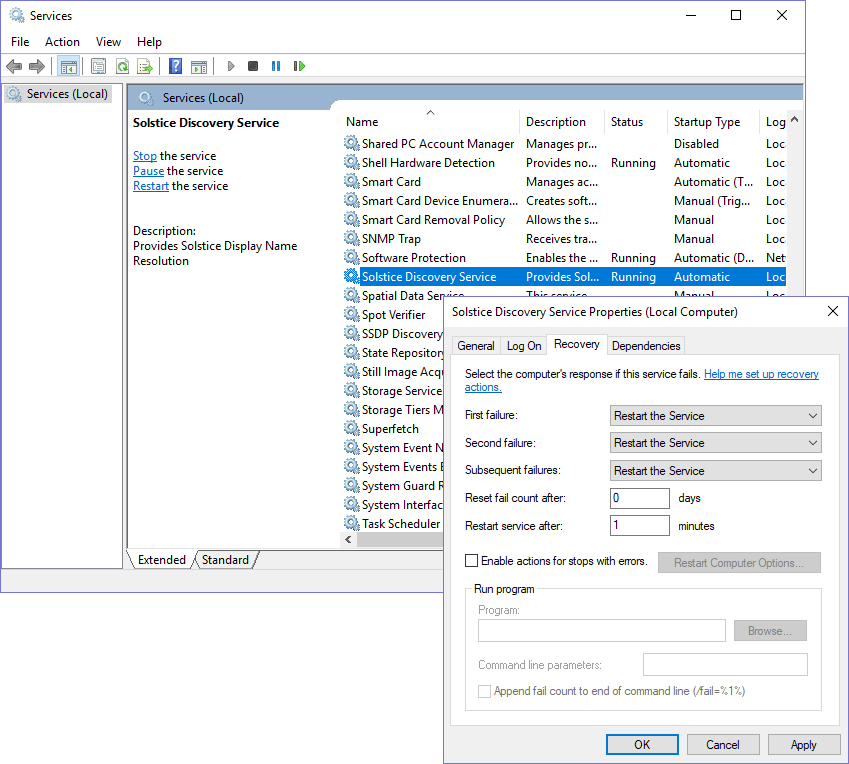
Find Solstice Discovery Service in the list, then right-click and select Properties.
-
Go to the Recovery tab.
-
For the First, Second, and Subsequent failures options, select Restart the Service.
-
Click Apply, then click OK.