
Solstice Discovery Service (SDS)
Display discovery refers to the ability for a user to “discover” what Solstice displays are available to connect to. By default, Solstice uses UDP broadcast packets to enable discovery. We realize not every network allows broadcast traffic, so we built Solstice Discovery Service (SDS) to make connecting to a Solstice display fast and easy for users on those networks.
The Solstice Discovery Service (SDS) is a lightweight network application for display discovery that allows users to discover and click-to-connect to Solstice displays from their own devices to start sharing content. Users point their Mersive Solstice app to that same SDS host machine’s IP address (or they can inherit that setting from the first SDS-configured display they connect to) to see every available Solstice display. The result is the easy click-to-connect experience without the network congestion or security concerns associated with broadcast traffic.
Do I Need SDS?
Typically, SDS is used when multiple Solstice displays are deployed on an enterprise network (or any network that does not allow UDP broadcast traffic), and is installed during the initial deployment phase. SDS should be installed on your network to enable and support these scenarios:
-
To enable users to connect to Solstice without entering an IP address
-
To enable a one-step meeting start by simply entering the Solstice display’s screen key in the Mersive Solstice app
-
To enable ease of use with Solstice-enabled video conferences
-
To enable users to view which displays/rooms are in use and by how many people
-
To choose which displays do and do not appear to users for connection
System Requirements
The Solstice Discovery Service is a free software that must be installed on a Windows computer or Windows server attached to the same network as your Solstice Pods and Windows Software displays. Each Solstice Pod or Software display is configured to point to the IP address of the machine SDS is installed on, which allows the Pods and Software displays to publish their information to the SDS directory.
You must install SDS on a Windows machine with a static IP address and has IP routes to all subnets used by Solstice Pods and client applications. This is because Solstice displays and user apps use this IP address to communicate with the directory. This can be a PC running Windows 8 or 10, or a Windows Server running 2012 R2 or later and a quad core processor with a minimum of 12GB RAM. A Windows 2016 or 2019 Server may be used with desktop experience enabled.
Many deployments use the same computer for SDS and the Solstice Dashboard, although that is not a requirement.
How To
Step 1: Download and Install SDS
-
Under Newest Version (recommended), click the link for the latest version of SDS. The installer will be downloaded.
-
Run the SolsticeDiscoveryServiceSetup_.exe installer on the Windows host machine or Windows server and step through the InstallShield wizard until SDS is installed.
Step 2: Find the IP Address of the SDS Host
If you already know the static IP address of the machine with SDS installed, move on to Step 3.
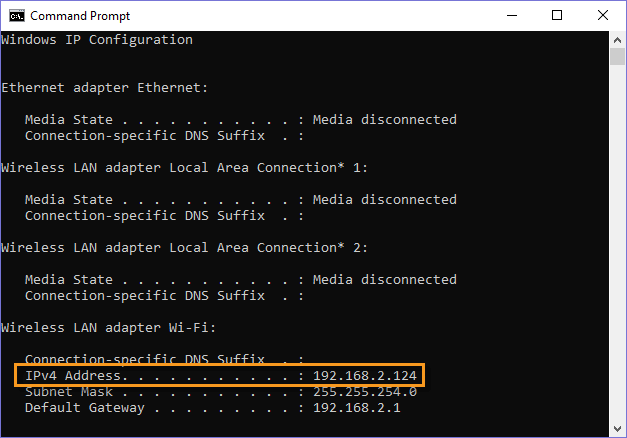
To find your IP address, open a Command Prompt window, type ipconfig, and hit Enter. The IP address is listed in the results that appear.
Step 3: Set the SDS Information to List the Display on SDS
There are two ways you can set the SDS configuration for Solstice: using Solstice Cloud, or using the Solstice Dashboard.
Solstice Cloud
-
Log into Solstice Cloud as an administrator.
-
Using the left sidebar, navigate to Manage > Pods > Templates > Discovery.
-
Edit an existing template, or create a new template.
-
Uncheck Broadcast display name on network and ensure that List display to SDS is checked.
-
In the SDS Host 1 field, enter the SDS host machine’s IP address.
-
Click Save.
-
If the template was already applied to your Pods, the saved settings are applied across those Pods. If the template was not already applied, you can batch apply it to your Pods by clicking Assign Pods and using the Pod Template Assignments table.
Solstice Dashboard
-
On the Windows machine used for Solstice Pod display management, open Solstice Dashboard.
-
Go to the SDS tab and click Configure Primary SDS Host.
-
In the box that appears, enter the IP address of the SDS host machine, then click Set. The SDS tab’s icon turns green to show a connection is made to this host.
-
In the list of your Solstice instances, select the Solstice displays you want to add to the SDS directory. You can use CTRL+click or SHIFT+click to select multiple displays.
-
Go to the Network tab.
-
In the Display Discovery section, uncheck Broadcast display name on network to disable broadcast discovery and select List display to Solstice Directory Service.
-
In the SDS Host 1 field, enter the SDS host machine’s IP address.
-
Click Apply.
Step 4: Configure SDS in Mersive Solstice Apps
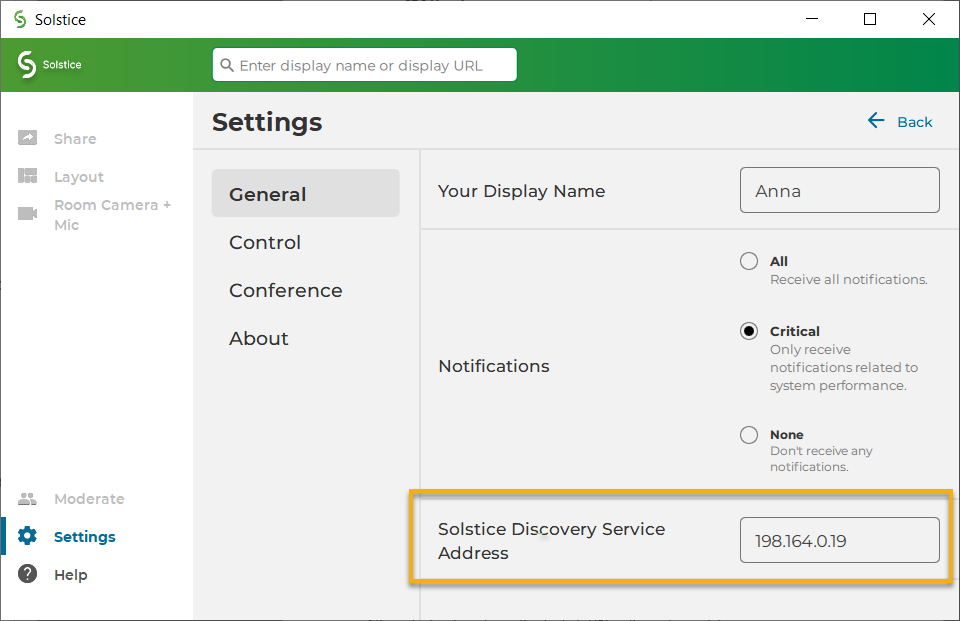
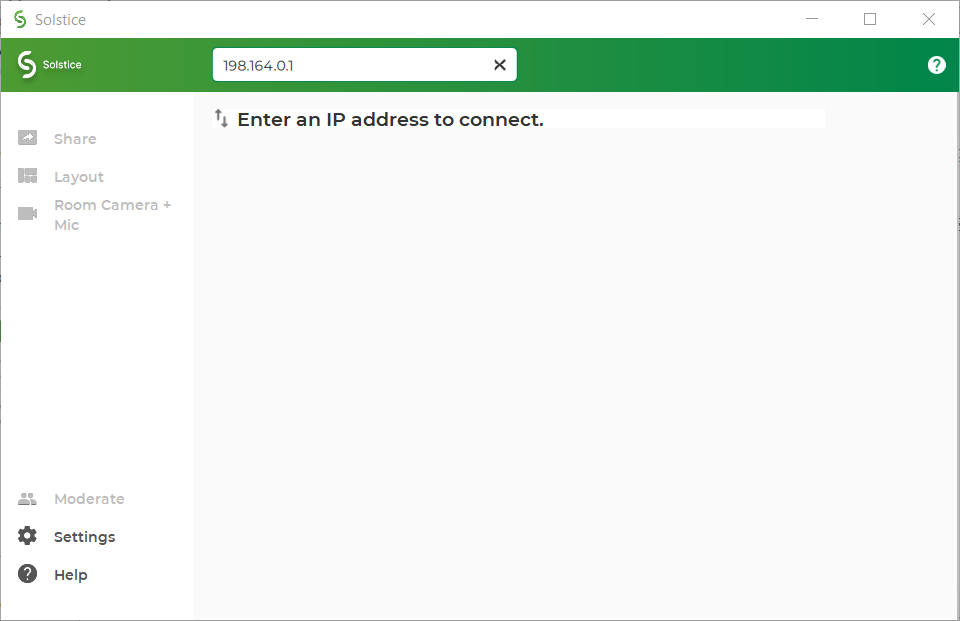
For users to see Solstice displays listed in the SDS directory, each user will need to do a one-time configuration to enter the SDS host IP address in their Solstice app’s Settings. After entering the SDS host, the user can see Solstice displays available for connection every time they open the app.
If centrally deploying the app to end-users using MSI or SCCM, SDS information can be pre-configured during the installation process. Learn more about MSI and SCCM installations.
Alternatively, if you have already applied SDS information to your Solstice Pods and displays, as described in step 3 above, SDS will be automatically configured in a user’s app when they connect to one of these displays by entering the display’s URL in the app’s search bar.
Related Topics
In this section
- Configure SDS to Auto-Restart (Recommended)It is recommended that customers who deploy SDS configure the Windows host machine to automatically restart the service if it ever stops running. Enabling the auto-restart of…
- SDS + DNS Resolution (Optional)The DNS administrator creates a ‘solsticecustomerinternal’ domain zone and adds an ‘A’ record which maps the name ‘solsticediscoveryservice.solsticecustomerinternal’ to the IP…
- Configure SDS for Multiple Subnets (Optional)If SDS is being used centrally to list Solstice displays across multiple locations, each of which has its own subnet, administrators can group Solstice displays by subnet which…