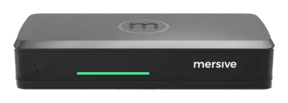
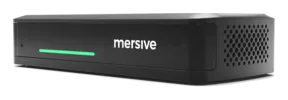
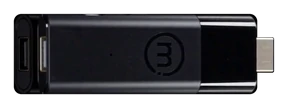
Digital Signage on Solstice
Solstice displays can be configured to show company branding and communications when not in use for meetings and collaboration sessions. Most digital signage feeds accessible via a web URL can be shown on one or more Solstice instances, allowing displays that would otherwise be idle to increase brand awareness, inform employees and visitors, and deliver important messaging. In this topic, you find technical information on using digital signage features in Solstice and guidance on configuring it for a variety of digital signage feeds.
When enabled, Digital Signage in Solstice defaults to Mersive’s Solstice Pod information feed at https://digitalsignage.mersive.com. URL-based digital signage feeds such as Tripleplay, Appspace, and Carousel, as well as Google Slides and YouTube feeds, are supported. Solstice digital signage also supports custom static welcome screens at a web URL.
In Solstice 5.5.2 and later, digital signage functionality can be used to show a custom webpage in place of the Solstice welcome screen when a Solstice display is not in use for content sharing. See Solstice Dynamic Digital Signage for examples and more information.
Requirements
-
Solstice Pods with Enterprise Edition Licenses
-
Solstice version 4.0 or later, with Solstice 5.5.2 strongly recommended
-
Source URL content must be compatible with Android’s Chromium-based WebView (Chromium version 94.0.4606.71).
- Test your URL in Solstice and verify that it is playing well on a single display before rolling out to other Solstice Pods and/or leaving signage enabled on the Pod.
Layout Options
Solstice digital signage provides three layout modes: Full Screen, Footer Only, and Footer + Overlay. Footer Only and Footer + Overlay modes render the source content in an HTML iFrame. Many content sources work in all modes without an issue. However, an embedded URL must be generated for use in an iFrame to use sources such as Google Slides and YouTube for digital signage in Footer Only and Footer + Overlay modes.
Try Full Screen mode if you are having issues in Footer Only and Footer + Overlay modes. See how to set digital signage configuration options in Solstice Cloud and Solstice Dashboard.
How to find the embedded URL that appears successfully in an iFrame for Solstice digital signage in footer/overlay modes from common sources:
-
Google Slides - When publishing the Google Slides presentation to the web, select the Embed option. This creates HTML code with the presentation URL within an iFrame. Copy the URL from this code to enter in the Solstice digital signage configuration.
-
YouTube - View the Embed code for a video from sharing options. Copy the embed URL from the “src” attribute to enter in the Solstice digital signage configuration. Add URL parameters as needed. Turning on
autoplayandloopoptions and turning offcontrolsis recommended for digital signage. Find more parameter details in Google documentation.The following URL shows an embed link with the parameters noted above, as well as an optional
playlistparameter to play more than one YouTube video:https://www.youtube.com/embed/<VIDEO_ID>?playlist=<VIDEO_ID>, <Additional_VIDEO_IDs>&loop=1&autoplay=1&controls=0
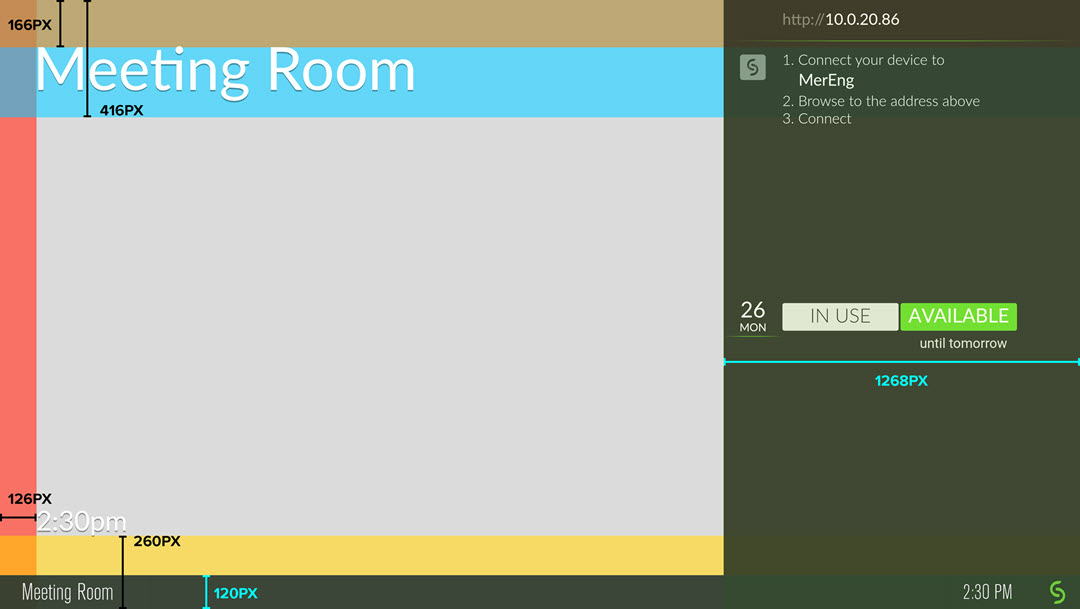
The Solstice screen measures 1920x1080 pixels at 1080p and 3840x2160 at 4K. Refer to the pixel maps if you are using the Solstice footer and/or sidebar overlay to ensure Solstice elements do not overlap important aspects of custom background images (.png or .jpg) or digital signage.
See Solstice 1080p screen pixel map
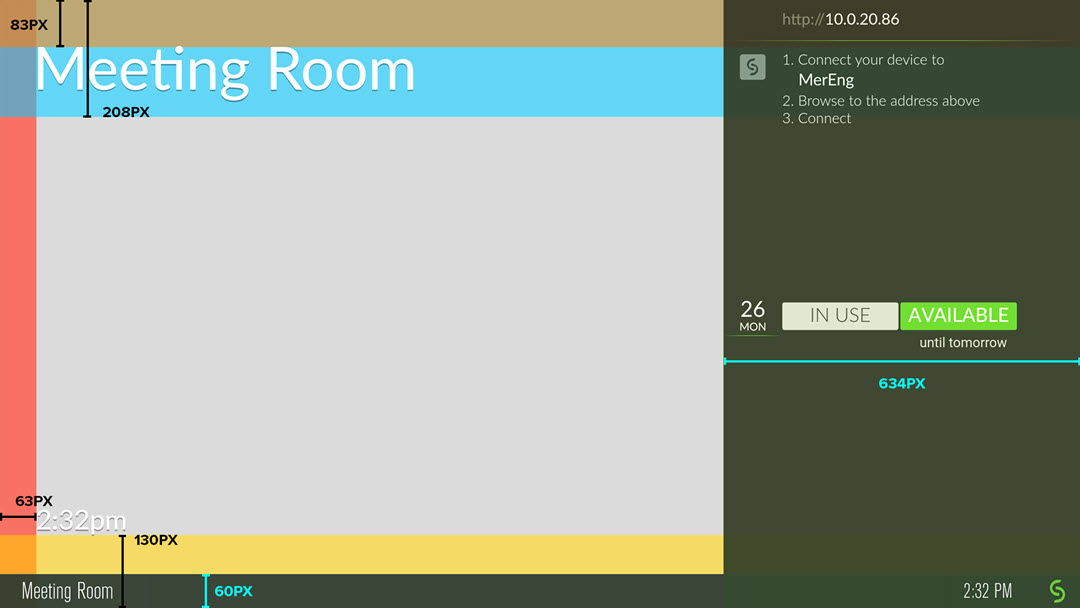
See Solstice 4K screen pixel map
Supported Authentication Methods
Some signage systems provide mechanisms to identify the device with which it is communicating. This can be helpful to tailor content to groups of devices, to prevent unauthorized access to the feed content, and for analytics.
The Solstice digital signage playback supports the following authentication methods:
| Scheme | Description |
|---|---|
| Open | The signage URL is not protected by an authentication scheme. The content will load in any network-connected browser for any user. |
| URL-Based | The signage URL is protected by a URL-based parameter. In this case, the content will only load when the URL parameter is provided. |
| Cookie or Local Storage | The signage URL loads an initial page that presents a unique identifier for the Pod. The signage administrator will record the code and enter it into the signage provider’s device-management console. After this process is complete, a cookie or other browser-based persistent mechanism, like local storage, is used to store the identification information. |
| MAC Address | Primarily relevant to an on-premises signage system, the administratorcan configure the Pod MAC address as part of the device configuration in the management console. This process may be automated by the signage system; however, the signage server and Solstice Pod must typically be on the same VLAN. |
How To
Configure Digital Signage in Solstice Cloud
-
Log in to Solstice Cloud.
-
Go to Manage > Pods and click the name of the Pod you want to show digital signage content on.
-
Scroll down and click the down arrow to expand the Digital Signage settings.
-
Check Enable Digital Signage and select a display mode:
-
Full Screen: Signage content is displayed full screen on the Solstice display. No Solstice connection information is shown — users must know Solstice display name or IP address to connect.
-
Footer Only: Only the Solstice welcome screen footer is shown over the signage content. Users familiar with Solstice can see the Solstice display name and/or IP address in the footer area to connect and share content. The source URL must be viewable within an IFrame.
-
Footer + Overlay: The Solstice welcome screen footer and sidebar overlay are shown on top of digital signage to provide users with full connection instructions and/or room calendar information. The source URL must be viewable within an IFrame.
-
-
In Source URL, enter the URL for the digital signage feed to be displayed.
-
In Start After, select the amount of time after which you want the digital signage feed to start playing.
-
Click Save as Unassigned, or you can Save as New Template to create a digital signage template you can apply to multiple Pods.
Configure Digital Signage in Solstice Dashboard
-
In Solstice Dashboard, select the Pod(s) you want to show digital signage on from the list of Your Solstice Instances.
-
Go to the Digital Signage tab.
-
Check Enable to interact with the digital signage settings.
-
Choose a digital signage display mode from the list of options:
-
Full Screen: Signage content is displayed full screen on the Solstice display. No Solstice connection information is shown — users must know Solstice display name or IP address to connect.
-
Footer Only: Only the Solstice welcome screen footer is shown over the signage content. Users familiar with Solstice can see the Solstice display name and/or IP address in the footer area to connect and share content. The source URL must be viewable within an IFrame.
-
Footer + Overlay: The Solstice welcome screen footer and sidebar overlay are shown on top of digital signage to provide users with full connection instructions and/or room calendar information. The source URL must be viewable within an IFrame.
-
-
In the Source URL field, enter the URL of the digital signage feed or web content to be displayed between Solstice sessions.
-
In the Start After menu, select the amount of time after which you want the digital signage feed to start playing.
-
Click Apply.
Integrate a 3rd-Party Digital Signage Partner Feed
Follow the links below for specific directions for integrating digital signage feeds from one of our digital signage partners:
Validate the Digital Signage Feed
-
Physically go to the location of the Solstice Pod where you enabled signage.
-
Confirm the signage feed is visible.
-
Connect to a Solstice Pod and the room camera and mic, then share a piece of content.
-
Disconnect and confirm the signage feed automatically reappears, plays the entire feed, and restarts the feed from the beginning.
Exit Digital Signage Mode
If you need to exit digital signage mode to access the Pod’s local configuration panel, you can do so by plugging a USB mouse into the Pod and long-clicking with the left mouse button.
Video Formats for Signage Providers
Video content is supported if it is in one of the following formats and configured to auto-start. The maximum video quality is 1080p at 60 frames per second and up to 20 Mbps.
-
H.264 Baseline Profile Level 3
-
VP8
-
VP9