Room Intelligence Template
The Room Intelligence template page controls system preferences that enable an intuitive experience with any video conferencing app and allows Solstice Pods to sense a conference room’s status.
How To
Access This Page
- From the Solstice Cloud Home page, in the left sidebar navigation panel, click Manage > Templates > Room Intelligence.
Create a New Room Intelligence Template
-
Click Create New Room Intelligence Template.
-
Enter the Template Name. For example, you could name the template by location (London Office) or descriptively (Occupancy On).
-
Click Save.
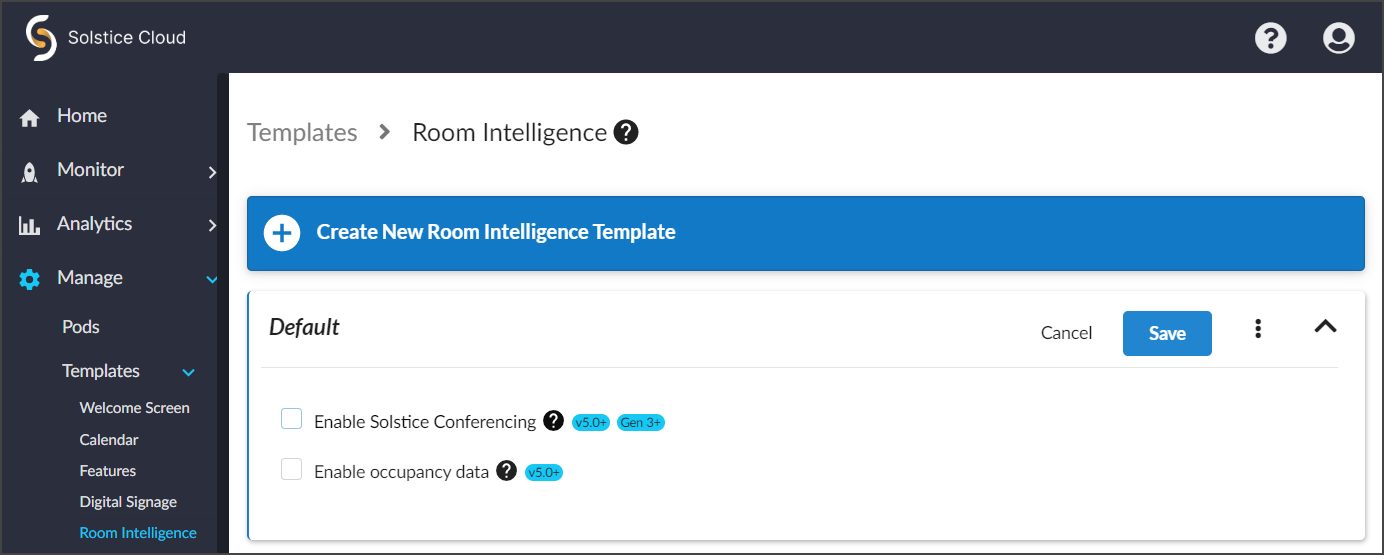
Enable Solstice Conferencing
When enabled, integrates any conferencing solution installed on the host’s laptop (Zoom, Teams, GoToMeeting, etc.) in Solstice-enabled rooms to allow flexibility and support for remote attendees
-
Select Enable Solstice Conferencing.
-
Click Save.
For more information about connecting Solstice to video conferences, click here.
Enable Occupancy Data
When enabled, Solstice can use any USB camera attached to the back of a Pod to detect whether a meeting space is occupied. Occupancy data can then be used as a trigger for such actions as suspending and reactivating the Solstice display (see Power Management Template for more details). This feature is disabled by default.
-
Select Enable occupancy data.
-
Click Save.
For more information about occupancy data, click here.
Assign the Template to Pods
-
In the left sidebar menu of Solstice Cloud, click Manage > Pods.
The Pod Template Assignments table displays. This table is used to apply templates across your deployment. You can apply a template to multiple Pods at once.
-
Select the Pods you want to apply the template to. You can select each Pod’s checkbox individually, or select the checkbox in the header row of the table to select all Pods showing in the table.
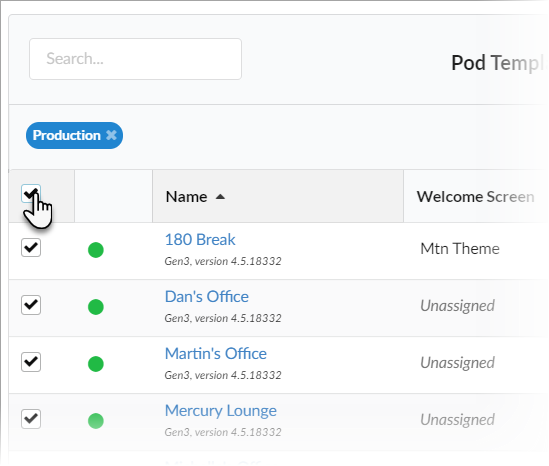
-
For each template you want to apply, go to the corresponding template type column (e.g., Welcome Screen). You can view different groups of templates by selecting a template category in the upper right corner of the table.
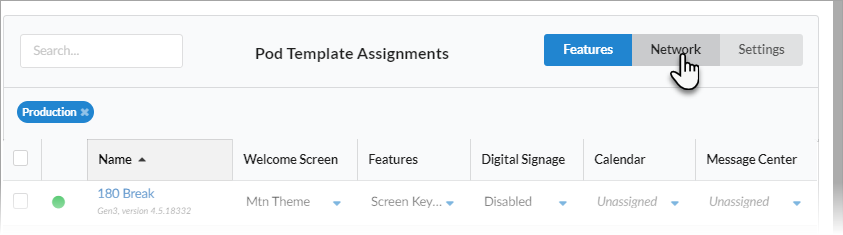
-
Select the template with the desired configuration from the list in the appropriate column for one of the selected Pods. This applies the template to all the selected Pods in the table.
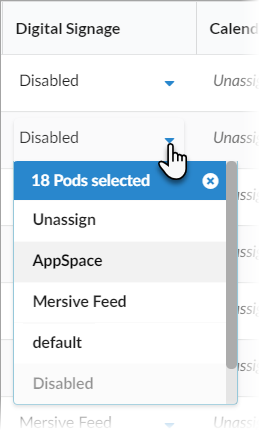
-
Click Confirm when to confirm applying the selected template to all selected Pods.
-
As changes are being applied, the pending changes
 icon appears next to the template(s) being applied. After the changes are applied, the Pod’s normal status resumes.
-
If a Pod is offline, any changes made are applied when the Pod comes back online.
-
If a settings change in a Cloud template causes Solstice Cloud to be unable to connect to the Pod, the Pod’s settings for that template is rolled back to their previous configuration. A failure icon
 shows that the template could not be applied.
-
-
If a template you applied has any unique-to-Pod settings that need to be applied each Pod individually, a pop-up pane appears prompting you to enter the needed information for each affected Pod. After you complete all of the settings screens, click Save & Close.
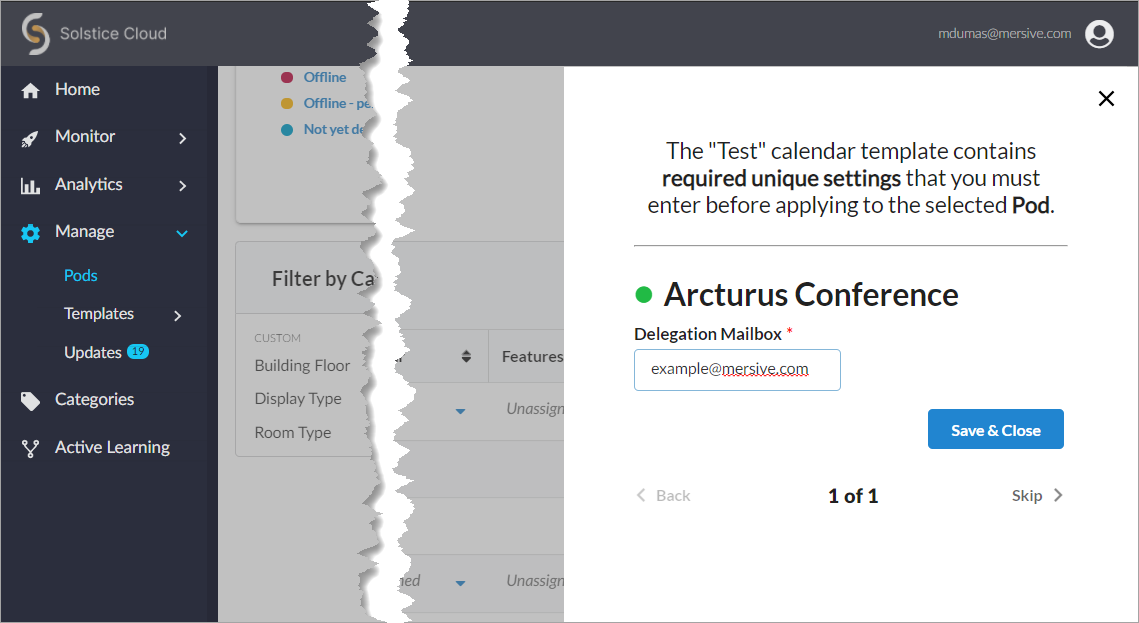
Next Topic
Occupancy Sensing
When a USB camera is attached to the back of a Pod running Solstice 5.0 or later, Solstice can use the camera as an occupancy sensor. When enabled, Solstice can detect when a room is occupied, enabling automatic display monitor power management in Solstice 5.1 and later. This occupancy data is also collected in Solstice Cloud alongside other utilization data.
This feature can be used when any USB camera is plugged into the Pod. If the Pod is also enabled for Solstice video conferencing, occupancy data is not collected while a video conference is taking place. As a note, the camera quality, camera resolution, and room layout may factor into the accuracy of room occupancy reporting.